


Participant
Aug 4, 2021 9:58 PM UTC
Released

P: Color Distortion When Opening Images saved from Facebook in Photoshop 26.5

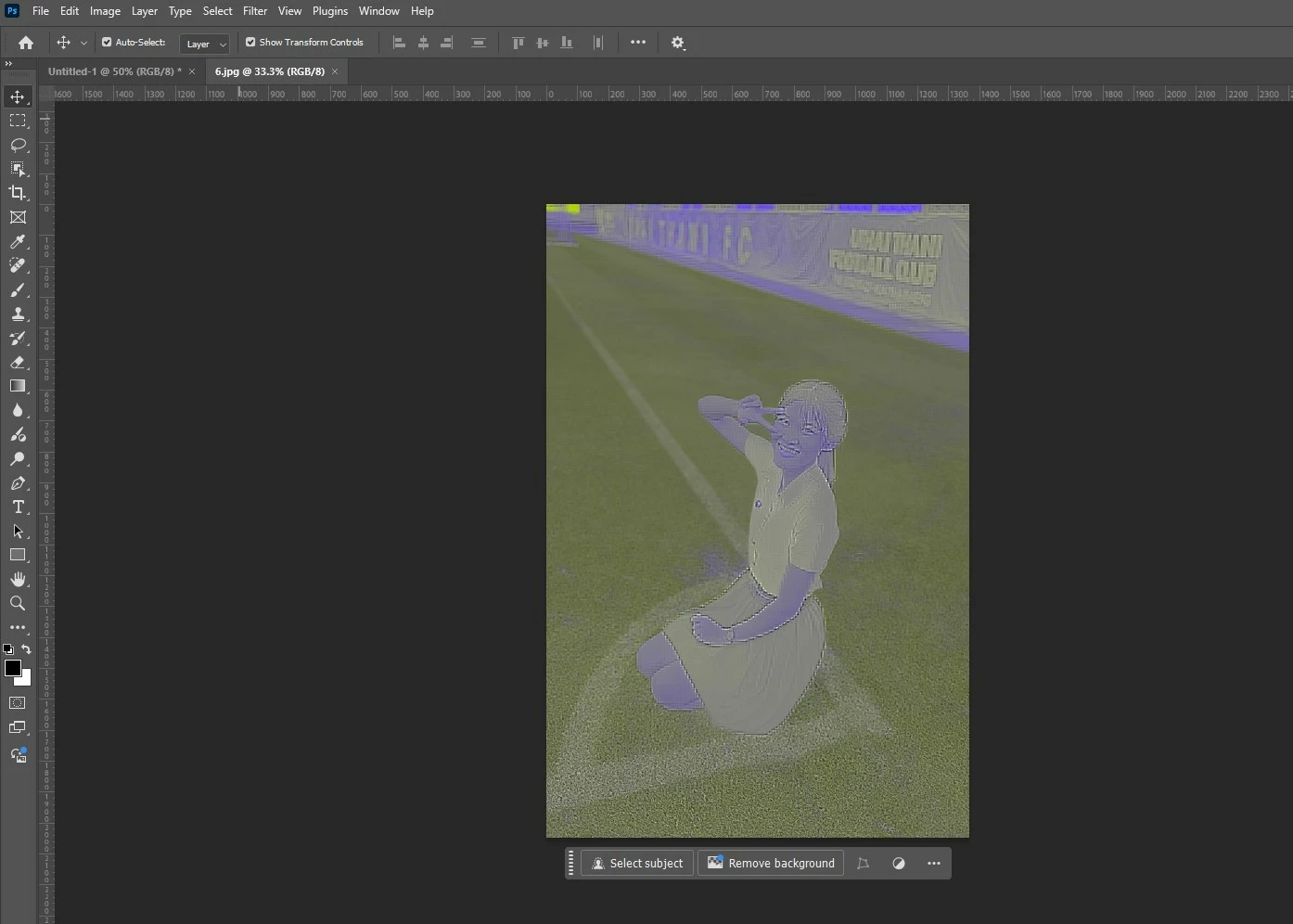
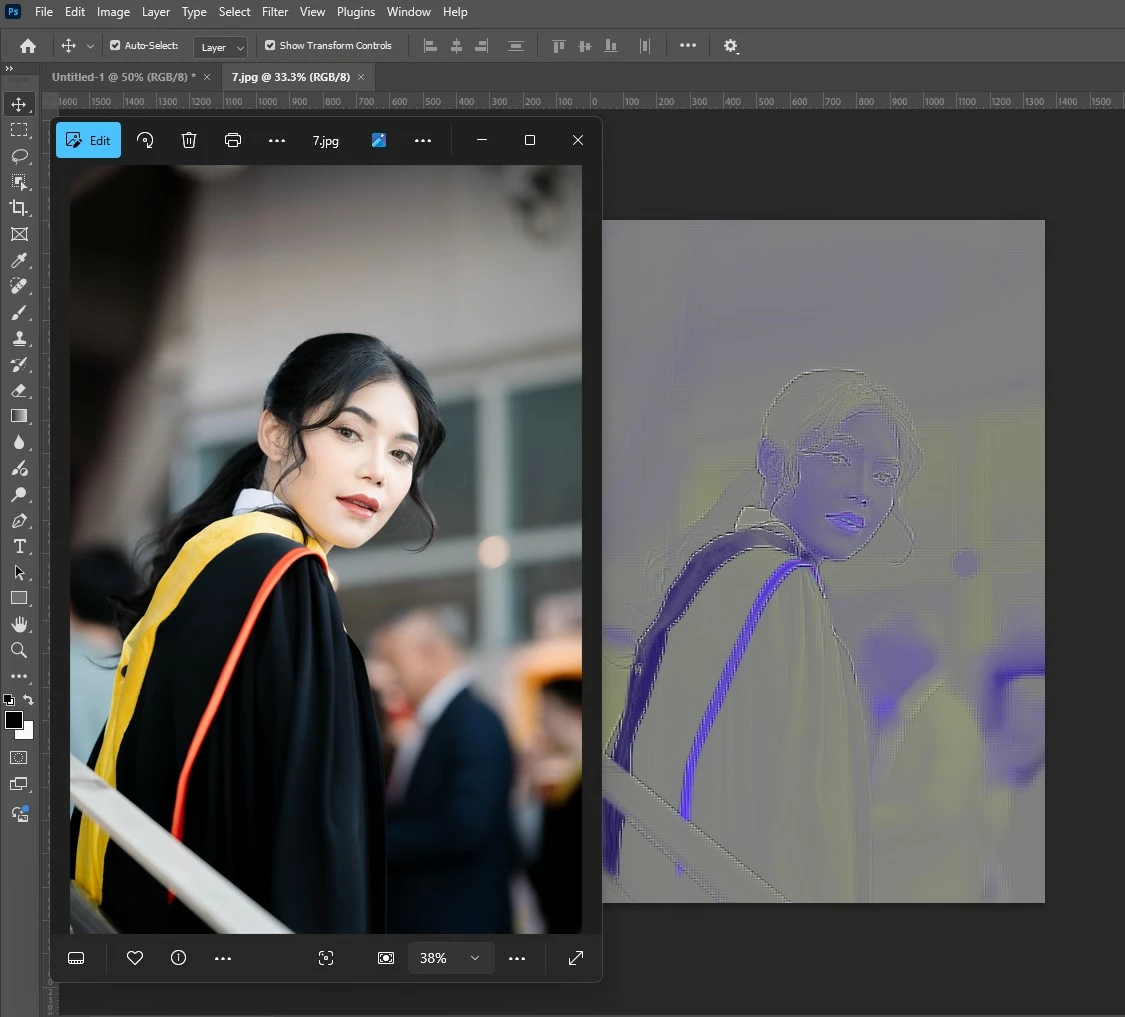
After updating to the latest version of Photoshop, we encountered an issue where images saved from Facebook from the previous year display color distortions when opened in the program. However, images saved recently from Facebook open without any issues and display correctly.


This topic is closed to new replies. Start a new post to keep the conversation going.
Pinned Reply By Srishti Bali

This issue has been fixed in version 27.2 and above.

246 replies

Per Berntsen
Community Expert
Community Expert
Apr 2, 2025 5:50 PM UTC

@Chanitpon370485241xu8 

@Brandilio_VA 


Please post sample jgps here so we can examine them.

Translate
Participant
Apr 2, 2025 8:12 PM UTC

It's just images from Facebook that are causing issues.  Do you want us to just repost images downloaded from Facebook?  You can just grab any image uploaded to Adobe's facebook recently and see it for yourself, if you're curious.  For example, this image that promotes turbo-actress Awkwafina.  If you download it and try to bring it into an up-to-date version of Photoshop, it'll do the purple-ish green-ish distortion.

As far as I can see, it's exclusively happening with Facebook images.

Translate
Per Berntsen
Community Expert
Community Expert
Apr 2, 2025 8:53 PM UTC

The image displays correctly in Photoshop 26.4.1, and reports the embedded profile to be Adobe RGB.

It also looks fine in Lightroom Classic 14.2.

After updating to PS 26.5, the image displays as you describe, and the embedded profile is now reported as uRGB, which apparently is a variant of sRGB created by Meta.

Converting to sRGB or Adobe RGB does not fix it. I have no idea what's going on here.

@CMass Can you pass this on to the Photoshop team please?


Translate
Participant
Apr 2, 2025 3:40 PM UTC

I'm having this issue as well.  It's an issue with the way Photoshop reads facebook images.  This is entirely on Adobe, and there's little you can do about it.

I've had success with running images through media converters online (the kinds that convert annoying formats like AVIF into something actually useable) and turning them into .png files.  But yeah, this is for Adobe to fix.  There's nothing you can currently do.  And despite what Adobe Support will tell you, the person on the other end who has 8 years of photoshop experince and has dealt with this issue several times is lying about both of those things.

Translate
MassC
Legend
Mar 28, 2025 6:56 PM UTC

Hey @Chanitpon370485241xu8, 

Can you share what your color space is? You can find that by going to Edit > Convert to Profile and looking at the Source Space. Does it do this only to these images? 


^CM

Translate
Participant
Feb 19, 2025 7:03 AM UTC

 i dont know why its coming like this for few images , i was changed the location and i importd in the photoshop but same lines are coming when imported wht we do , and i tried redownload from the facebook imaesd but no use same priblem comming


Translate
Sameer K
Community Manager
Community Manager
Feb 19, 2025 3:11 PM UTC

Hey, @Venkata38425314b1l0. Welcome to the Photoshop Community. I'll move your response to discussions for now. I'll need more info to help you figure this out. Please share the system info from Photoshop Help > System info > Copy and paste into a text document > upload and attach here. 


Does this happen with the specific documents? Is this image stored on an external drive or in a folder associated with cloud backup services? Working through a network or external drive is unpredictable & is not recommended. Head here to learn more: https://adobe.ly/3A2G2zK


Please share if you find a repeatable pattern or series of steps along with a sample JPEG/PSD file with me via direct message. 


Thanks!
Sameer K

(Type '@' and type my name to mention me when you reply)

Translate
Participant
Feb 14, 2025 3:20 PM UTC

Version: Mac ver 26.3.1
macOS 15.3.1

macBook Air M3 16/512... Sheesh, i'm paying for this!

Translate
Sameer K
Community Manager
Community Manager
Feb 14, 2025 4:19 PM UTC

Hey, @faiv. Welcome to the Photoshop Community. I'll move your response to discussions for now. I'll need more info to help you figure this out. Please share the system info from Photoshop Help > System info > Copy and paste into a text document > upload and attach here. 


Does this happen with the specific documents? Is this image stored on an external drive or in a folder associated with cloud backup services? Working through a network or external drive is unpredictable & is not recommended. Head here to learn more: https://adobe.ly/3A2G2zK


Please share if you find a repeatable pattern or series of steps along with a sample JPEG/PSD file with me via direct message. 


Thanks!
Sameer K

(Type '@' and type my name to mention me when you reply)

Translate
Participant
Feb 14, 2025 5:59 PM UTC

@Sameer K
These are just JPEGS, on Mac desktop. Been doing this for over 20 years…
Text doc Sys Info attached…


James Faivre
 Certified Support Professional

Translate
Participant
Aug 4, 2021 9:58 PM UTC

Hello all,


Please have a look at the attached example. I downloaded movie posters all from the same site but some show this issue when opening them in Photoshop and some don't.


Link to the image: https://www.themoviedb.org/t/p/original/Agc6lw8pb6BIGVeguvdjDT0p9Mb.jpg


Does anyone know why this is happening and/or how this could be solved? Thanks a lot in advance for your help!

Translate
Myra Ferguson
Community Expert
Community Expert
Aug 4, 2021 10:21 PM UTC

You could try the solution for a similar known issue for Premiere Pro or Premiere Rush:

Green and pink video in Premiere Pro or Premiere Rush

Translate
