Participant
November 24, 2016
Answered

Speed of animation

  • November 24, 2016
  • 2 replies
  • 749 views

Hi,

There is three keyfreames: first in start, second in finish, third in start again.

I wanna manage the speed of this animation as here http://easings.net/ru

it possible in Photoshop?

51c61ec4458d4e9c982beab768559073.png

This topic has been closed for replies.
Correct answer JJMack

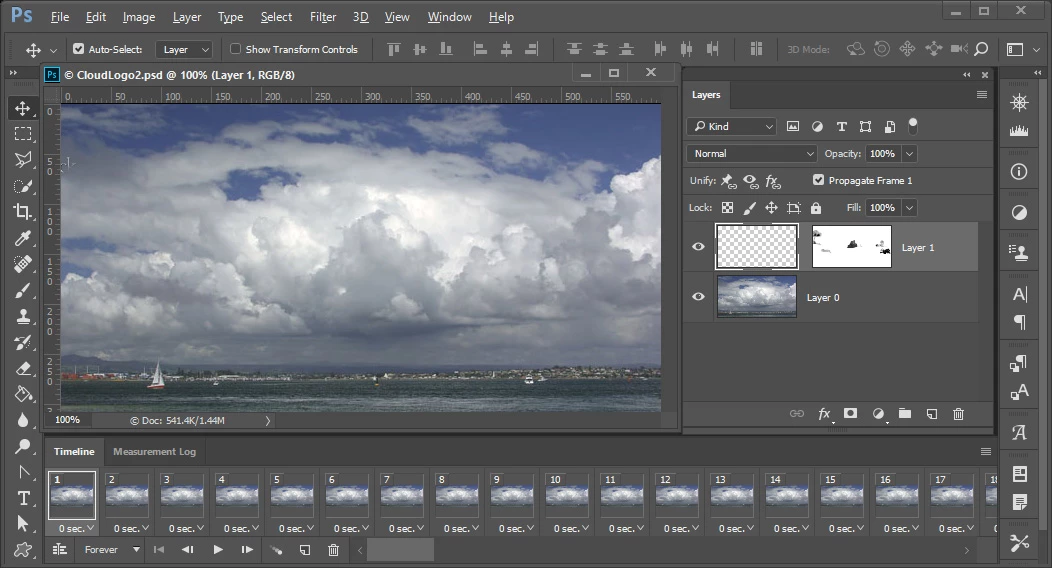
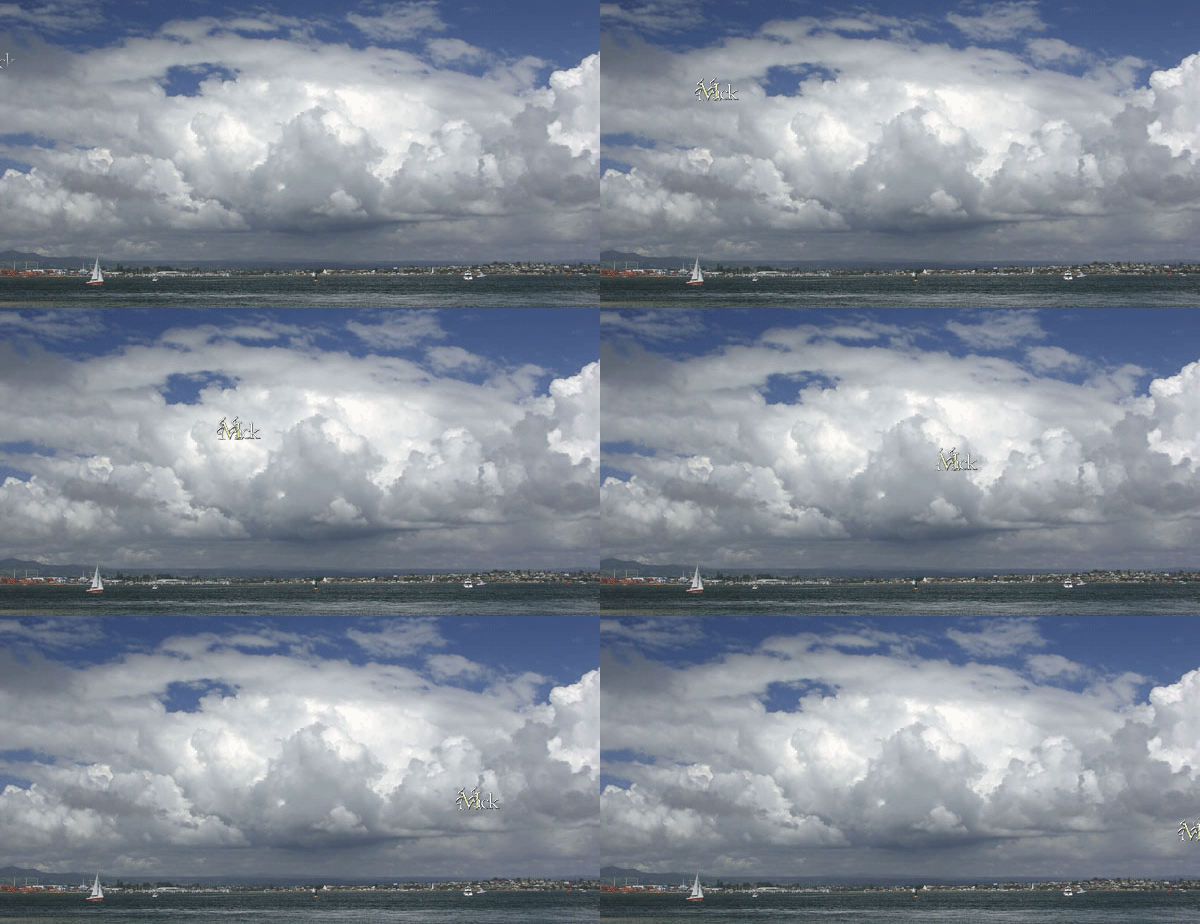
I would think all you need do is to shorten the duration on your animation then set your key frames.   Make it 2.5 seconds not 5 seconds. Or you could edit the GIF you saved and delete every other frame.  I'll try that for you. Could also have created a frame animation with your two layers. Create the first and last frames and use tween to generate the frames between them

Started with 102 went to 51 then down to 26

2 replies

Silkrooster
Legend
November 25, 2016

With keyframes all you need to do is move them closer together to make it faster and further apart to slow it down. The final keyframe (far right) determines the length of the animation. The middle keyframe sets your speed for ease in and ease out. The more you move it to the left, you speed up the beginning of the animation but slow down the ending. Moving to the right does the opposite.

In reality, each keyframe is the location of the object at a specific time. Any keyframe can be deleted to start over, just be aware that the object may jump in location if there is no keyframe to state it should be at that location.

You can have two or more keyframes to create the animation. If the object is not where you want it at a specific time, just move the playhead to that time and move the object then create the keyframe. From then on, it will be there at that time.

JJMack
Community Expert
JJMackCommunity ExpertCorrect answer
Community Expert
November 25, 2016

I would think all you need do is to shorten the duration on your animation then set your key frames.   Make it 2.5 seconds not 5 seconds. Or you could edit the GIF you saved and delete every other frame.  I'll try that for you. Could also have created a frame animation with your two layers. Create the first and last frames and use tween to generate the frames between them

Started with 102 went to 51 then down to 26

JJMack