Answered
System Cannot find the path specified
System Cannot find the path specified (Save for Web, CTR+Shift+Alt+S)
All CC Products are up to date, also direct saving it on desktop doesn't work
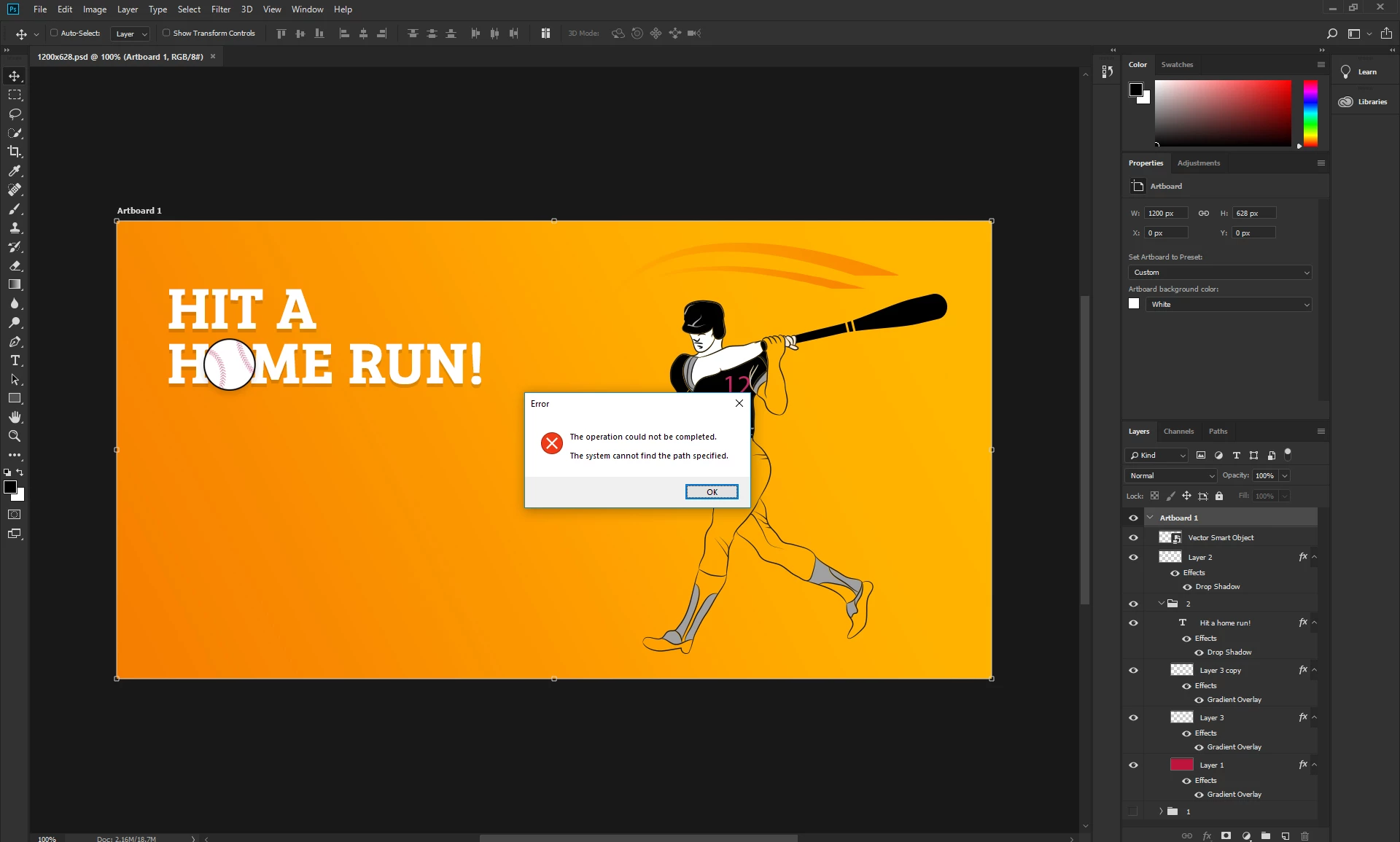

System Cannot find the path specified (Save for Web, CTR+Shift+Alt+S)
All CC Products are up to date, also direct saving it on desktop doesn't work
Hi
We are not Adobe employees, we just volunteer our time to help forum members like yourself
You can contact Adobe Customer Support here
After spending hours on the phone with Adobe trying to get my Save for the Web feature working I finally found the answer. It was a problem with Windows Defender. I have to go to Windows Security/Virus & Threat Protection/Virus & Threat Protection Settings/Controlled Folder Access. Click on Manage Controlled Folder Access. From here you can add the application you want to allow through or just turn off the controlled access. This also fixed my Lightroom error message regarding not being able to find the catalog. I hope this helps someone.
Already have an account? Login
No account yet? Create an account
Enter your E-mail address. We'll send you an e-mail with instructions to reset your password.


 AdChoices