Known Participant
January 7, 2022
Answered

The guides are not displayed in the Photoshop 23.1.0 update

  • January 7, 2022
  • 3 replies
  • 2057 views

The guides are not displayed in the Photoshop 23.1.0 update, being activated.
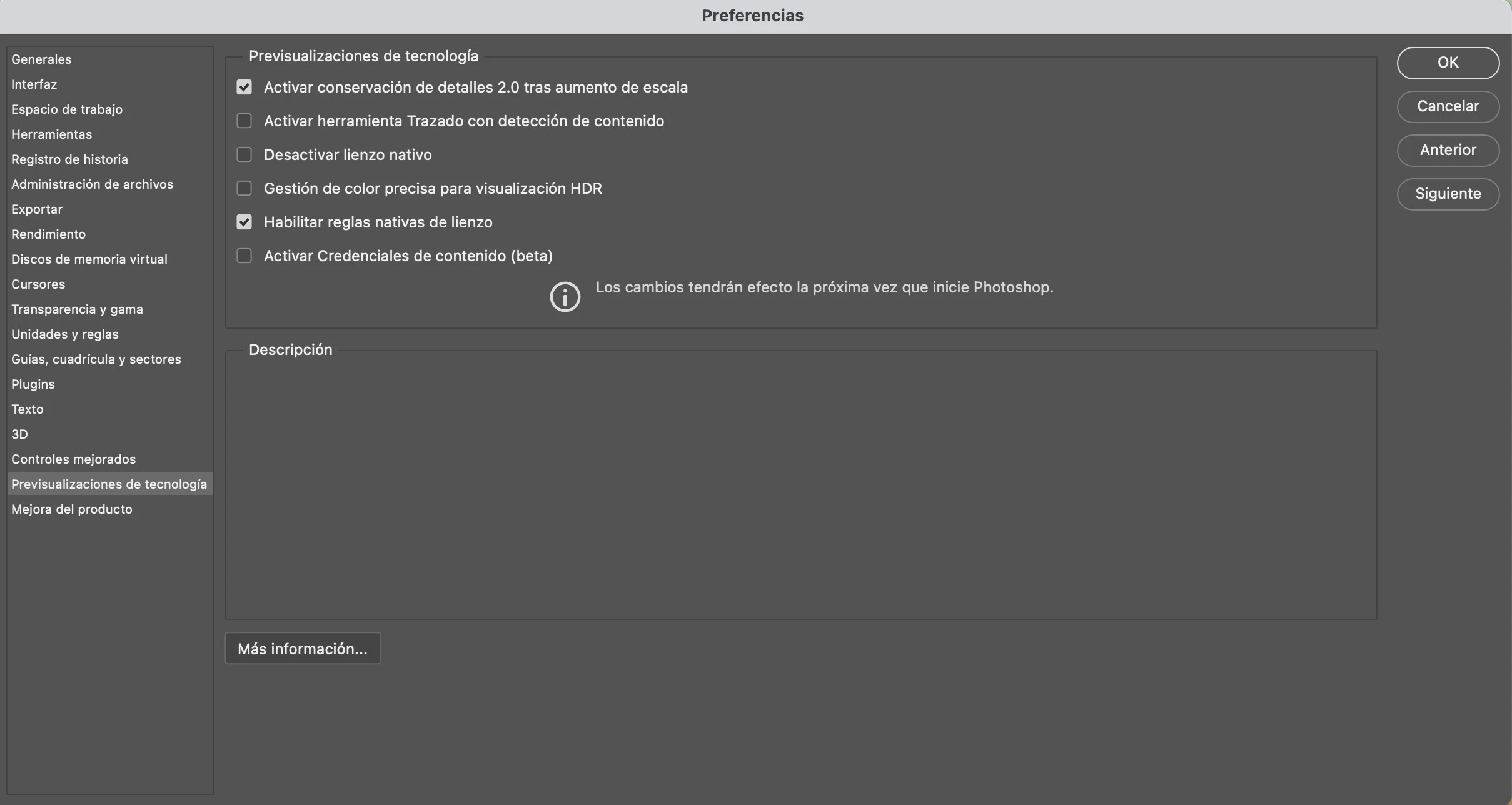
I have the native canvas disabled.
Thanks



This topic has been closed for replies.
Correct answer J453

Are they selected in the View > Show Menu? 
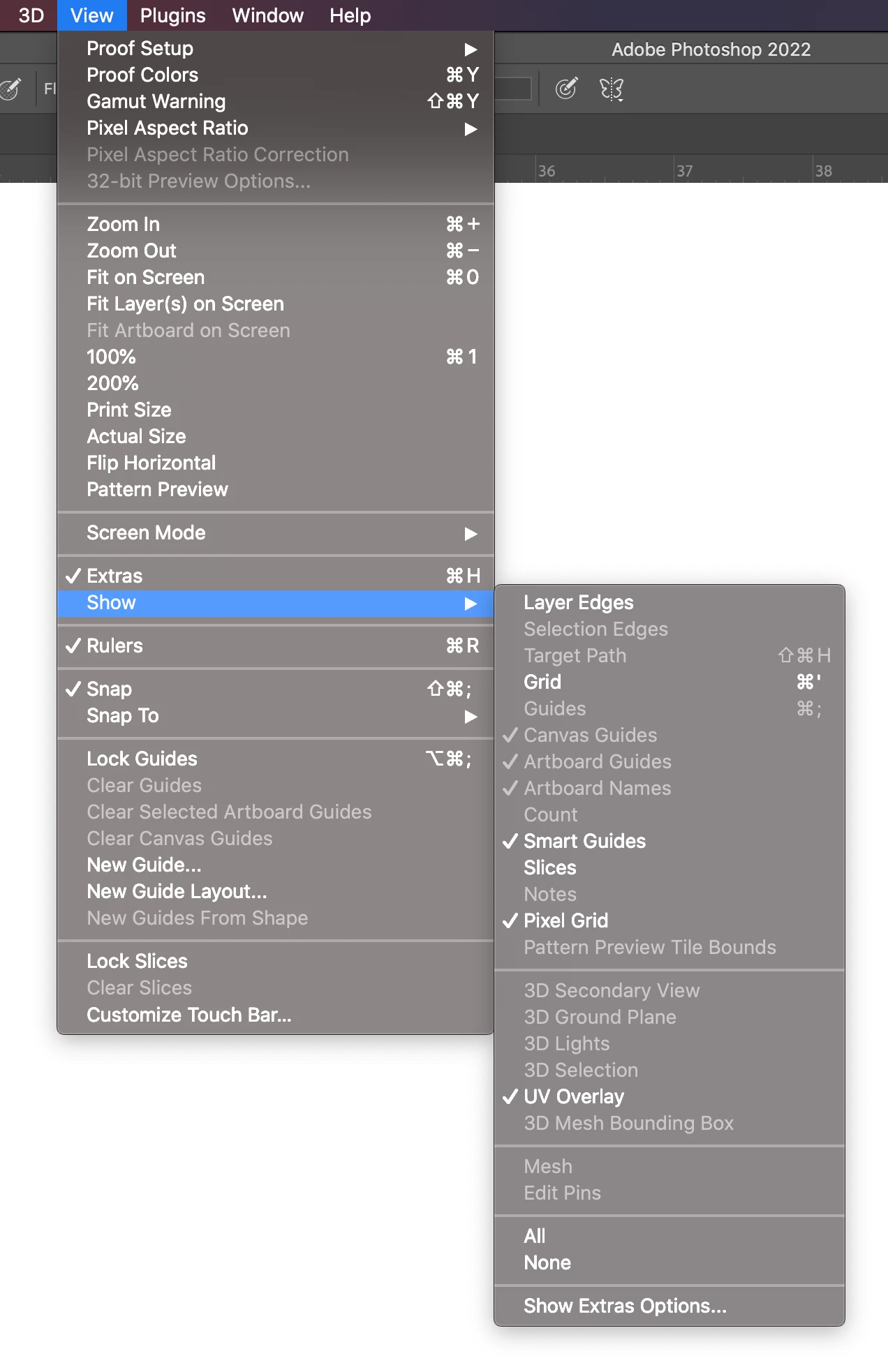
If they are checked, let's make sure there's no stale setting which may be causing an issue:


Restore your preferences using this manual method:
https://helpx.adobe.com/photoshop/using/preferences.html#Manually
Does it work correctly? If that doesn't solve it, you can quit Photoshop and put the Settings folder back.

3 replies

Participant
July 8, 2022

Running Photoshop 23.4.1 - MacBook Pro -  Catalina 10.15.1


PROBLEM IN PANEL w/ GUIDES not orientating correctly:  Image > Canvas Size...


When increasing canvas size, all old versions of Photoshop kept guides in place, centered.  That was great!  Please keep this!


Now, the guides automatically shift to the top & left of the new canvas when I increase canvas size.  I need guides to remain in the center of the page.


I have orientation in canvas size panel set ("anchored") to  the center, so new document bounds increase around the original center.  However, the guides shift up & to the left.  I've tried clicking on the center of the "anchor"  canvas image in  size panel to hopefully fix this, but it does not.  It does not matter where I anchor the image to, the guides always shift up to the top left.  


Very annoying / work-driver-- and finding guides are not snapping (even when I have snap to guides checked).

Participant
July 8, 2022

I connected to VPN, I restarted Photoshop & now it works as old versions, keeping guides in center... weird!  Maybe there was an update today?   Trying to set this post to "resolve" or delete it but can't find way to do that.  Please close this issue.  Thanks, Adobe!

Known Participant
January 7, 2022

Thanks,

if the display option is activated,

I have managed to solve it by deactivating native canvas, now if I visualize the guides perfectly.

Thanks,

Greetings,
Tenllado Studio


Mark.Dahm
Community Manager
Community Manager
January 14, 2022

@TENLLADOSTUDIO ,


If you can re-activate the native canvas, does this problem still happen, even with Jeff's recommendations for Grid Viewing? Want to see if we have a real bug here to look into. If you do have the issue, it would be helpful if you could send along your System Info (which you can get from inside Photoshop's Help menu).

J453Correct answer
Legend
January 7, 2022

Are they selected in the View > Show Menu? 

If they are checked, let's make sure there's no stale setting which may be causing an issue:


Restore your preferences using this manual method:
https://helpx.adobe.com/photoshop/using/preferences.html#Manually
Does it work correctly? If that doesn't solve it, you can quit Photoshop and put the Settings folder back.