Exit
  • Global community
    • Language:
      • Deutsch
      • English
      • Español
      • Français
      • Português
  • 日本語コミュニティ
  • 한국 커뮤니티
0

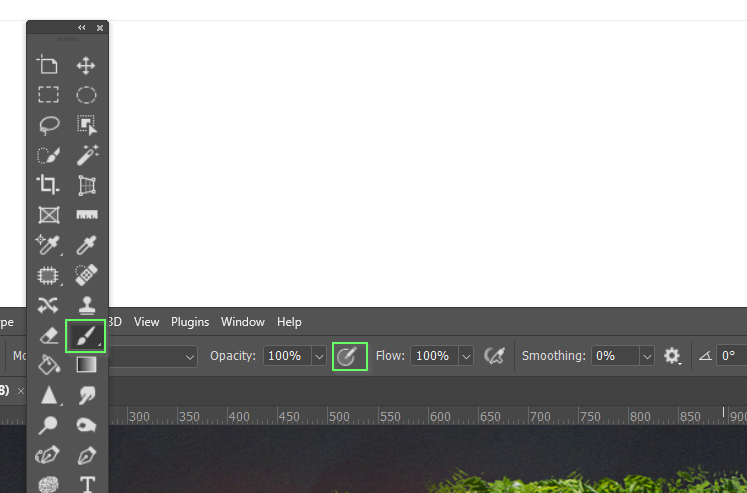
There is a bullseye/target icon on options bar for the Photoshop v22 Sharpen tool. What does it do?

Community Beginner ,
Sep 11, 2021 Sep 11, 2021

Icon looks like a target or bullseye with a pencil pointing at the center. Photo included. When clicked, the bullseye icon toggles on or off but I have no clue what it does. In preferences, I unchecked Enable Narrow Options Bar in the hope the bullseye icon would be replaced with text but that didn't work. I've done a lot of internet searches but haven't found any explanation. Does anyone know what happens when this icon is enabled? Also, does anyone know of a comprehensive list of all options bar icons so when I choose a tool, I'll know what everything on the tool's options bar does? Thanks!

TOPICS
Windows
4.1K
Translate
Report
Community guidelines
Be kind and respectful, give credit to the original source of content, and search for duplicates before posting. Learn more
community guidelines

correct answers 1 Correct answer

Community Expert , Sep 11, 2021 Sep 11, 2021

Even as an experienced user, I like to have Show Tooltips turned on in Preferences.
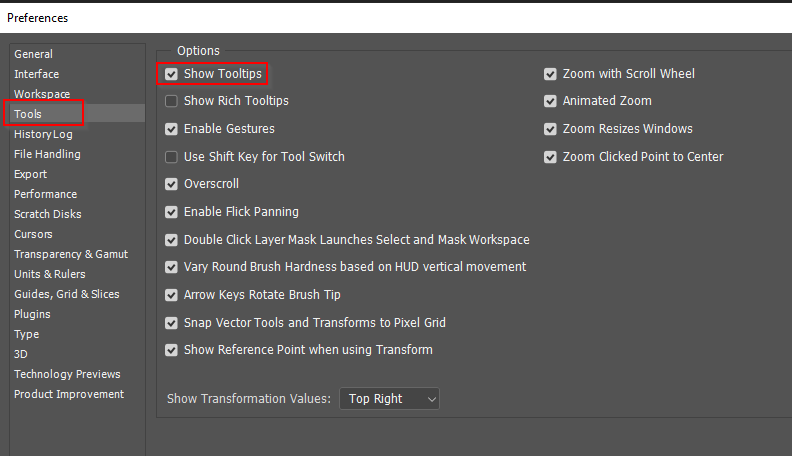
image.png


This lets us hover over icons to see a label describing what that icon does.
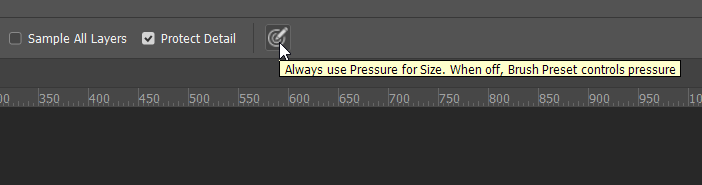
image.png

Another really useful tool is Photoshop's Discover tool (click on the search icon in top right corner)

It doesn't help in this particular case, but it will find filters, tools and functions you can't remember the location of, and point you to tips and tutorials.  It can be a reall time saver.
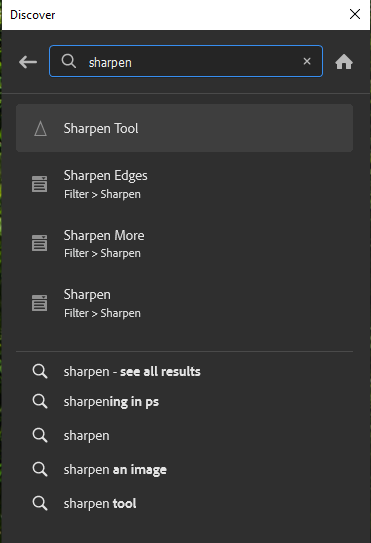
image.png


Translate
Adobe
Community Expert ,
Sep 11, 2021 Sep 11, 2021

Even as an experienced user, I like to have Show Tooltips turned on in Preferences.

image.png


This lets us hover over icons to see a label describing what that icon does.

image.png

Another really useful tool is Photoshop's Discover tool (click on the search icon in top right corner)

It doesn't help in this particular case, but it will find filters, tools and functions you can't remember the location of, and point you to tips and tutorials.  It can be a reall time saver.

image.png


Translate
Report
Community guidelines
Be kind and respectful, give credit to the original source of content, and search for duplicates before posting. Learn more
community guidelines
Community Expert ,
Sep 11, 2021 Sep 11, 2021

I should have added that that is a standard preset icon, and will appear in the Options bar with any tool that uses brush presets.  In fact I have a feeling thhat not all users appreciate that most tools allow you to change and/or modify the preset they use.  Eraser, clone, blur, dodge, burn etc.  This can be useful when you need to get into a tight corner, for instance, when a square preset can work better that the default round.

image.png

Translate
Report
Community guidelines
Be kind and respectful, give credit to the original source of content, and search for duplicates before posting. Learn more
community guidelines
Community Beginner ,
Sep 11, 2021 Sep 11, 2021
LATEST

Thank you!! I had Show Tooltips enabled but still did not get any info when I floated my cursor over that icon. Turns out that the problem is my Wacom pen. When I used my computer's mouse pad to float the cursor instead of the Wacom pen, Photoshop popped up the explanation for the icon. Thanks for telling me about the Discover tool. I expect to use it a lot going forward. Also the info about brush presets. Very helpful!

Translate
Report
Community guidelines
Be kind and respectful, give credit to the original source of content, and search for duplicates before posting. Learn more
community guidelines