Copy link to clipboard
Copied
When I save a TIF file in Photoshop, I save the selections with it. But then when I look at the thumbnail in Windows Explorer, the thumbnail shows only the image within the selection I made; the part of the image that is outside that first selection shows as pure white.
How can I save the TIF in Photoshop so that it saves the selections along with it, but then shows the entire image (not just the area within the first selection) in the Windows thumbnails?
Thanks.
It's not exactly what you want - more a work-around [Windows 10]:
Don't save the selection as an alpha channel but as a layer mask and deactivate the layermask.
I think you know that in this case the image's background layer has to be changed to a normal layer.
For editing you can activate the selection without the masking effect in the channels panel.
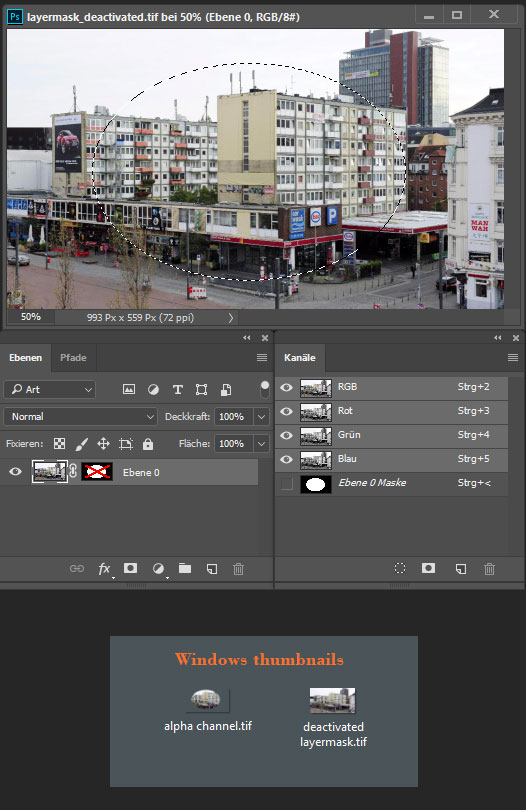
![]()
If you want to transfer the tiffs to another program for further processing: I don't know if this kind of selection / channel is accepted.
Fenja

Copy link to clipboard
Copied
It's not exactly what you want - more a work-around [Windows 10]:
Don't save the selection as an alpha channel but as a layer mask and deactivate the layermask.
I think you know that in this case the image's background layer has to be changed to a normal layer.
For editing you can activate the selection without the masking effect in the channels panel.
![]()
If you want to transfer the tiffs to another program for further processing: I don't know if this kind of selection / channel is accepted.
Fenja
Copy link to clipboard
Copied
Thanks, I'll try that at home tonight.
But with alpha channels, it is normal for Windows to show the TIF thumbnail in that "broken" way of showing only the first saved selection? I don't know why Windows would want to do that. If it's normal, it seems like something that needs to be changed in later updates of Windows.
Copy link to clipboard
Copied
I see how that works now. Thanks for your advice.
Copy link to clipboard
Copied
When photoshop saves the file as a tif it also saves the other channels that are created when a selection is served. Programs other than photoshop apply the topmost of the non-normal channel, normally these "saved" channels do not show the "eye". The effect of this is these other programs only display what is selected by this topmost saved selection, thus the crop. An easy workaround is to make a selection that covers the entire image, save this selection, and then, when displaying the channels window, move this global selection to the top of the "selection" channels and then save the image as a .tif. This way other programs will see the entire image and all of the "selection" channels as saved for use in photoshop.
Get ready! An upgraded Adobe Community experience is coming in January.
Learn more