
Tools Not Working for Photo Restoration
Title edited for brevity by moderator. Was "PHOTOSHOP 2019 CC CLASSROOM/TOOLS NOT WORKING FOR PHOTO RESTORATION/CROSS HAIRS/LACK OF CONTENT-AWARE ABILITY, ETC."
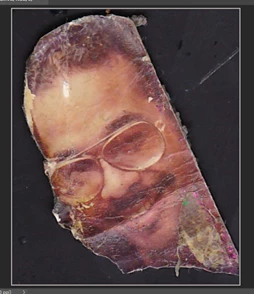
I am having challenges trying to restore this photograph, with my photoshop 2019 CC software. Originally the photo was approximately 2 inches long by 1inch wide. I then performed the following:
EDIT>PREFERENCES>TECHNOLOGIES PREVIEWS >
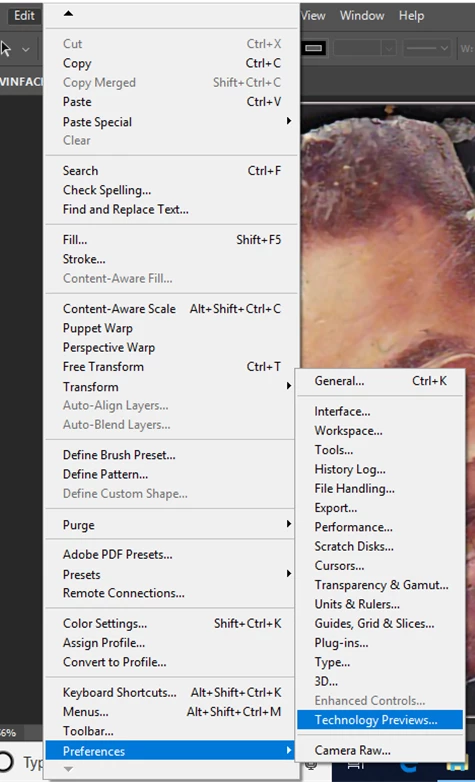
I THEN CHECK ENABLED PRESERVE DETAILS 2.0 UPSCALE, AND UNCHECKED MODIFIER KEYS PALLETTE
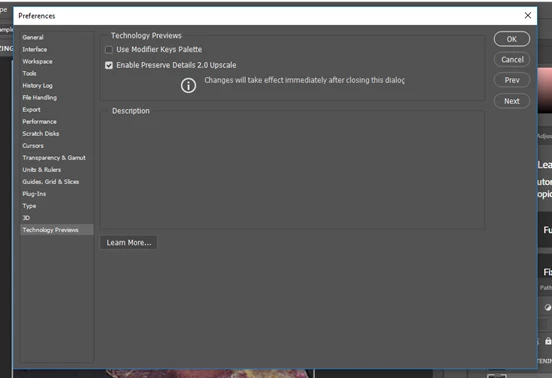
Ø ENTERED OK
Ø I THEN PERFORMED IMAGE> IMAGE SIZE>
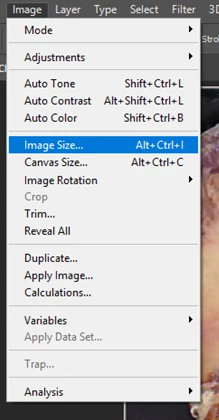
AT THE IMAGE SIZE MENU I DID THE FOLLOWING
4000 PIXELS WIDTH>RESAMPLE: PRESERVE DETAILS 2.0>MAGNIFY IMAGE TO 100% >>REDUCE NOISE TO 88%>OK
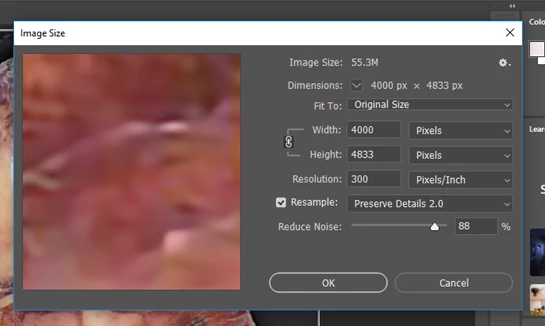
THIS RESULTED IN AN IMAGE THAT BECAME 13.333INCHES X 16.11 INCHES (300PPi) ACCORDING TO THE DOCUMENT DIMENSIONS INFORMATION
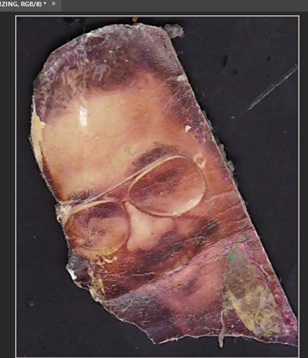
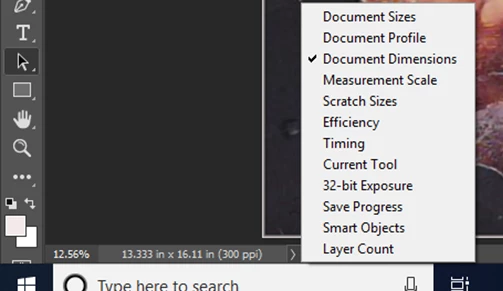
I thought that by increasing the pixels in the original image would yield a higher resolution of the image, thus providing a technically more efficient photo to work with. Am I misunderstanding the whole premise of EDIT>PREFERENCES>TECHNOLOGIES PREVIEWS > as well as the function of image size improvements?
After making the above changes, I tried restoring the photo using the tools I have learned to use thus far in the photos shop classroom book 2019. I am up to chapter 4.
When using the lasso tool this is what occurred:
I drag a selection around the face
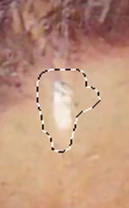
The marching ants appear. I press shift-backspace to fill in
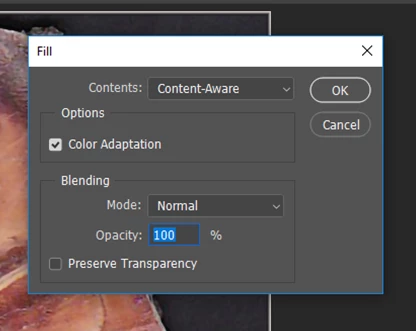
The process for filling in occurs
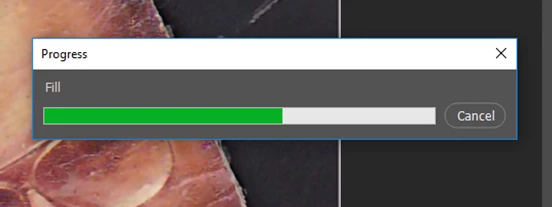
But the area remains unfilled, with the marching ants still active.
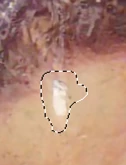
I press select/deselect and the damaged image remains intact
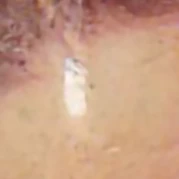
I used the patch tool and this was the result:
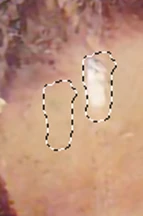
When I move the patch to the left, it doesn’t even pick up the damaged area. After clicking select/deselect
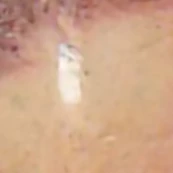
The undamaged area remains
When using the spot healing brush, (I have double check to make sure it is not the healing brush) I set everything up as follows:
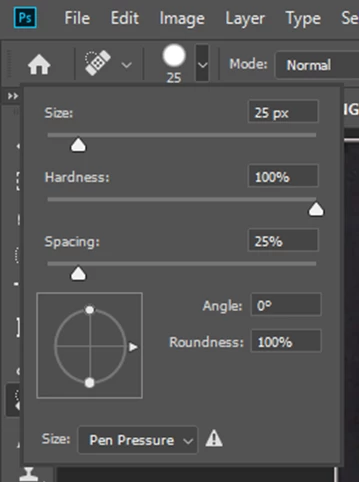
But when I try to apply the tool, my cursor only appears with a cross hair circle , and nothing happens when I drag that image over the area to be healed, the black line that appeared in the Photoshop 2019classroom book, Chapter 2,page 44, is not present.
For all these tools, I have done the following to repair the problem:
Right clicked to reset the tool,
Used command D”
I’ve checked my caps on caps off setting on my key board
I’ve gone into brush settings, but everything is grayed out, and won’t allow me to make any changes,
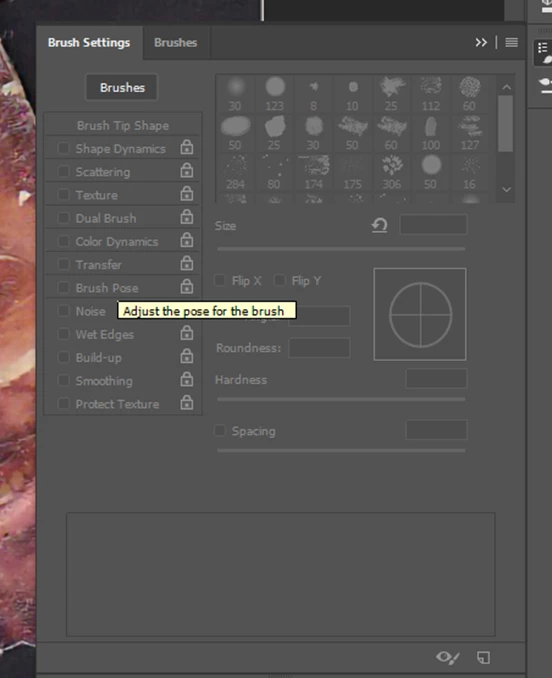
I’ve researched the on-line forums for answers, and they all say to check if the caps lock is on, and my caps lock is not on.
I’ve tried Edit --> Preferences --> Cursors.
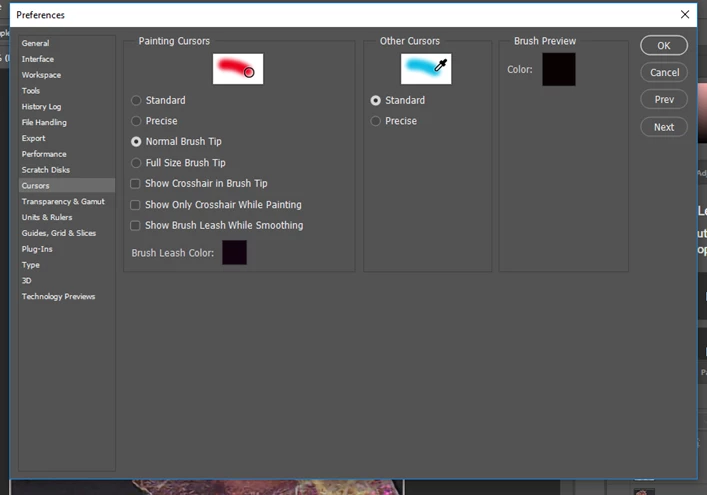
I selected Normal Brush Tip > Brush Leash Color Black > and still the healing brush tool appears with the cross hairs.
I stumbled on to this
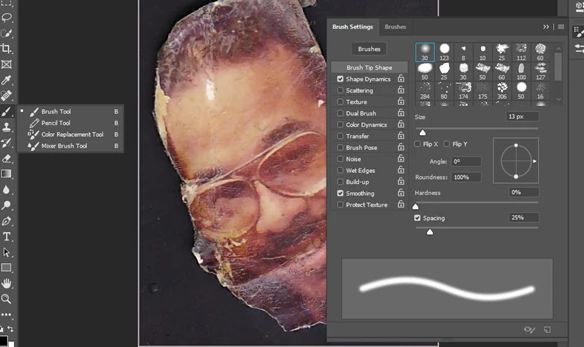
And made the adjustments found in the below image
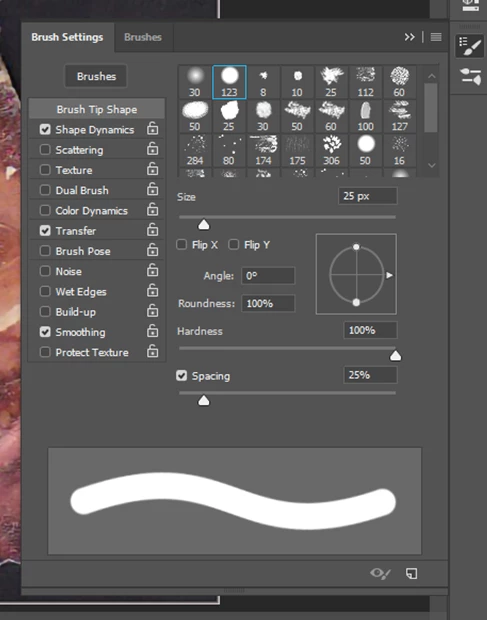
And, still, the SPOT healing brush tool does not appear with a black line or achieve a healing result of the image. I thank you in advance for taking the time out of your busy schedule to assist me on this matter.
Kevin
 AdChoices