

Copy link to clipboard
Copied
Hello,
When cropping images to the full height or width of the image (or crop along any side of the original canvas), then a 1px semi-transparent edge appears. For dark images, this causes a light strip when flattening/saving as a new JPG.
For example, if I crop the image like this, going all the way to the left and right edges of the image:
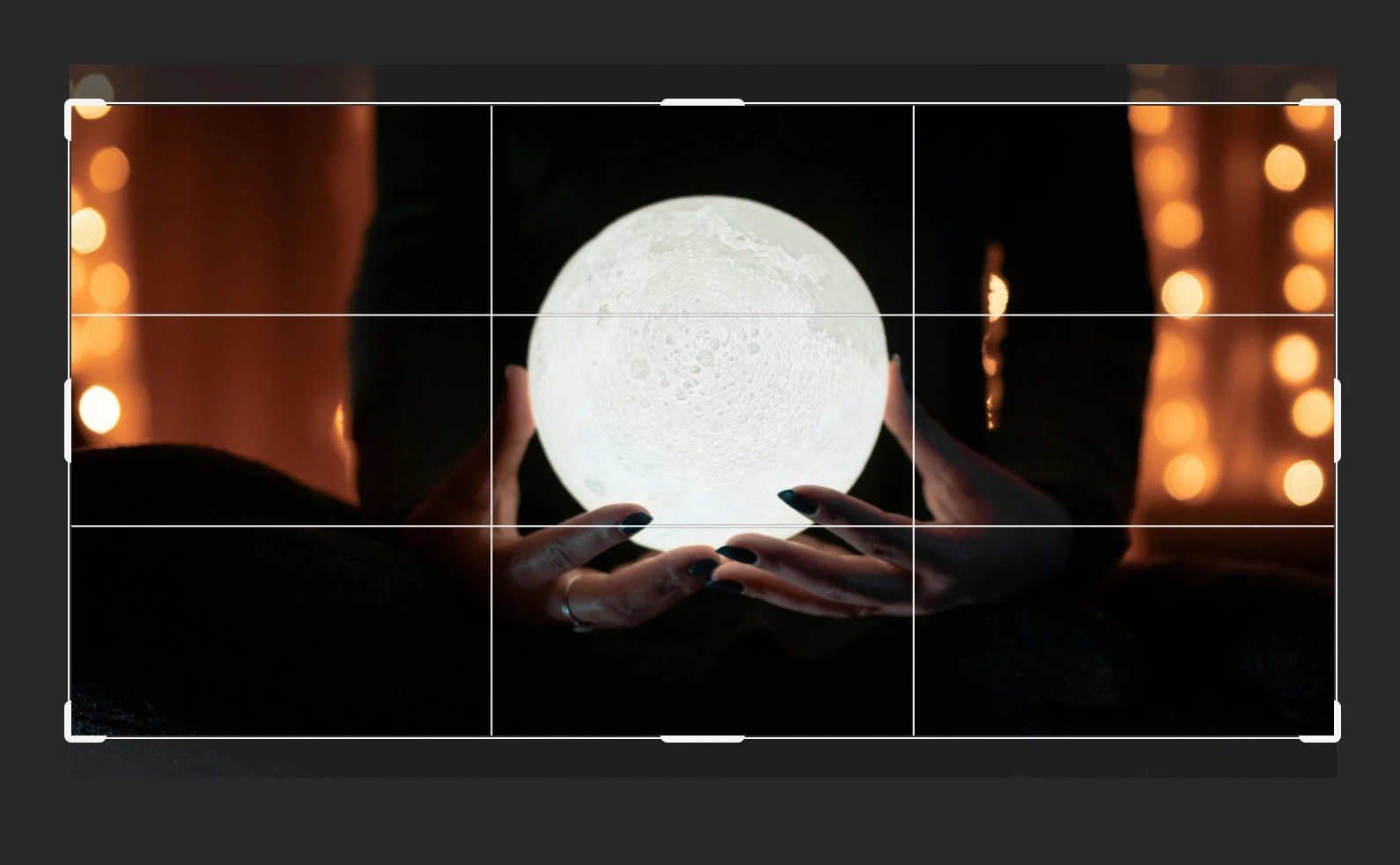
Then a transparent strip appears along the left & right sides:
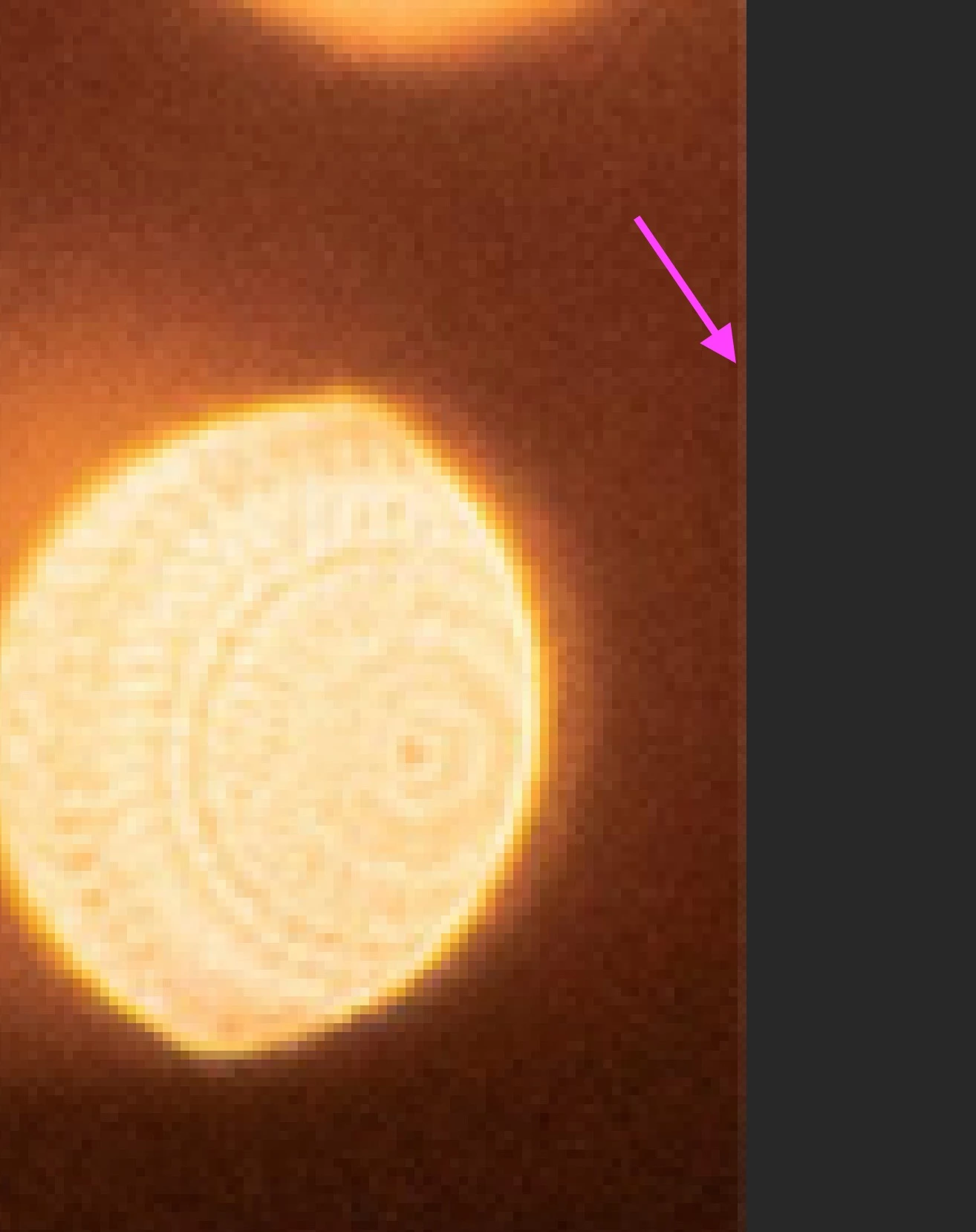
When flattened to save as a new JPG, it's still visible:
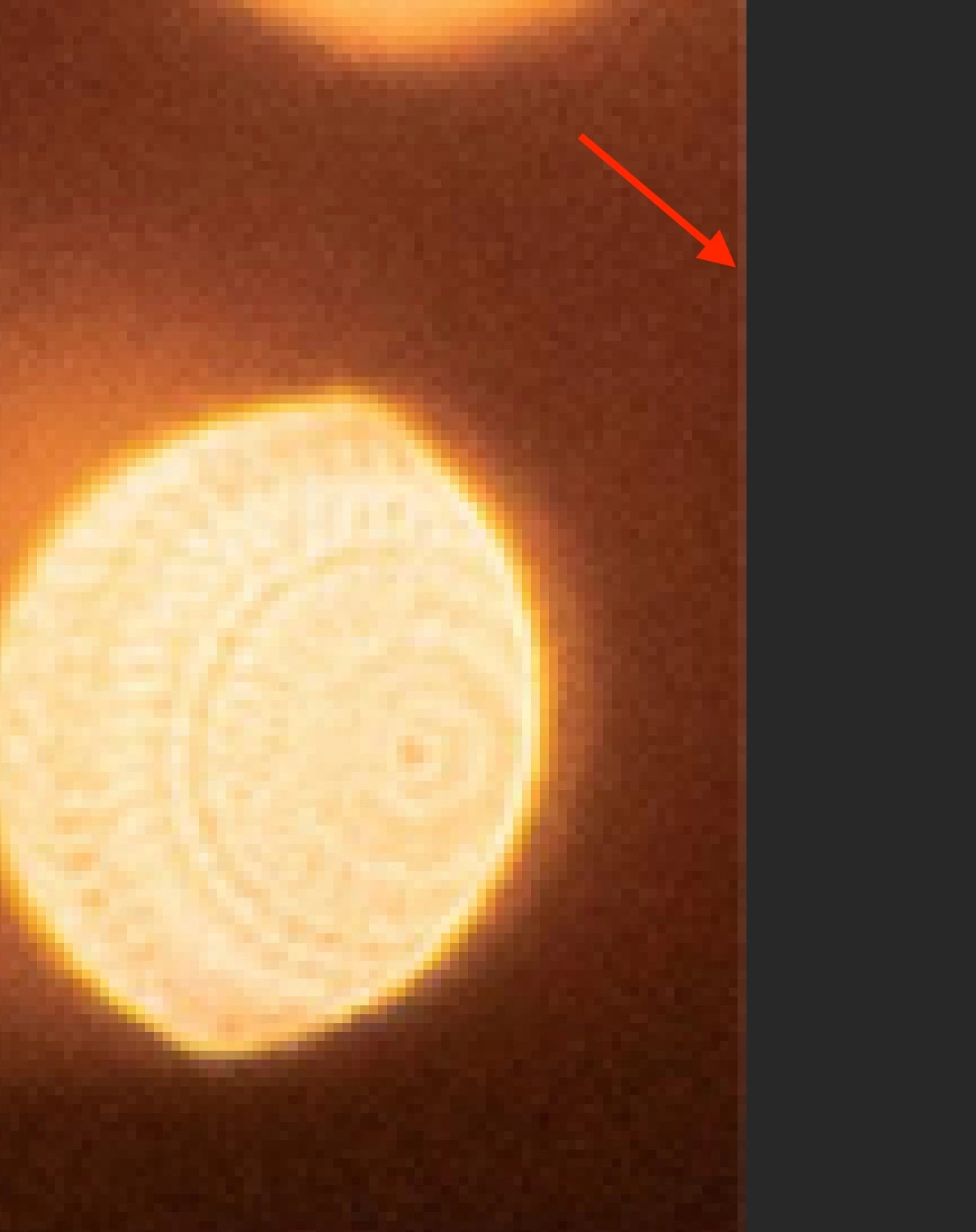
This doesn't happen if I check "Delete Cropped Pixels", but then I can't finesse placement after cropping. It also doesn't happen if I bring the crop handles in a few pixels from the edge, but it's very tedious to do that for the high volume I work with, it's much more efficient to let it snap to the full width/height of the canvas. I tried adding a black fill layer below, which helps a little, but there's still a visible line.
Is there any other way to avoid this?
Copy link to clipboard
Copied
Hi @Elise_Claire, thanks so much for reaching out!
I tried reproducing this on my end but haven’t had any luck. Could you let us know which version of Photoshop you’re using and, if possible, share a quick screen recording of the issue? That would really help us understand what’s going on.
Thanks a lot!
Alek
Copy link to clipboard
Copied
Hi @Aleke ,
Sure! I've attached a screen recording, as well as the image file I used in the recording (I can provide additional image examples if needed). I'm using Photoshop 27.0.0 in the screen recording, but I've had this issue for a while and can also recreate it in version 26.10.0.
I think I just figured out a clue, though - in my recording, I was cropping to 2048x1024px. But if I crop to a 2:1 Ratio instead, there is no transparency. But I always use W x H x Resolution because I need to crop to specific pixel dimensions for my work.
Thank you in advance for your help!
Copy link to clipboard
Copied
Is there any resampling at any point in this? If not, is it still visible when you view at 100% ?
This happens when you have a floating layer (as opposed to a flat background layer), and the edge pixels are interpolated. With a floating layer, there are invisible transparent pixels outside the canvas, and they are factored into the interpolation.
In a flat background layer (Background in the panel, in italics) pixels outside the canvas boundary are not allowed.
Copy link to clipboard
Copied
Hi, apologies for the delayed response!
Yes, it is resampling and the transparent strip is still visible at 100%. The images I output are for digital, so they have to be specific pixel dimensions, and I use W x H x Resolution mode with the crop tool to get there. I want to keep it as a floating layer (keeping "Delete cropped pixels" unchecked) so I can nudge the image a bit after the initial crop to finesse the placement.
I did figure out that it doesn't happen if I use the crop tool's Ratio mode instead of W x H x Resolution, so it must be related to the resampling. But I've used W x H x Resolution crop in this way for years and it used to handle the edges properly (no transparent pixels) so I'm just wondering if there's a setting somewhere I'm overlooking....
Copy link to clipboard
Copied
@Aleke I'm able to replicate this issue, and my estimation is that it is directly related to the resampling function as described below by @D Fosse .
Steps to reproduce (tested under PS 26.11.0):
Cropping with ratio, no resampling, no resulting artifacting:
Cropping with specific width x height x DPI, inherent resampling, resulting in artifacting at edge:
Supporting evidence process for decreased pixel opacity at frame edge after crop & resample function:
Copy link to clipboard
Copied
I forgot to mention one step above in the final step-by-step - between steps 3 and 4, move the Color Fill layer beneath the new Layer 1 that resulted from the Background layer via copy.
Get ready! An upgraded Adobe Community experience is coming in January.
Learn more