
LukasGoman
Participating Frequently
December 13, 2016
Question

Unusual gradient/ transparency pixelation issue.

  • December 13, 2016
  • 3 replies
  • 8632 views

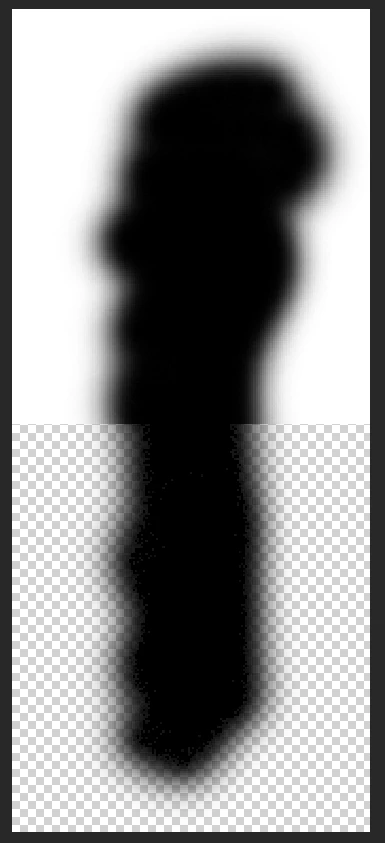
2 Weeks ago after I formatted my hardrive and installed a new and clean version of Photoshop CC I ran into a weird problem (see attached picture). All of my soft brush strokes/ gradients from a dark color to transparent get this weird pixelation instead of beeing smooth like they should.

I have tried the following things without sucess:

-Reset brushes

-Reset/ delete preferences

-Reinstall Photoshop

-Rollback, update and switch GPU Drivers

-Turn off OpenGL

-Switch to different color-modes /-profiles

-Start windows in save mode without drivers

-Change monitors

I have only found a single thread on a different website about this issue (https://www.photoshopgurus.com/forum/photoshop-newbies/27693-brush-pixelation-transparent-background.html). Unfortunately they could not find a working solution either. I thought it was a hardware problem, but saving a psd-file with said issue in it and opening it on my other PC with a different version of Photoshop (CS6) replicated the problem (now persistend on this computer aswell). The problem appears only in Photoshop. Other Adobe programms and other photo editors (namely "gimp" and "paint.net") have no problem with transparency whatsoever.

The exported pictures (png and jpg) look fine, this only appears while working inside photoshop.

Here is a video I found showing my exact problem https://www.youtube.com/watch?v=MpKcfyMcmCo

These are my specs:

-OS: Windows 7 Professional

-GPU: GTX 1070

-CPU: i5 3570k

-RAM: 24GB

-Mainboard: Gigabyte Z68x-UD3H

I hope you can help me.
    This topic has been closed for replies.

    3 replies

    Participant
    January 31, 2023

    Image > Mode > 16 Bits/Channel
    This worked for me in some cases, I have the same problem and I haven't found any other solution unfortunately.
    If this doesn't work try 32 Bits.

    davescm
    Community Expert
    Community Expert
    January 31, 2023

    @Minchy. 32 bits/channel uses floating point numbers instead of integer and is for HDR i.e. it has an extended dynamic range that goes beyond the whiteset white, or blackest black, that can be displayed in 8 bit or 16 bits /channel. It does not introduce additional steps into the existing gradient between black and white and as such will not help here.


    Dave

    PECourtejoie
    Community Expert
    Community Expert
    January 31, 2023

    Hi, I was wondering if the issue also shows at 100% magnification

    melissapiccone
    Community Expert
    Community Expert
    December 14, 2016

    Your brush strokes look fine to me. I'm looking on my iPad.

    Melissa Piccone | Adobe Trainer | Online Courses Author | Fine Artist
    manjinders90131255
    Participating Frequently
    December 13, 2016

    Please try using big size canvas/ document. and also try increase hardness of the brush, Slider just below brush size slider.

    LukasGoman
    Participating Frequently
    December 13, 2016

    Increased canvas to 1000x1000 pixels, made 3 strokes with variable hardness. No change.

    davescm
    Community Expert
    Community Expert
    December 14, 2016

    Hi Melissa, here is a picture of the whole file taken with my phone. I can explain what my "transparency test" has to do with the weird brushes: When I paint with a soft brush I am getting a gradient on the edges from my brush-color to the color underneath, correct? This gradient is achieved my slowly lowering the opacity of the brush-stroke towards the edges (I think. I am in no way a professional) thus blending both colors together. What I found in my test was dark colors experience a kind of "jump" in opacity in this gradient instead of a gradual decrease.

    So 100% opacity is "true black" while 99% opacity looks (at least on my side ) more like 60% opacity on a tranparent background. Does that make sense? If we look back at the first few photos that I posted you can see that some pixels are completly black while other pixels seem to have only a 60% transparency or lower. Higher opacity values (except 100%) seem to be nonexistant. I've gone ahead and started formatting my PC now. Lets hope that (another) clean install fixes the problem.

    I can also savely say that this is not a hardware problem. I changed all my video related cables, tried different monitors, I even tried 3 different graphics cards by now. So it is either a Photoshop-problem or (most likely) a driver issue.


    Luke

    See the thread linked below, where we looked into this:

    Photoshop Masking brush issues

    You are seeing an on screen artefact that only shows over the checkerboard. It does not affect the actual image when the gradient is applied.

    Dave