


Participant
August 25, 2020
해결됨

Vector Masks in PS 2020

  • August 25, 2020
  • 3 답변들
  • 1069 조회

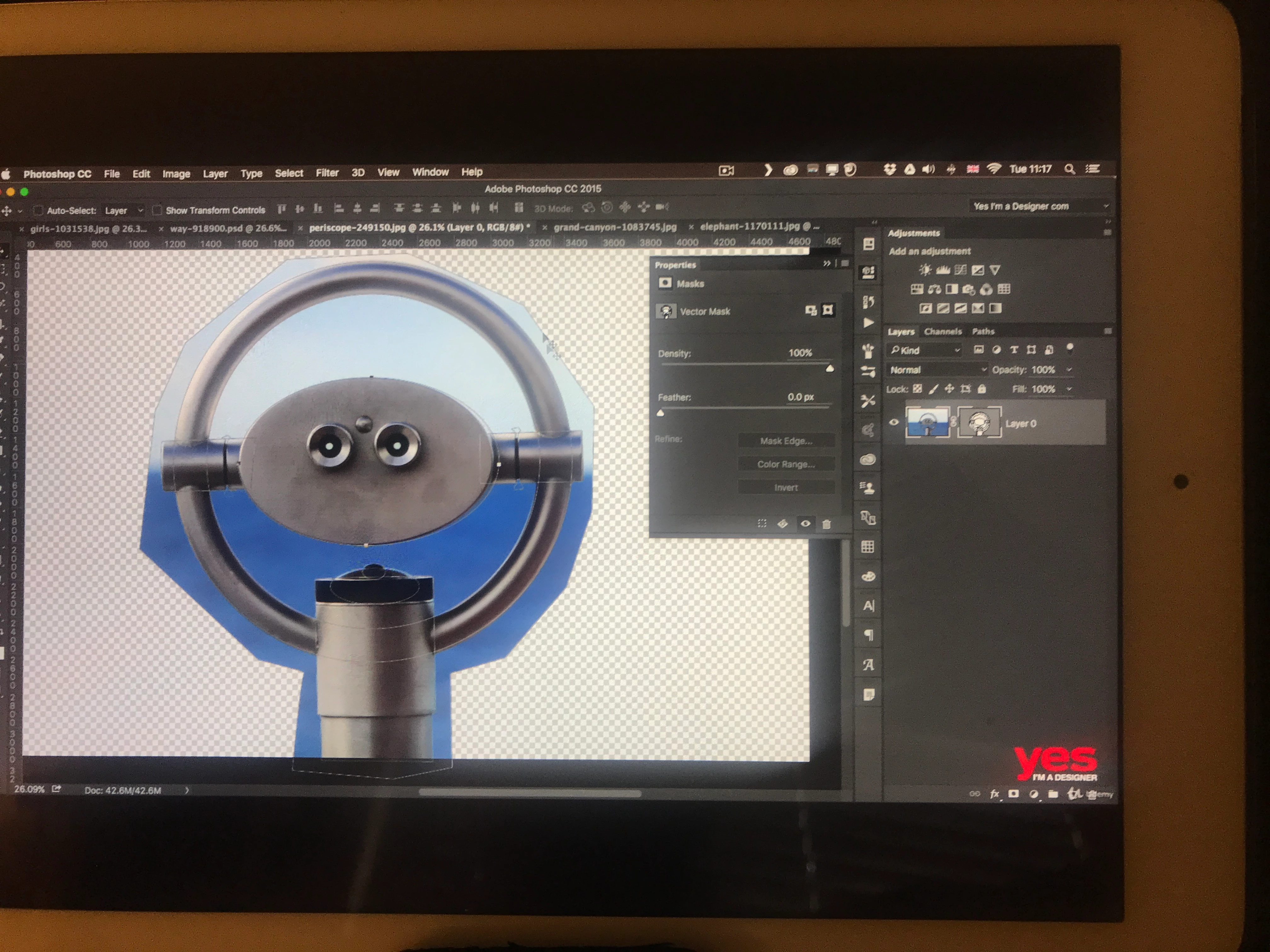
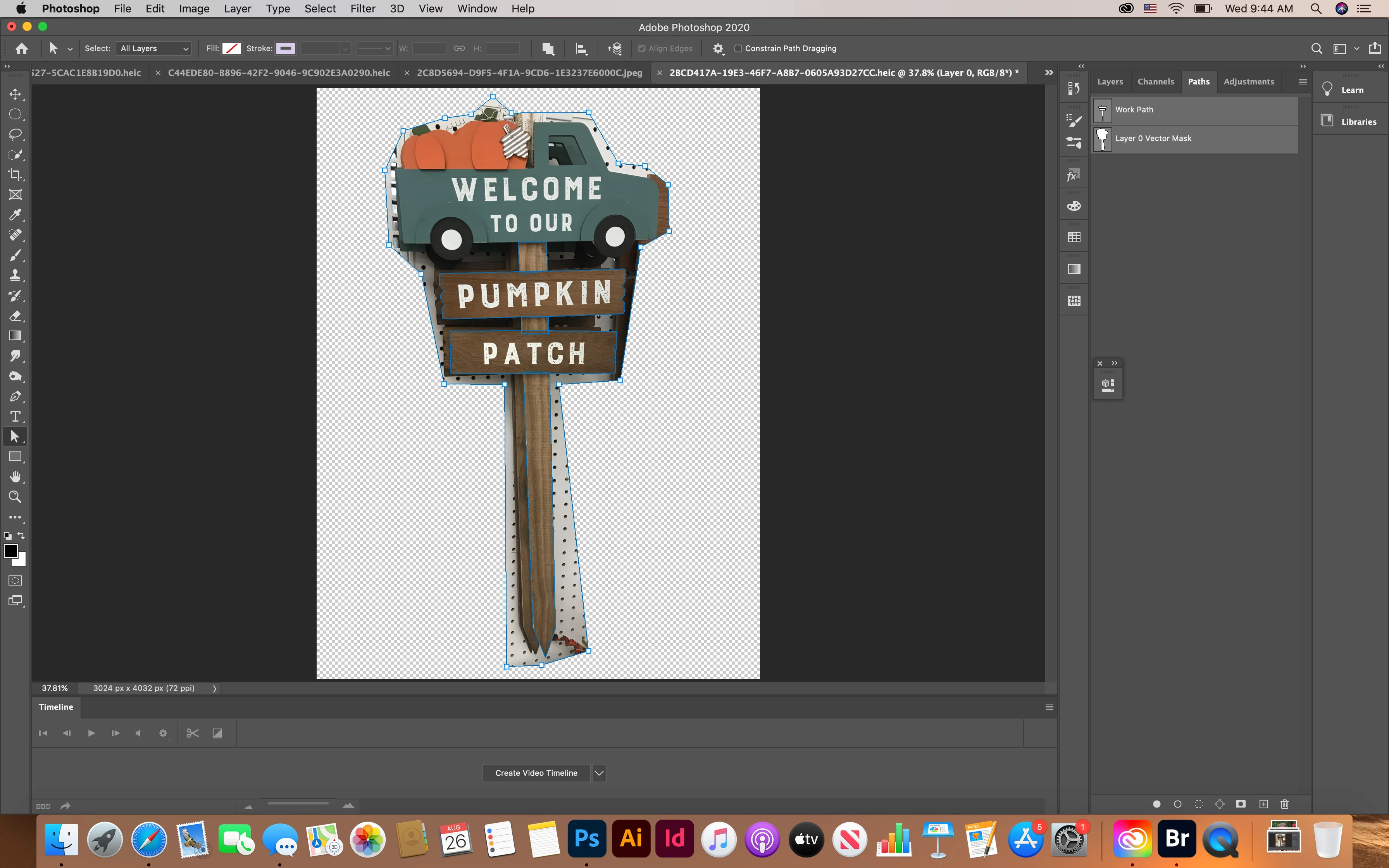
I'm taking an online photoshop master class but the instructor is using an older version of Photoshop so some tools have changed slightly. When using the pen tool and geometric shapes in vector masks I have shapes inside of other shapes and now I want to select the outer shape to delete it. When I do that instead of deleting the rough outside shape (made with pen tool) and leaving the inside shapes, it restores the entire original image. I've included screenshots of before and after selecting the outside shape and pressing delete (which is what the instructor does) What step am I missing?
이 주제는 답변이 닫혔습니다.
최고의 답변: davescm

Hi!


Yes the smaller shapes are in the path palette, they don't show in the vector layer. Is that the problem?


 I appreciate all your explanations but I'm still confused as to how to delete the rough outer shape.


Please bear with me, I'm very new to photoshop.


I understand how to tighten up the vector layer mask as you showed. I didnt take the time to do that because this is just an exercise to learn functions. The instruction moves quickly so I just used the shapes as the instructor did to follow the same functions. 


I've attached a screenshot of the course I'm taking just so you can see the settings of the instructor just before he hits backspace. 


I've also included a picture of the paths palette just before I hit delete. 


Thanks! 


Yes that is the issue.

Those additional paths are not part of the vector mask, hence when you delete the outer path that is in the vector mask , the mask is effectively removed.

Make sure you have the vector mask selected when you add your additional paths and that path operations is set to combine paths


Dave

3 답변

davescm
Community Expert
Community Expert
August 25, 2020

There is something strange there. There appears to be no indication of those inner paths in the vector mask thumbnail.

Can you show the paths panel just before you delete.


Dave

JJMack
Community Expert
Community Expert
August 25, 2020

There are three closed Paths in my Vector layer mask the smaller two smaller inner paths are subtract mode the only indication you see is in the Work Path thumbnail in the paths palette. The same thumbnaile you see in the Layers palette in vector layer mask. They are not filled with white they substract.

JJMack
Brianna5DA6작성자
Participant
August 26, 2020

Hi!


Yes the smaller shapes are in the path palette, they don't show in the vector layer. Is that the problem?


 I appreciate all your explanations but I'm still confused as to how to delete the rough outer shape.


Please bear with me, I'm very new to photoshop.


I understand how to tighten up the vector layer mask as you showed. I didnt take the time to do that because this is just an exercise to learn functions. The instruction moves quickly so I just used the shapes as the instructor did to follow the same functions. 


I've attached a screenshot of the course I'm taking just so you can see the settings of the instructor just before he hits backspace. 


I've also included a picture of the paths palette just before I hit delete. 


Thanks! 

Conrad_C
Community Expert
Community Expert
August 25, 2020

What’s visible or not when using paths can depend on which setting is selected in the Path Operations menu, so try different settings. That menu is available in the options bar when a path or shape tool is selected.


JJMack
Community Expert
Community Expert
August 25, 2020

In your screen capture we see you made a crude paths around the subject and added it the image layers as a vector layer mask.  You can now use  the vector tools to edtr the vector layer mask path to tighten up your mask around the subject. Control points can be added, deleted, moved  converted and curves adjusted. You paths will have very few curves to deal with. 

The Vector tools to use


JJMack
JJMack
Community Expert
Community Expert
August 25, 2020

Hint with the initial Path you created you will have a hard time editing your vector layer mask. You need to start over and make a tighter closer path to start with. More control point tighten path. Here I woulds start with three paths two would be subtract mode. Thet add layer mask and edit the paths.

JJMack