
Participating Frequently
May 18, 2022
Answered

Visual artifacts in photoshop if using the graphics processor at all

  • May 18, 2022
  • 3 replies
  • 4947 views

Hi,

So I am on 23.3.1 with windows 10 and a nvidia GeForce GTX 980M ( which was doing fine with photoshop until a few weeks ago and still passes the compatibility check). When zooming, panning or generally working artifacts will appear in overlay over the whole screen. This is something that only happens in Photoshop and no other apps or games, so it does not seem like a card defect. If I turn off the graphics processor entirely in performances the issue stops immediatly - even if I do NOT restart photoshop after turning off the option! Turning on or off any of the advanced settings does nothing.

I can reproduce the visual bug every time by panning the window, and then clicking on a different brush in the "brushes" panel. An overlay ghost of the current painting will appear offset compared to the drawing on the screen. Panning the screen or clicking on another brush will make the glitch disappear.

It is pretty annoying simply because this happens with a bunch of moves like moving layers and transforming them will cause glitch to jump scare here and there -__-

Anyone else having something similar? I think this started after a photoshop update.
I tried updating my drivers to no avail.
This topic has been closed for replies.
Correct answer Ged_Traynor

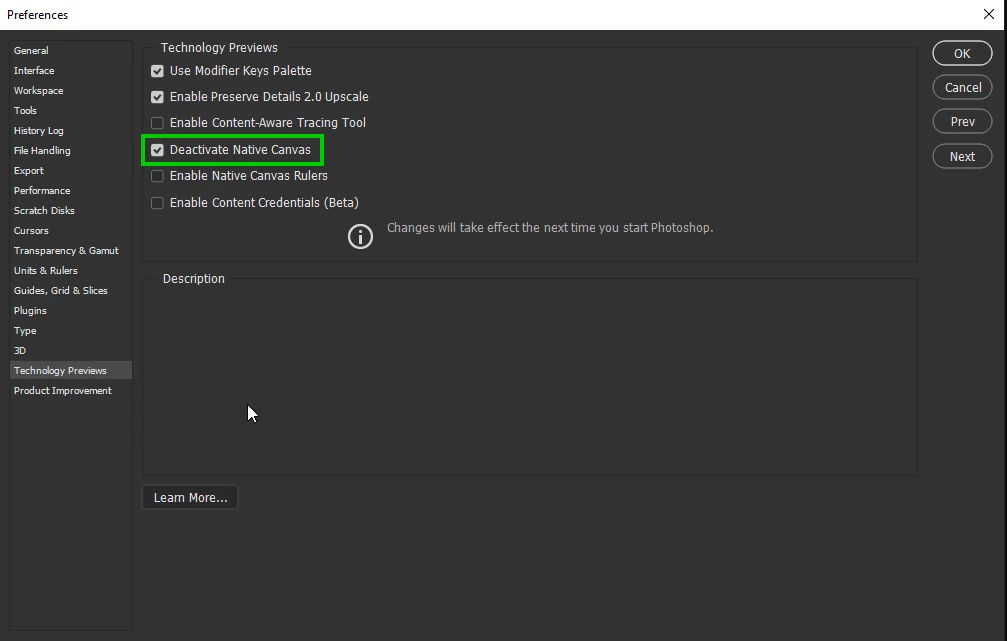
Also try enabling this option in preferences and restarting Photoshop to see if it helps

3 replies

Ged_Traynor
Community Expert
Ged_TraynorCommunity ExpertCorrect answer
Community Expert
May 19, 2022

Also try enabling this option in preferences and restarting Photoshop to see if it helps

brobbehAuthor
Participating Frequently
May 19, 2022

Thanks @Ged_Traynor , it seems like that did it!

Mark.Dahm
Community Manager
Community Manager
September 15, 2022
quote

We believe that underlying issues (which were temporarily addressed by selecting the ‘Deactivate native canvas button’ in Technology Preview) have been fixed, and you may now de-select that button for future Photoshop sessions. Please let us know if any of these issues return once the native canvas has been re-activated.


By @Mark.Dahm


Thanks for the heads up Mark.  Deactivate native canvas has beeen our goto fix for almost everything display orintated, even when it feels like a stretch, but it nearly always seems to work.  This will for V23.5.1 going forward ?  The option is still there in Preferences, but I have turned it off and look forward to some trouble free Photoshop use.


The transition to a 'native canvas' is a long process, and as we discover compatibility issues, we'll keep that other option aroud. We are seeing newer cards also fall out of GPU mode and this option might be helpful for a bit, so keep it handy and let us know for which issues it works. Our goal will be to remove it once the native canvas is working well across all customer systems.

brobbehAuthor
Participating Frequently
May 18, 2022

Hi @CShubert and thanks for the quick response.
I already had those options unchecked. I tried to check them instead to see and the problem stayed there.

CShubert
Community Manager
Community Manager
May 18, 2022

Hi @brobbeh, sorry you are having issues. Try this:


Go to Preferences > Tools... and uncheck "Enable Flick Panning" and "Animated Zoom". Does the problem go away? 


Thank you,