
Participant
February 1, 2025
Question

Wacom pen pressure not working, brushes acting strangely

  • February 1, 2025
  • 3 replies
  • 2191 views

Can someone help me understand what is going on here?


I use a Wacom Intuos Pro and Photoshop 2025 on Windows 11 to draw. Everything was working fine until two days ago when the pen pressure suddenly stopped working. However it hasn't stopped working entirely - instead it acts strangely. Photoshop seems to be able to detect pen pressure and manifest it when the brush is large, but when the brush is small it's like one size only and looks very aliased. I have a recorded a video of what I mean: https://imgur.com/a/769iT8u


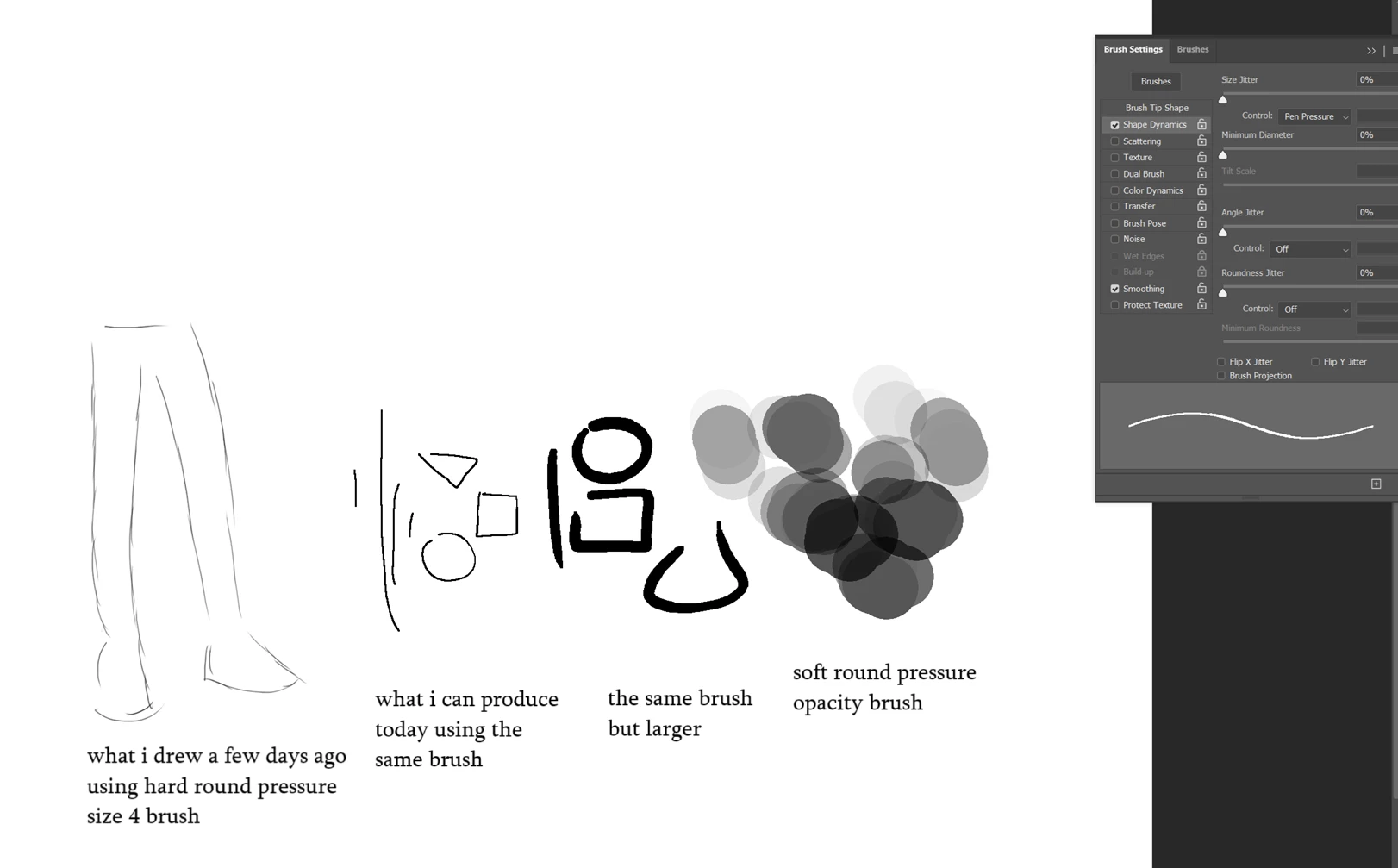
In the video, on the left you can see a pair of legs I drew days ago with a size 4 hard round pressure size brush. You can see that the lines are soft and feathery. At the start of the video, I attempt to make the same kind of lines using the exact same size 4 hard round pressure size brush. You can see these lines are blunt and don't seem to be able to get very small.


Also, when I switch to the soft round pressure opacity brush at a large size, it looks really weird as well. I don't even know how to explain it but it looks like it's just drawing circles. Changing the spacing does not help.


Screenshot in case the video doesn't work:
Things I have already tried:

  • Uninstalling and reinstalling the latest tablet driver

  • Uninstalling and reinstalling an older version of the tablet driver

  • Uninstalling and reinstalling Photoshop

  • Turning off Windows Ink

  • Turning back on Windows Ink

  • Turning off Windows Ink and using a PSUserConfig.txt file


Nothing has worked so far.


Please help?

Thanks in advance.

3 replies

Participant
July 9, 2025

I had the same issue and after installing, reinstalling everything several times I tried to replace the tip of my pen for a new one. This seems to resolve the issue for me 😄

Participant
September 23, 2025

I have never commented before in one of these forums in my 20+ years of using photoshop but I was having the same problem and felt like i was going insane till I found your thread and this solution!!! Thank you so so so so much -- !!!!

Trevor.Dennis
Community Expert
Community Expert
September 23, 2025

@babsdraws  You might like to bookmark this page from the Lazy Nezumi site.  It is the best guide to tablet set up, and problem solving the same, that I know of.


https://lazynezumi.com/tabletSetup


Trevor.Dennis
Community Expert
Community Expert
February 13, 2025

Before we ask you a bunch of questions, have a look at this help page on the Lazy Nezumi Pro site.  It's the best guide to tablet set up I know of.


https://lazynezumi.com/tabletSetup


Participant
June 26, 2025

The day after you replied, the issue magically resolved itself. However, about 2 days ago, in the middle of drawing, it suddenly broke again and the issue in my original post is reproducing. I've tried everything on the lazy nezumi setup guide to no avail. @Trevor.Dennis do you have any idea what we can do next?

Participant
June 26, 2025

Ok, another reinstall of the wacom driver and photoshop today and it's working again. 🤷

creative explorer
Community Expert
Community Expert
February 4, 2025

@Jasper2468140311z4 You've already tried a lot of the standard troubleshooting steps, which is great...curious, by any chance did you reset Photoshop preferences? Even though you have uninstall and reinstall, it is worth a shot at this stage. 

First save your prefernces so that you can re-use them if you wanted too if it doesn't work out for you.

To open your preferences, Control K and click on the button to 'Reset Preferences.' Restart Photoshop. Hopefully this  resolved it! Great! You might need to redo some of your custom settings (workspaces, keyboard shortcuts, etc.). 

If the issues still happens, you could re-load the old preferences, by copying the contents of the old folder back into the new preferences folder, or simply delete the new folder and rename the old one back to the original name.

If this doesn't work, I would look into the Wacom Desktop Center. Maybe see if you have the latest driver/firmware for the Wacom tablet and accessories. 

m
Participant
February 13, 2025

@creative explorer  I've reset preferences and my tablet driver is updated to the latest version. The issue persists.

Actually, it's gotten worse - it doesn't seem to detect any pressure at all now.

Do you have any recommendations for what to do next? Can I contact someone at Photoshop or Wacom?

When I open the Wacom Tablet Properties app, there's a bar that displays the current pressure, and it appears to be working fine. So I feel that the issue is more on the Photoshop or Photoshop/Wacom integration side.


creative explorer
Community Expert
Community Expert
February 13, 2025

@Jasper2468140311z4 I would uninstall it from the App store, and re-install it.  Maybe a clean install will reset everything

m