Participant
May 11, 2017
Answered

Wavy text - Maybe displacement map?

  • May 11, 2017
  • 3 replies
  • 3422 views

Hello

Im creating a landingpage for a organization, and i would like to make wavy text for the frontpage like the text on the image.
I have tried using displacement maps in photoshop, but it doesnt seem like i can get the text alone after i displaced it.
Also it would be nice if i could take it further into illustrator so i can stretch it into different sizes.

-Thanks

    This topic has been closed for replies.
    Correct answer barbara_a7746676

    You'll need to eyeball it, but you might find it more intuitive than displacement map.

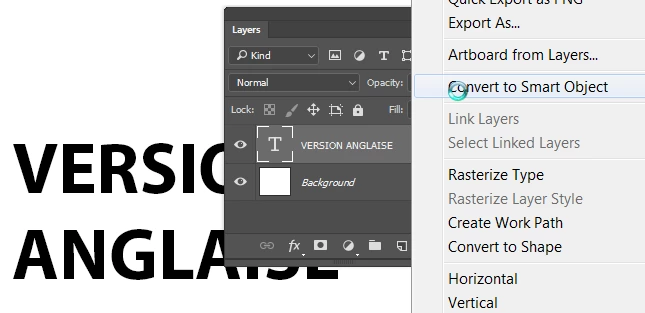
    After typing the text, right click on the text layer and convert to smart object.

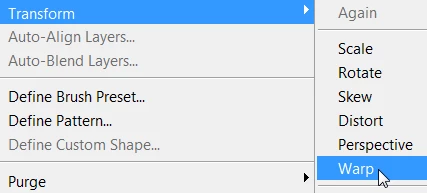
    Choose Edit > Transform > Warp.

    You'll get points and handles that you can move around until the text looks the way you want.

    It's easy to edit if you need to. Just choose Edit > Transform > Warp again.

    3 replies

    barbara_a7746676
    Community Expert
    barbara_a7746676Community ExpertCorrect answer
    Community Expert
    May 11, 2017

    You'll need to eyeball it, but you might find it more intuitive than displacement map.

    After typing the text, right click on the text layer and convert to smart object.

    Choose Edit > Transform > Warp.

    You'll get points and handles that you can move around until the text looks the way you want.

    It's easy to edit if you need to. Just choose Edit > Transform > Warp again.

    Norman Sanders
    Legend
    May 11, 2017

    A couple of years ago I posted this Tech Sheet that I had written for my students. I hope it helps you.

    The Unique Effect of Displacement Mapping

    Displacement Mapping is the process of changing the geometry of an image so that such things as straight lines are contoured according to the tones appearing the in image in the layer below. This is how it is done in Photoshop

    1. Open a file

    2. Choose Image > Duplicate. In the As: field enter file name as: filename_map.psd. (Example: man_map.psd). This file, which will ultimately serve as the Displacement Map must be in psd format.

    3. Choose Image > Mode > Grayscale.  Increase the image contrast using Curves or Levels. Since each image is unique, there is no exact setting. Then choose Filter > Blur > Gaussian Blur. Once again, there is no set amount. The sample below is a useful guide.

    4. Save this file – filename_map.psd -- to the desktop.

    5. Open another file consisting of a pattern or type*. Drag that image over the full color image. It will be Layer 1. For the samples below, this was the image that was used. (You may recognize it as the Bayer array camera chip design discussed in the article related to image sharpening.)

    * If you choose to use type for Layer 1, it must be rasterized. After typing, choose Layer > Rasterize > Type.

    6. Choose Filter > Distort > Displace. The default numbers of 10 for Vertical and Horizontal Scale usually work very well. For greater displacement,15 is satisfactory, as well. Radio buttons should be set to Stretch to Fit and Repeat Pixel Edges. Click OK.

    7. Choose a Blend Mode of Multiply or Overlay (the results appear on the following page). Experiment with other Blend Modes, as well. Adjust the opacity of Layer 1 for the most pleasing effect.

    8. In the images below, a mask was added to Layer 1 by clicking on the mask symbol at the bottom of the Layers panel. Then, by painting in black on the eyes, that area of the bottom layer was revealed.

                         Multiply                                     Overlay  

                                          Opacity at 50%

    In the example below, the same Displacement Map was applied as had been used in the previous example. A light blue Stroke was applied to the rasterized type so that it would be readable against the black background of the image when the 100% Multiply Blending Mode was added, as shown at the bottom/right.

    davescm
    Community Expert
    Community Expert
    May 11, 2017

    Displacement maps work on pixels rather than vectors such as shape or text. However you can place the text inside a smart object and apply the displacement map to that smart object. That will let you open the smart object and alter the text later.

    Edit the smart object text content:

    Hope that helps you

    Dave

    Participant
    May 11, 2017

    Thanks!

    What do you normally use as displacement maps?
    I have a hard time finding a texture that could make my taxt look like the one on the picture

    Trevor.Dennis
    Community Expert
    Community Expert
    May 11, 2017

    simonb44879216  wrote

    Thanks!

    What do you normally use as displacement maps?
    I have a hard time finding a texture that could make my taxt look like the one on the picture

    You have to make the map specifically for the job in hand.  We have had lots of threads on the subject here, with all the tips you'd need.  One thing I'll add regarding the image in your first post, is that after applying the Displacement Map, load the map layer again and copy it, and set one to Screen and the other to Multiply.  The resulting shading will supplement the distortion making for a much better effect.