


What is a Scratch Disk and how can I prevent Scratch Disk errors? Photoshop Quick Tips 🔎
Introduction to Scratch Disk
In simple words, “Scratch Disk” can be referred to as temporary storage for Photoshop.
Photoshop requires some free space on the computer’s HDD (Hard-disk drive) or SSD (Solid-state drive) to create a temporary cache while running processes that include launching Photoshop, opening images, editing images, applying filters/effects, layer creation, etc.
Generally, the recommended amount of scratch disk space for Photoshop is 50 – 60 GB. This means that at least 50 or 60 GB of free space should always be available for Photoshop to perform specific operations. Additional free space may be required in cases where you’re working with large-sized documents.
Photoshop decompresses each file when you open it and creates a temporary cache on the Scratch Disk (which gets deleted after the user closes that file in Photoshop). Based on the user’s workflow some large-sized files create a large-sized temporary cache on the Scratch Disk when Photoshop decompresses them. If Photoshop doesn’t have enough free space on the HDD or SSD it will generate a Scratch Disk error.
Watch this video to resolve the Scratch Disk Full error in Photoshop
Preventing "Scratch Disk Full" related errors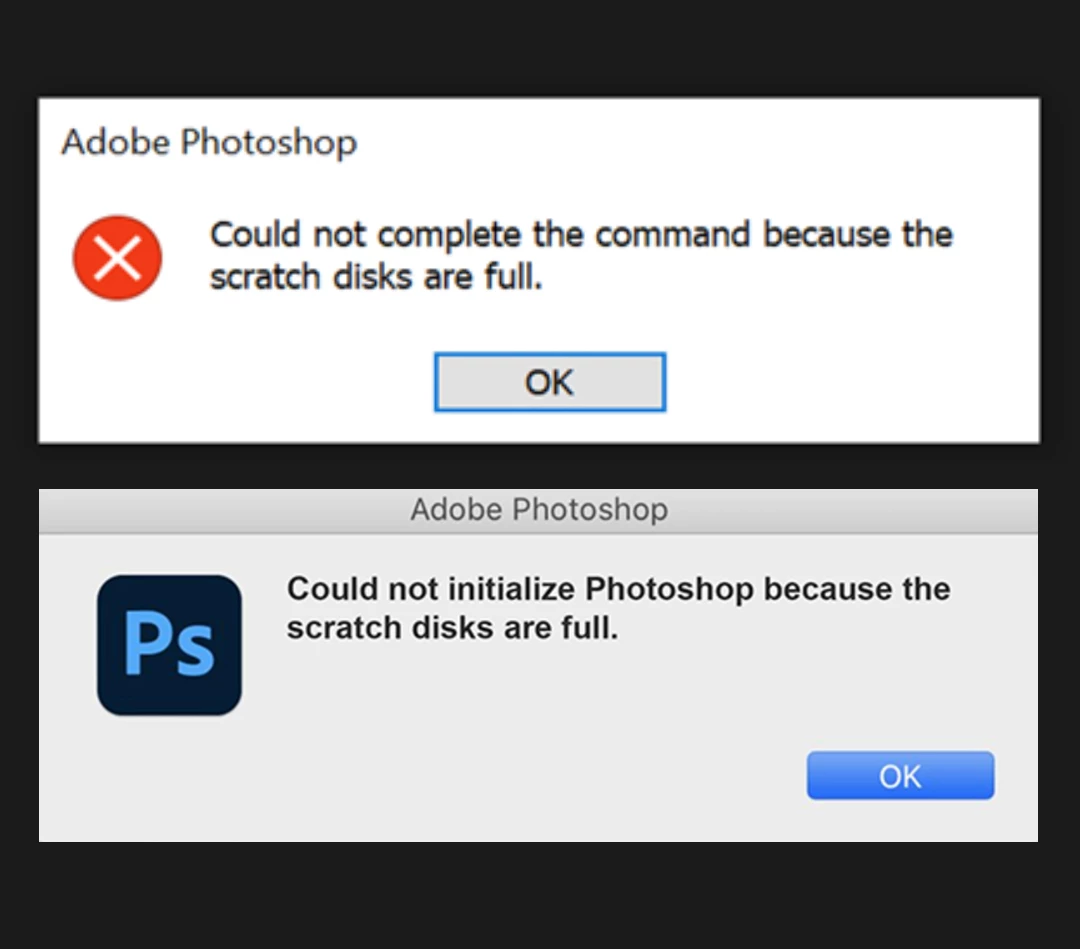
There are steps you can take to prevent the Scratch Disk error from ever occurring:
1. Dedicate a hard drive exclusively to Photoshop.
Depending on your workflow, if you’re a power user that works with big files daily, you can install or plug in a new hard drive to your computer or create a new partition on the existing drive and set it as the Scratch Disk in Photoshop’s preferences.
Support drive formats for Scratch Disk
- macOS: APFS or macOS Extended (Journaled)
- Windows: NTFS, exFAT, FAT32
2. Make a habit of deleting unused or unwanted files.
It’s always good to keep your files organized and delete unused or unwanted files that are taking up space on your computer’s drive. It will leave ample free space for Photoshop’s Scratch Disk requirements. For more information on how to free up space on your machines, check out:
macOS:
Windows:
3. Delete Photoshop’s Temporary files.
If you need to force quit Photoshop, sometimes the temporary files are not deleted automatically. The application thinks that you may want to use them later, so it saves them.
Photoshop temp files are typically named ~PST####.tmp on Windows and Temp#### on Mac (where #### is a series of numbers).
Please have a look at these articles to learn more about Scratch Disk:
Troubleshoot scratch disk full errors in Photoshop
Set up scratch disks
 AdChoices