jmc708
Participant
September 8, 2017
해결됨

White outline around my masked layers

  • September 8, 2017
  • 4 답변들
  • 24665 조회

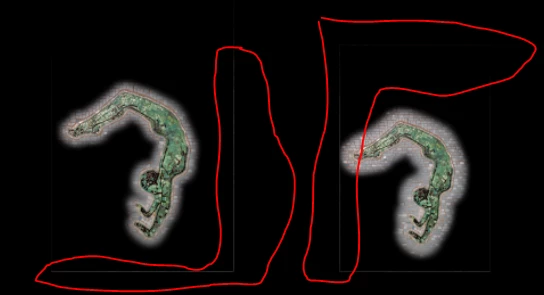
I'm getting a fine white line around my masked layers when place against a background in a multi-layered file.  I'm using the quick selection tool then checking the Select and Mask box...doing some edge refinement and Outputting as New Layer with Layer Mask.  I'm then dragging this layer into my background.  That's when I see the fine white lines around the whole unselected image (top green figure is the image I started with- the masked portion is on the below black background photo with the fine white lines around the original border).

I don't believe this is actually part of the image...I only say this because I exported the layered image with the fine white lines to a high res JPEG file and opened it- no white lines appear.

They are more annoying than anything else.  If my technique is the issue any recommendations would be appreciated.  if there is a way to remove them- even better.

Thanks for all comments...
이 주제는 답변이 닫혔습니다.
최고의 답변: Kristian Gabriel

As Chuck said, viewing at 100% can determine if lines are really there. What might be happening is that those white lines are really there--but when you export a hires JPEG--however you are viewing it--it might not be showing you a super detailed representation of what is actually there (this can also be how your monitor is configured versus how Photoshop is configured. In addition to this, I also know that Select and Mask can fail at times to really clear up some detail depending on the type of selection you are performing. Its a wonderful way of selecting--but not always the cleanest.  To clean up your lines--just Select Your Layer Mask that was created and try to use black (RGB,0,0,0) brush to brush out the white lines. If this works--you'll have your answer--the lines were a product of a bad selection. Please report back and tell us if any of this worked! Happy to help you out further!

4 답변

Participating Frequently
December 28, 2022

I have had the same problem, and just found out that if you copy and paste the piece instead of dragging, it does not bring the "box" along.


Participating Frequently
December 29, 2022

Nevermind, copy and paste did not work.  I'm still trying to find the right answer and more importantly WHY?

mglush
Community Expert
Community Expert
December 30, 2022

Are your images surrounded by transparency? If you Command-click on the Layer Thumbnail, copy and paste, does it still have the white edge?


Can you make a selection around the image without going all the way to the edge and copy and paste that way?

Michelle

Participating Frequently
December 27, 2022

My turn to bring this subject back up.  I am transferring 100 different layers and each one of them has a box around it, differing colors.  Sometimes I can see the box and "erase" it.  But there are 100 of them, and sometimes I can't see the box.

I use the magic wand to select the areas to mask, then use the move tool take transfer it to the main piece.  and then I have 100 boxes.  Where is the box coming from?  ERasing 100 boxes on every piece that I do is too much.

Jumpenjax
Community Expert
Community Expert
December 27, 2022

Possibly try putting an outside stroke of the color of background.

Lee- Graphic Designer, Print Specialist, Photographer
Kristian Gabriel
Participating Frequently
September 8, 2017

As Chuck said, viewing at 100% can determine if lines are really there. What might be happening is that those white lines are really there--but when you export a hires JPEG--however you are viewing it--it might not be showing you a super detailed representation of what is actually there (this can also be how your monitor is configured versus how Photoshop is configured. In addition to this, I also know that Select and Mask can fail at times to really clear up some detail depending on the type of selection you are performing. Its a wonderful way of selecting--but not always the cleanest.  To clean up your lines--just Select Your Layer Mask that was created and try to use black (RGB,0,0,0) brush to brush out the white lines. If this works--you'll have your answer--the lines were a product of a bad selection. Please report back and tell us if any of this worked! Happy to help you out further!

jmc708
jmc708작성자
Participant
September 8, 2017

Kristian- thanks...this was helpful and confirmed what I stumbled across on my own...The lines were "real".  I used the brush tool to get rid of them and everything looks great.

Thank you and Chuck for responding...I've been using Lightroom for years and over that past year just diving into Photoshop.  I love it but it can be overwhelming- especially when you think you are doing something correctly but things aren't happening the way you thought they should!

This was my first time asking a question in this forum and it was very successful.  Thanks again.

Jim

Chuck Uebele
Community Expert
Community Expert
September 8, 2017

Do you see this at 100%. You will often see artifacts if your image isn't at 100%.

jmc708
jmc708작성자
Participant
September 8, 2017

Chuck- yes...I do see the lines at 100% as well as other magnifications- both zoomed in or out...so I guess the lines are there