Participant
August 10, 2019
Answered

Windows 10 "open with"

  • August 10, 2019
  • 1 reply
  • 6882 views

As usual, Windows Update has removed the Open with Photoshop from the right click context menu.

As usual, I have forgotten the remedy.

Can anyone help please?

Cheers,

Colin

This topic has been closed for replies.
Correct answer Rob_Cullen

For 'Non-Nerds'  (like me) I find I can work my way through the Windows dialogs-

1. Select an image file to open (eg. JPEG) Right-Click and Select [Open With]

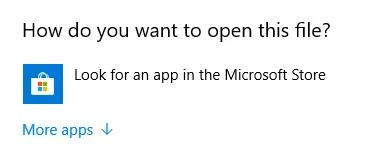
2. Most likely- you will NOT see Photoshop shown in the next screen! Click on [More apps]

3. In the list that opens- Scroll ALL the way to the bottom and Click on [Look for another app on this PC]

4. In the File Explorer window that opens navigate to and select {Photoshop.exe} which will be located in folder-

C:\Program Files\Adobe\Adobe Photoshop CC 2019\...

5. Repeat for other file types for Photoshop.

(Note to Lightroom-Classic users:  Lightroom only opens .LRCAT file-types. Not image files!)

1 reply

August 10, 2019

Hi

Take a look at this thread, there's a reg fix

Photoshop 2018 can't be set as default "open with" for any file type

colinb66Author
Participant
August 10, 2019

Thanks but out of the 79 replies the answer given is not a reg fix.  Anyway, I think you have put me on the right track; I have investigated reg fixes and applied the following but no luck. 

Funnily enough, .jpeg is OK, but not .jpg.

  • (For .JPG) Computer\HKEY_CURRENT_USER\Software\Microsoft\Windows\CurrentVersion\
    Explorer\FileExts\.jpg\OpenWithList

If that exists, verify (Default) has the correct path verified in Step 1.

If path is not correct, double-click (Default). Type the following text in it:

"C:\Program Files\Adobe\Adobe Photoshop CC 2019\Photoshop.exe" "%1"

Rob_Cullen
Community Expert
Rob_CullenCommunity ExpertCorrect answer
Community Expert
August 10, 2019

For 'Non-Nerds'  (like me) I find I can work my way through the Windows dialogs-

1. Select an image file to open (eg. JPEG) Right-Click and Select [Open With]

2. Most likely- you will NOT see Photoshop shown in the next screen! Click on [More apps]

3. In the list that opens- Scroll ALL the way to the bottom and Click on [Look for another app on this PC]

4. In the File Explorer window that opens navigate to and select {Photoshop.exe} which will be located in folder-

C:\Program Files\Adobe\Adobe Photoshop CC 2019\...

5. Repeat for other file types for Photoshop.

(Note to Lightroom-Classic users:  Lightroom only opens .LRCAT file-types. Not image files!)

Regards. My System: Windows-11, Lightroom-Classic 15.3, Photoshop 27.5, ACR 18.3, Lightroom 9.3, Lr-iOS 10.4.0, Bridge 16.0.3 .