
Inspiring
January 25, 2020
Answered

Printing Problem - Dark Blue "Bleeds" in just a portion of Cannon Pro-100 prints
  • January 25, 2020
  • 11 replies
  • 3021 views

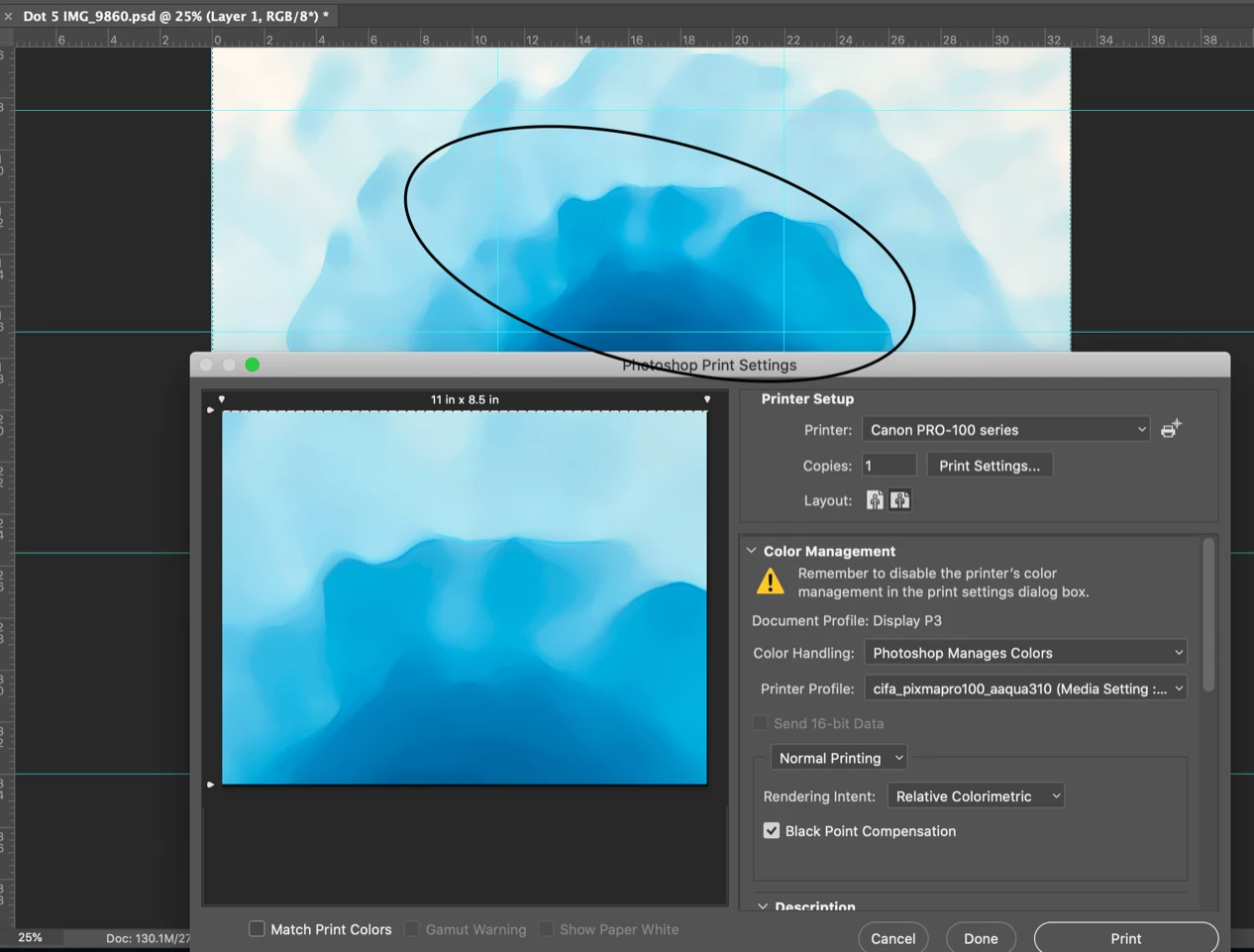
The Adobe Photoshop CC 2017-Print Setting shot is from my MacBook Pro running Catalina OS 10.15.2.

I print sections of each image on 8 1/2" x 11" Canson Infinity Aquarelle Rag Fine Art paper on a Canon Pro-100 printer using Canon ink.


I have made 1000's of prints using this setup and never had this problem before.


Note that the Color Management above shows that Photoshop Manages Colors and the Printer Profile is the specific profile from Canson for the paper I use. 


A problem has just started recently and it is a true puzzle. Most of the print comes out fine but in a portion the COLOR is WRONG! The darkest blue in the image seems to "bleed" into the medium color blue. Take a look at the area in the OVAL above and compare it to the Oval area in the next photo. This photo shows a group of the 8 1/2" x 11" prints.
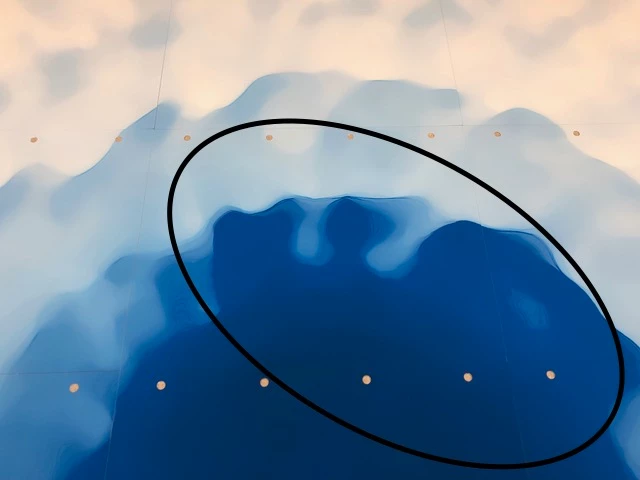
I have tried a few ways to see if I could solve the problem.

  1. I put in new blue ink - No change the print comes out just the same with "bleeding" dark blue.
  2. I change the Color Management to Printer Manages Colors. GOOD part - the dark blue does not bleed. BAD part - all of the colors are slightly OFF and washed out looking. This seems to tell me that the "bleeding" dark blue is not a printer problem.
  3. I printed another recent image with the settings shown above in the first image. Everything looked correct. This image did not have the same dark blue colors, so it might be a problem with the way Photoshop deals with the transition between dark blue and medium blue.
  4. I created a new image using the same dark and medium blues. I get "bleeding" from the dark blue into the medium blue in just a PORTION of the image. Why???


I hope that somebody has an idea on how to solve this problem.


Thanks.

Jim


This topic has been closed for replies.
Correct answer Soleil-Jim

Dave,

That is a great link that I will save. I did a quick review and did not however find anything that seemed to solve this issue other than the warning to avoid jumping into OS upgrades. Too late for me on that one!

My workaround (to this Catalina/ Photoshop/printing issue) is now very easy as all I need to do is save to Creative Cloud and print from my MacBook Air. (which has not been updated to Catalina)

Jim

(my additions for clarity - in brackets, Neil B)

11 replies

Inspiring
January 30, 2020

Hi All,

This new test, I think proves that there is a problem with the Catalina OS in relation to the Photoshop.

The photo on the left is my image printed with from a Mac Book running the Catalina OS and the Canson print profile. Note the dark blue "bleeding". The one in the middle is the .tiff image that Evan created per his post above then sent to me and printed on my Canon Pro-100 via the ACPU. The one on the right is my image that I uploaded to my Creative Cloud account, then opened on a MacBook Air running the High Sierra OS and printed using the print profile from Canson. I am happy with the results, the dark blue does not "bleed".


I do not have another computer with Windows to test but to me it is clear that the "bleeding" blue problem is not the profile but way in which Catalina OS works or doesn't work with Photoshop.


I will file a bug report per Dave's suggestion and link this discussion to that report.


At least my work around is easy and I can continue printing my art without the laborious process in Evan's test above.


You all have been a great help. Many Thanks!


Jim

davescm
Community Expert
Community Expert
January 30, 2020

Jim

Did you check out that second link which was specifically about Mac issues leading to color shifts and had some suggestions and workarounds

Dave

Soleil-JimAuthorCorrect answer
Inspiring
January 30, 2020

Dave,

That is a great link that I will save. I did a quick review and did not however find anything that seemed to solve this issue other than the warning to avoid jumping into OS upgrades. Too late for me on that one!

My workaround (to this Catalina/ Photoshop/printing issue) is now very easy as all I need to do is save to Creative Cloud and print from my MacBook Air. (which has not been updated to Catalina)

Jim

(my additions for clarity - in brackets, Neil B)

D Fosse
Community Expert
Community Expert
January 30, 2020

On a general note, this is where MacOS and Windows are a bit different. In MacOS profile conversions are called by the application, but executed by the OS. In Windows the OS is strictly hands off, leaving everything to the application. It just provides profiles when applications request them.


When everything works one is as good as the other. But the Mac model does introduce an extra layer into the proceedings, where bugs can happen, and as a user you can't do much except wait for an OS update.

davescm
Community Expert
Community Expert
January 30, 2020

@evanlparker said "Hopefully Adobe/Apple can find and fix the issue."

Adobe's developers will only look into it if someone reports it as a bug here: https://feedback.photoshop.com/photoshop_family

A quick search did not turn up a report on color with Catalina. I use Windows here so cannot test.


Before raising a bug report, you may want to check the article here, which refers to Apple using the incorrect (Airprint) print driver on Catalina resulting in colour shifts, and also separate problems with colour shifts using 16 bit printing. It will certainly be worth checking each of the issues and steps here before raising the issue with Adobe, if only to rule them out:

http://www.colourphil.co.uk/printing-mac_colour_problems.shtml


Dave

NB, colourmanagement
Community Expert
Community Expert
January 30, 2020

Hi Evan Parker

Canson Infinity Support

Given that you can print successfully though earlier OSX versions using your profile - it was a great idea to convert then print through the ACPU as it isolates some of the process, good thinking. It seems, from your test, that this isolated the process from the issue.


Are you sure you’re actually using the Epson driver (with Epson specific paper names in media options) not the Gutenprint/ Gimp driver that comes as standard with OSX. You must be using the Epson, right? And, plainly, the same driver with both ACPU and Photoshop? 


Your comments (at first) lead me to suppose that perhaps Catalina simply has different [but MAYBE not wrong] behaviour. Changes in print behaviour have happened in the past, e.g,.with Epson driver changes (long in the past).


It made me wonder if a profile actually made from patches printed through Catalina will perhaps work. 

However, since one would have to use the ACPU  [or i1 profiler etc.] to print those patches, and since those apps appear to be unaffected by the "Catalina issue" maybe not?


Seems from your test that there's an issue in Catalina's relationship with apps such as Photoshop. ACPU was, of course, designed to provide a "no colourmanagement" print pipeline when same was removed from Photoshop - but ACPU can't entirely isolate the process from Catalina, of course. OSX is still an inescapable part of the print process.


Are you in a position to try a profile made from patches printed in Catalina at Canson and report back? I don't yet run Catalina here, too many legacy apps.


I'm sure the problem would not occur with Windows.


Solution needed urgently I'd say.

thanks

neil barstow, colourmanagement.net

[please do not use the reply button on a message in the thread, only use the one at the top of the page, to maintain chronological order]

Participating Frequently
January 30, 2020

In addition to Jim, many other photographers are having issues with print colors in MacOS Catalina. I have not seen a pattern yet, other than incorrect colors. Some have magenta shifts, others just color shifts across the spectrum. It seems to be an issue with color management in Catalina, as it is showing up in CC 2017 thorugh CC 2020.


Jim's print settings are correct, and the the ICC profile for Canson Aquarelle on the PRO-100 prints accurately from MacOS High Sierra 10.13 and before. To troubleshoot, we took Jim's file, opened in Photoshop CC2019 (on MacOS High Sierra) and used Edit>Convert to Profile to convert the file to the output (print) profile. The file was saved as a TIFF, and then opened in Adobe Color Printer Utility on Jim's computer and printed. ACPU bypasses any OS or Adobe color management, something no longer possible in PS or LR. The print from ACPU was accurate to the screen, not showing any of 'blue bleed' in the PS prints.


 Original image on the left, printed from PS in Catalina


ACPU image on the right, printed in Catalina


Hopefully Adobe/Apple can find and fix the issue.


-Evan Parker

Canson Infinity Support

Legion Paper

D Fosse
Community Expert
Community Expert
January 30, 2020

Have you tried on a Windows machine? Just seems like an obvious next step -

Inspiring
January 29, 2020

D-Fosse and Dave,

I got some tech support from Canson via Evan Parker at Moab. He will post tomorrow on the details of his analysis but he believes that the printer profile IS NOT the problem causing the blue to "bleed" but rather a problem between Adobe and Apple. Stay tuned for the details of the tests we did that will detail how he came to this conclusion.

Jim

NB, colourmanagement
Community Expert
Community Expert
January 27, 2020

Hi Jim


Unless there's something wrong (strange) with the images you're testing, you seem to perhaps have an issue with ICC profile quality (the supplied profile may not be adequately describing printer behaviour) If you believe that’s the case, I'd suggest you get a custom profile made - Chromix.com offer a great service to do this and I often recommend them to US based Photoshop users. 


I hope this helps


thanks

neil barstow, colourmanagement.net

[please do not use the reply button on a message in the thread, only use the one at the top of the page, to maintain chronological order]


D Fosse
Community Expert
Community Expert
January 26, 2020

Dave is spot on, but just a couple of things to clarify.


I'd recommend you disregard Gamut Warning. Don't bother with it. It doesn't tell you anything that soft proof won't show you directly on screen. Gamut warning is outdated, inaccurate and redundant.


You can also check the histogram directly. Convert a copy to the print profile and look for channel clipping. The way this looks, there is probably significant clipping in the low end of the red channel. That would produce a result like this.


If there is no red channel clipping in the profile, this is a profile/printer problem. Then the basic color management chain is working as it should, but the profile itself is off. Or to put it more precisely - the printer profile doesn't exactly describe the actual behavior of the printer/paper/ink.


(last paragraph edited for clarity)

Inspiring
January 26, 2020

Dave and D_Fosse

Thanks to both of you for continuing with this issue.

I went to Canson and downloaded a updated icc file for my Canon Pro-100 printer. The new printer profile did not result in any change to the bleeding dark blue areas. Creating a custom print profile is WAY beyond my IT skills.


As to the suggestion from D_Fosse here is a screen shot of the histogram for my image.

I am not sure how to copy it to the print profile to check if there is a clipping a the low end of the red channel. Again my IT skills are limited. I could not find any suggestions on this process on Google. As you think it might really be the printer/profile problem. I wonder if Canson has any tech help that could look at this issue.

Again thanks to both of you for trying to help.

Jim

D Fosse
Community Expert
Community Expert
January 26, 2020

This is the original file? What I meant was to make a copy of the original file, then convert this copy into the print profile. This converted copy is where you look for channel clipping.

davescm
Community Expert
Community Expert
January 26, 2020

If you are not seeing the issue in the proof display then that brings it down to two possibilities.

1. The printer settings, such as paper type etc do not match those which were used when the profile was made. Check the Canson site. It should tell you how to set the printer in order to use that profile effectively.

2. There is an issue with the profile itself. When a profile is produced for an RGB print driver it sits on the back of the decisions that were made by the printer manufacturer on how the coloured inks are mixed and how much ink is placed for each of the standard papers in the driver. The RGB printer driver does not give access to those mix and ink limit controls. So when using a 3rd party paper the first step is finding which of the standard paper settings works closest with that paper choice and then producing a profile for that setting. So a set of test patch colours are printed and measured and used to make the profile Real life test prints are then used to find any issues in the profile such as any nasty steps in gradients which may then need another profile to be made based on a larger set of test patches  with more coloured patches around those issues areas. So it becomes a bit of an art with science.

If this is the case then the only way around it would be to make your own profile which requires a spectrophotometer and associated software.


Dave


davescm
Community Expert
Community Expert
January 25, 2020

Do you see the issue using proof colours with that same printer profile ?

When you checked the gamut warning did you check against the printer profile?

Dave

Inspiring
January 26, 2020

Dave,

I am not sure if I followed your instructions.


I set the View-Proof Setup to Custom and then picked the printer profile that I have been using. I then clicked View-Gamut Warning on and then clicked View-Proof Colors.

As you can see the printer profile is shown after the file name in the sceen shot above. I toggle back and forth with the View-Gamut Warning and the image does not change. I never see any grey areas indicating an out of gamut warning.


Have I followed the correct process?

Jim

Inspiring
January 26, 2020

Dave,

I tried another way to check the gamut warning. Below is a screen shot.

In the print dialog box I checked Match Print Colors and the Gamut Warning. No greyed out areas indicating a gamut warning.

Let me know if I can try something else.

Thanks,

Jim