


Inspiring
January 25, 2020
Answered

Printing Problem - Dark Blue "Bleeds" in just a portion of Cannon Pro-100 prints
  • January 25, 2020
  • 11 replies
  • 3022 views

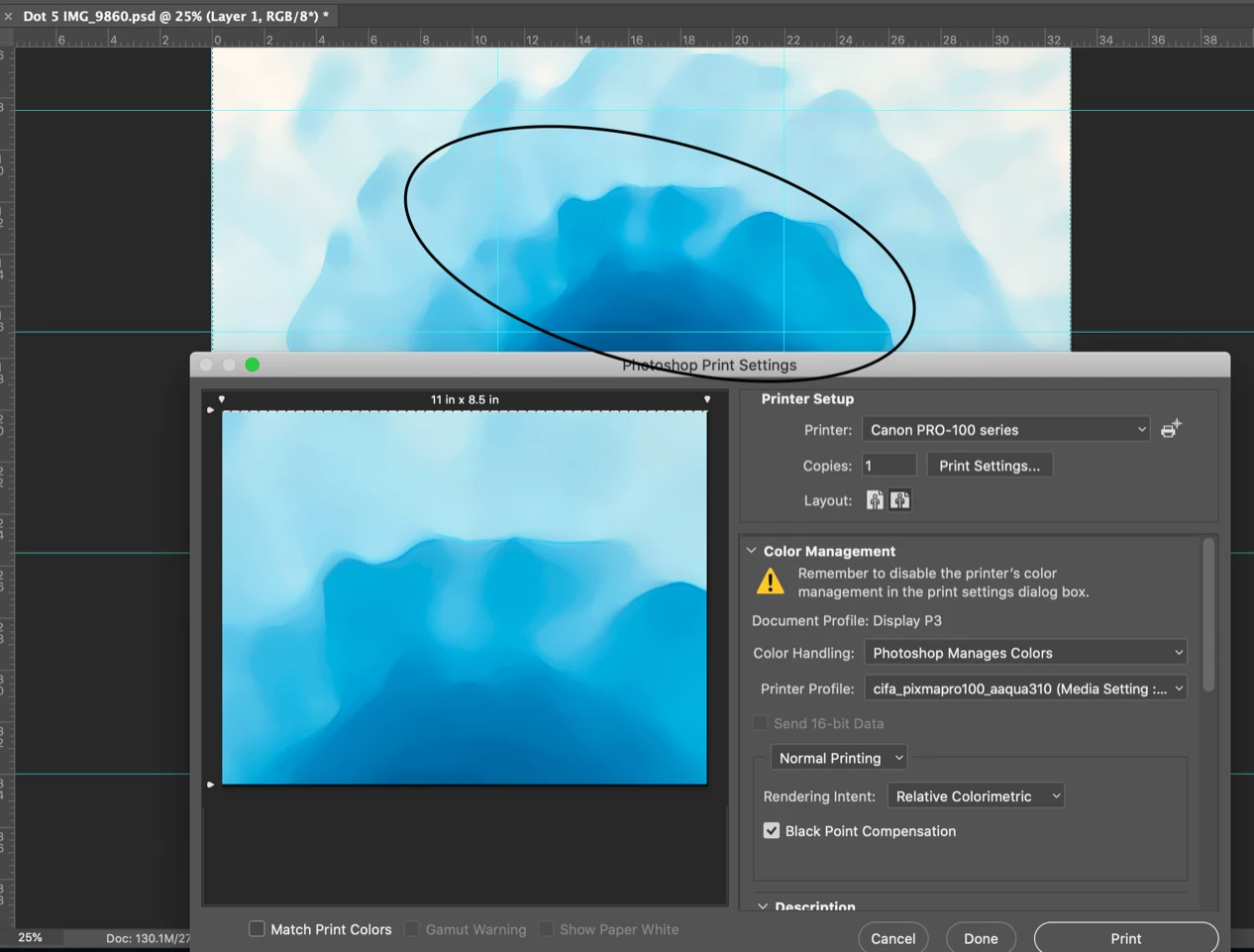
The Adobe Photoshop CC 2017-Print Setting shot is from my MacBook Pro running Catalina OS 10.15.2.

I print sections of each image on 8 1/2" x 11" Canson Infinity Aquarelle Rag Fine Art paper on a Canon Pro-100 printer using Canon ink.


I have made 1000's of prints using this setup and never had this problem before.


Note that the Color Management above shows that Photoshop Manages Colors and the Printer Profile is the specific profile from Canson for the paper I use. 


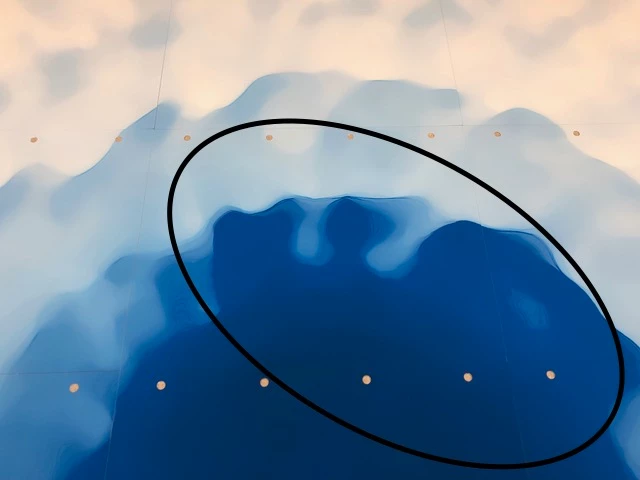
A problem has just started recently and it is a true puzzle. Most of the print comes out fine but in a portion the COLOR is WRONG! The darkest blue in the image seems to "bleed" into the medium color blue. Take a look at the area in the OVAL above and compare it to the Oval area in the next photo. This photo shows a group of the 8 1/2" x 11" prints.
I have tried a few ways to see if I could solve the problem.

  1. I put in new blue ink - No change the print comes out just the same with "bleeding" dark blue.
  2. I change the Color Management to Printer Manages Colors. GOOD part - the dark blue does not bleed. BAD part - all of the colors are slightly OFF and washed out looking. This seems to tell me that the "bleeding" dark blue is not a printer problem.
  3. I printed another recent image with the settings shown above in the first image. Everything looked correct. This image did not have the same dark blue colors, so it might be a problem with the way Photoshop deals with the transition between dark blue and medium blue.
  4. I created a new image using the same dark and medium blues. I get "bleeding" from the dark blue into the medium blue in just a PORTION of the image. Why???


I hope that somebody has an idea on how to solve this problem.


Thanks.

Jim


This topic has been closed for replies.
Correct answer Soleil-Jim

Dave,

That is a great link that I will save. I did a quick review and did not however find anything that seemed to solve this issue other than the warning to avoid jumping into OS upgrades. Too late for me on that one!

My workaround (to this Catalina/ Photoshop/printing issue) is now very easy as all I need to do is save to Creative Cloud and print from my MacBook Air. (which has not been updated to Catalina)

Jim

(my additions for clarity - in brackets, Neil B)

11 replies

davescm
Community Expert
Community Expert
January 25, 2020

It could be an issue with the profile or with the printer settings not being exactly the same as those used to make the profile.

But there is another possibility:


Have you tried the perceptual rendering intent? This treats colours that are out of gamut i.e out of the printable range differently.


Relative colorimetric rendering intent shifts out of gamut colours to the boundary of those colours that are printable but does not shift those colours within the boundary. This keeps the in gamut colours as they should be but can end with the out of gamut and in gamut colours printing as the same colour.

Perceptual rendering intent moves the out of gamut colours into the boundary of colours that are printable - but also shifts the colours within the boundary so as to maintain a difference between them on the paper.


Give it a try


Dave


Inspiring
January 25, 2020

Hi Dave,

Thank you for your reply.

I tried the perceptual rendering intent. Below is the result. No improvement that I can see. The dark blue still bleeds into what should be the medium blue area.

I am not sure how to verify if the printer profile is in sync with the printer settings.

Remember that in my attempts for a solution #3 above, I printed a current image that does not have the dark blue and it came out perfect.


I have only recently started using the dark blue so the problem that causes the bleeding may have been there all along hiding in the profile issue or something else.


The other idea you raised was about out of gamut. The blend of dark blue and medium blue areas are elsewhere in my image and do not seem to cause a problem creating a new color that might be out of gamut. I clicked View-Gamut Warning and did not see any area of the image with a warning.


Any other ideas for me to track down.

Thanks,

Jim