
Inspiring
April 3, 2019
Answered

Can I do this in PSE?

  • April 3, 2019
  • 2 replies
  • 878 views

I have a couple of questions, and I may not be in the right forum.

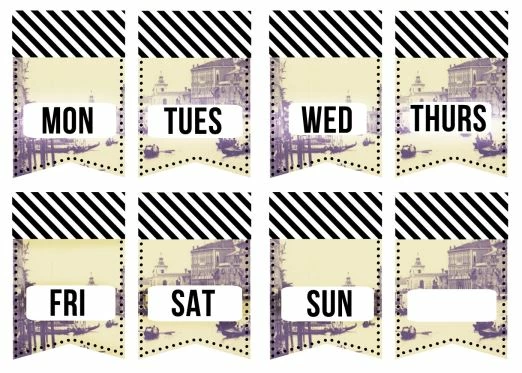
I'd like to make something similar to what's in this picture. Can I do it in PSE? Instead of redesigning from the ground up, I'd like to replace the photos in the background with my own photos.

That said, do I need to do it in InDesign? I'd like to avoid Illustrator if possible. I'd even be willing to make it a rectangle instead of a pointed banner. Thanks!
    This topic has been closed for replies.
    Correct answer Greg_S.

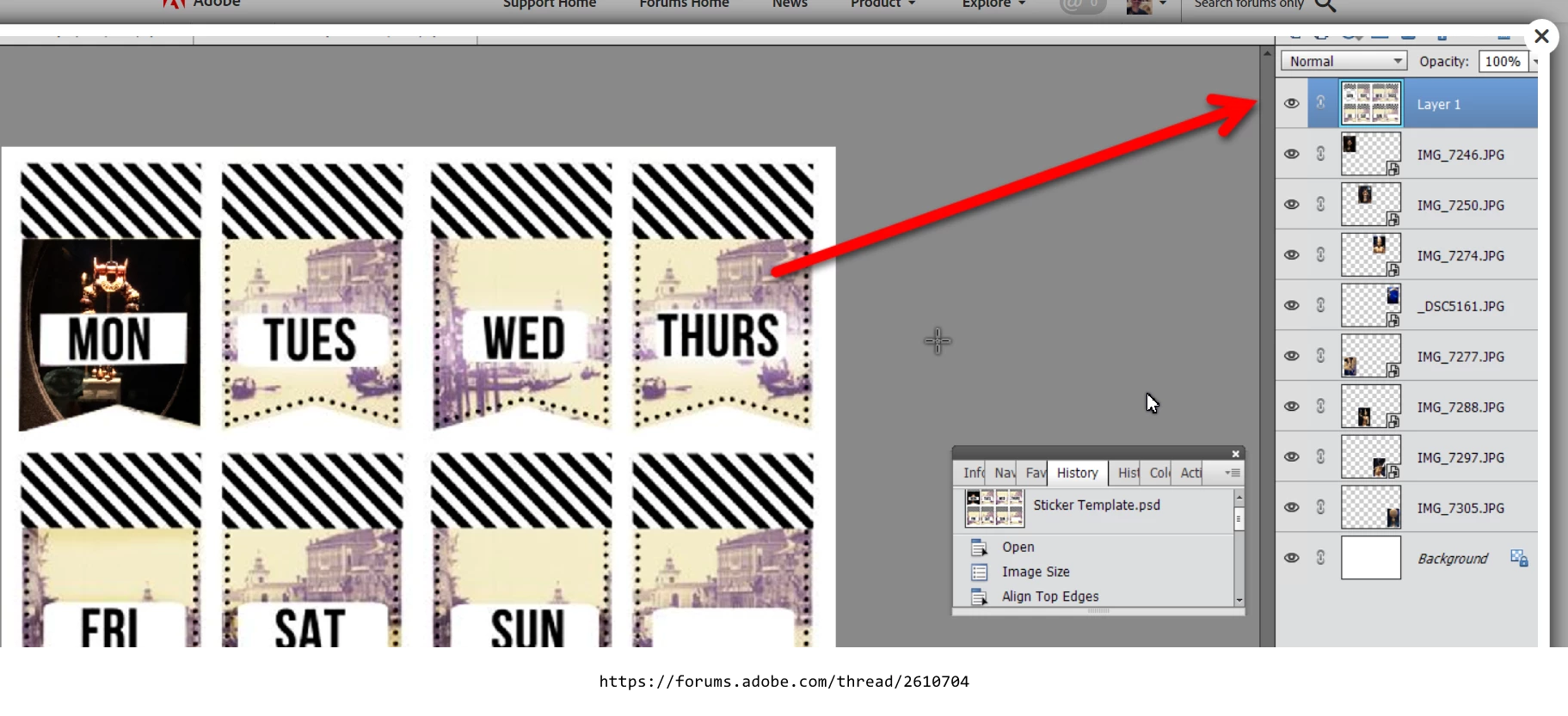
    It would be helpful if you could post a screen shot of your layers panel.  It should look something like this:

    It is not essential that you create a new file.  I just did that to create a white layer at the bottom.  However, your original image layer has to be at the top of the layers panel.  Essentially what we are doing is cutting holes in the photo so that the images underneath can appear through the holes.  It is also essential that your selection takes place on the top layer, so make sure it is highlighted as in this screenshot before making the selections.

    If the  original photo is not at the top of the layers stack, you can click and drag the layer to place it at the top.

    Hope this helps, but please ask any other questions you may have about this workflow.

    2 replies

    Greg_S.
    Community Expert
    Greg_S.Community ExpertCorrect answer
    Community Expert
    April 9, 2019

    It would be helpful if you could post a screen shot of your layers panel.  It should look something like this:

    It is not essential that you create a new file.  I just did that to create a white layer at the bottom.  However, your original image layer has to be at the top of the layers panel.  Essentially what we are doing is cutting holes in the photo so that the images underneath can appear through the holes.  It is also essential that your selection takes place on the top layer, so make sure it is highlighted as in this screenshot before making the selections.

    If the  original photo is not at the top of the layers stack, you can click and drag the layer to place it at the top.

    Hope this helps, but please ask any other questions you may have about this workflow.

    Inspiring
    April 9, 2019

    Got it!  I see what I was doing wrong--I had the layers in the wrong order.

    Thanks so much for your help!

    Greg_S.
    Community Expert
    Community Expert
    April 9, 2019

    Glad it worked out for you. 

    Greg_S.
    Community Expert
    Community Expert
    April 3, 2019

    The short answer is yes, you can do this task in PSE.  There are several ways to do it, but generally you will be creating layers for the photos you want to replace the existing ones and using some form of masking to replace portions of the original image.   Before giving you any step-by-step instructions, perhaps you can give us a little more detail about the ultimate goal, for example, is the ultimate output a single image with a day of the week or a combined image showing all days  of the week as in your post.  And what is your own level of knowledge about editing images?

    Inspiring
    April 3, 2019

    Hi, Greg:  My ultimate goal is to have a combined image with all the days of the week. I'll print it on sticker paper and cut them all out for my travel journal.

    I've been working with PS & PSE for over 10 years. For the past several years it's been a a hobby, but once upon a time I worked in marketing/PR and used the programs a lot more. Thanks!