
Inspiring
November 15, 2021
Answered

Centering a circle on a layer

  • November 15, 2021
  • 2 replies
  • 3145 views

Trying to do something very simple, or so I thought.

I have a background square and now I want to put a smaller circle of a fixed size right in the middle. I'm using the eliptical marque tool of a fixed size to create the circle and can place it on the square but can't find a way to exactly centre it. If I use the move tool, all the align and distribute tools do nothing. This is all within the same layer - no other layers at all on the image.
This topic has been closed for replies.
Correct answer Greg_S.

Here is another way to get a precise alignment. 

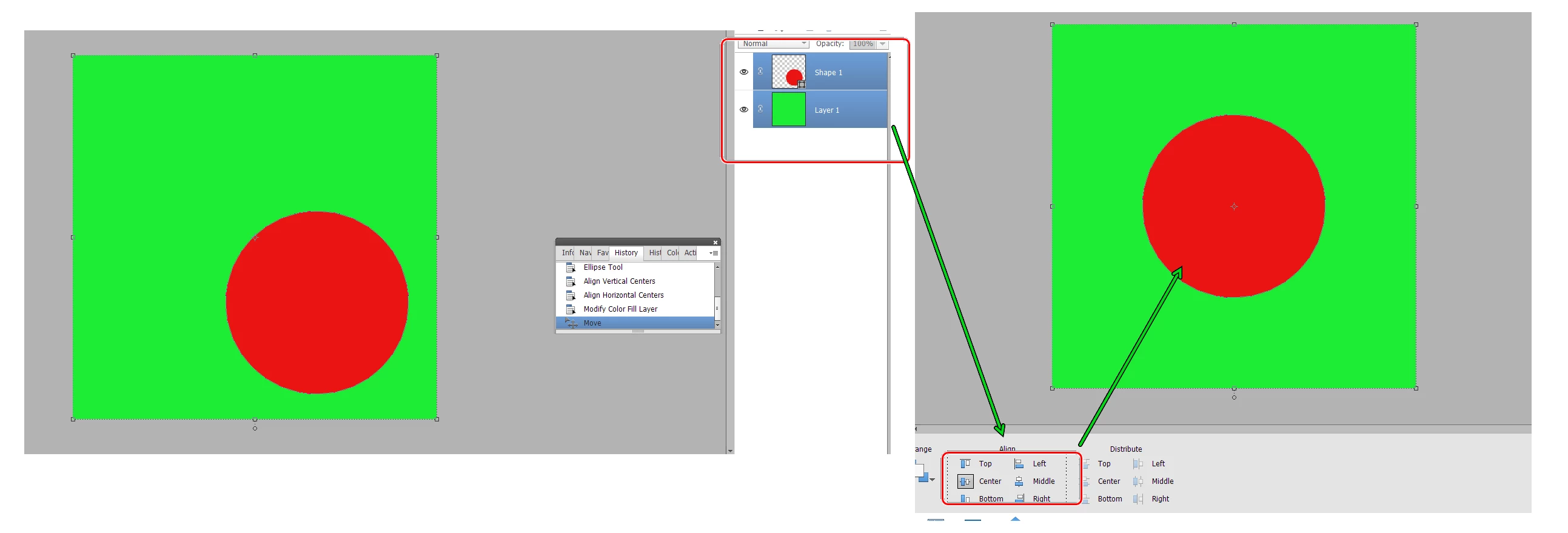
The reason the align and distribute tools are inactive is because you only have one layer selected.  If you select the background (square) layer and the circle layer, these tools will become active.  Clicking the Middle and Center alignment buttons will put the circle in the exact middle of the frame.


2 replies

Greg_S.
Community Expert
Greg_S.Community ExpertCorrect answer
Community Expert
November 15, 2021

Here is another way to get a precise alignment. 

The reason the align and distribute tools are inactive is because you only have one layer selected.  If you select the background (square) layer and the circle layer, these tools will become active.  Clicking the Middle and Center alignment buttons will put the circle in the exact middle of the frame.


Inspiring
November 15, 2021

Thanks for your reply, but can't get that to work. What do you mean 'select' the background layer and circle layer? I have two layers exactly as you have and both showing blue (and apparently selected), but the alignment buttons still do nothing.


p.s. I am using Photoshop Elements 12

hatstead
Inspiring
November 15, 2021

Try this:

1. Open the rulers - View menu and check"rulers."

2. Open your image. This will be the Background Layer

3. Open a blank layer above this. This will be Layer 1

4. Activate the Elliptical marquee tool and while holding down the shift key, drag out a circle. Go to Edit menu>stroke>outline selection and add a stroke. You can tailor the width & color to suit. Place it inside,

5. Press CTRL+D to get rid of the marching ants outline.

6. With Layer 1 active, engage the move tool and position the circle.


TIP: Go to View menu and open the grid. It will not print. It helps with orientation.


Inspiring
November 15, 2021

Thanks for your reply, but I still have the same problem. I can move the circle with the move tool, but  I want it to be EXACTLY in the centre of the background. The Align and Distribute buttons on the move tool are inactive and I am left with trying to position the circle in the centre as best I can using the grid. In the past I have even resorted to putting a ruler up to the screen to get it centered. Surely there must be a way to aligning centrally using the tools?

I'd like to know if you can do this without having to manually move the circle.

hatstead
Inspiring
November 15, 2021

"I'd like to know if you can do this without having to manually move the circle"

I am unaware of a method to accomplish this automatically. However, there are guides to facilitate this maneuver.

Rulers, grids, and guides in Photoshop Elements (adobe.com)

A work-around for your consideration is to make your own template with a designated focal area at the center. You can do this on a separate layer, then reduce the layer's opacity so that you see what is below, and delete the layer prior to printing.

We look forward to your progress.