
Participant
December 4, 2019
Answered

Change Background color on custom collage

  • December 4, 2019
  • 1 reply
  • 3428 views

Adobe Photoshop Elements 2020.  New, don't have time to do any lessons, as this is a rush job for a client gift. Made a custom collage, I finally arranged all of my photos leaving even spaces around each, which wasn't easy.  I also have text across the top.  I cannot get the background color to change.  It is white.  I want the page to be black (background).  Please walk me though this, I feel like I've tried everything.  The paint bucket fills in, but ruins the photos that have anything white on the edges.  What I see on the screen is white and grey checkerboard.  I don't know anything about layers either 😞  HELP!  Thank you in advance.
This topic has been closed for replies.
Correct answer 99jon

Go into Advanced mode and click the layers button at the bottom.

Double-click on the background layer to unlock.

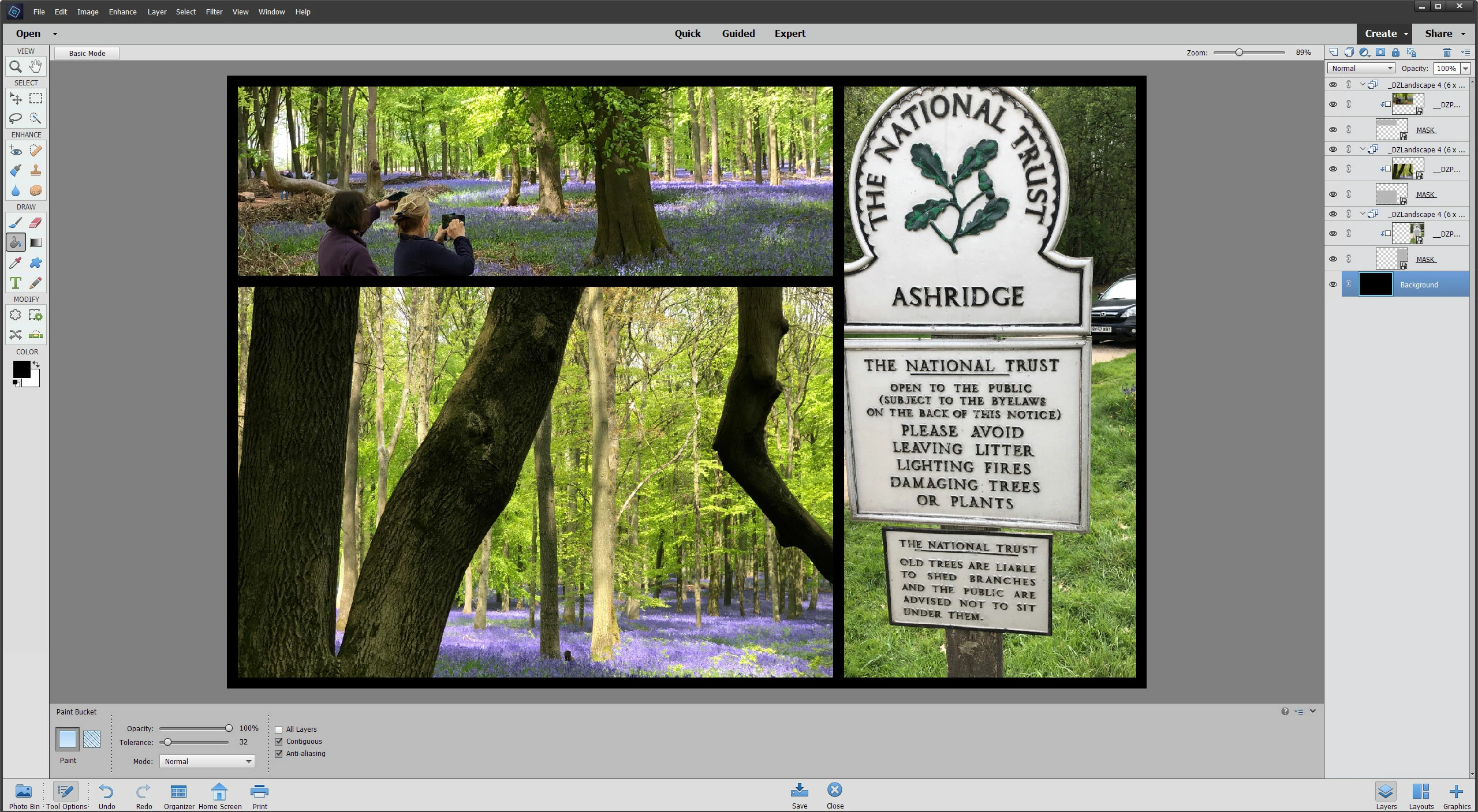
Select the white layer thumbnail (highlighted in blue) and set the foreground color to black at the bottom of the tools on the left

Then click with the paint bucket tool anywhere on the white borders – see image below

To enlarge, click once, then right-click and choose open in new tab. Go to the tab to view full size.

1 reply

99jon
99jonCorrect answer
Legend
December 4, 2019

Go into Advanced mode and click the layers button at the bottom.

Double-click on the background layer to unlock.

Select the white layer thumbnail (highlighted in blue) and set the foreground color to black at the bottom of the tools on the left

Then click with the paint bucket tool anywhere on the white borders – see image below

To enlarge, click once, then right-click and choose open in new tab. Go to the tab to view full size.

sue1313Author
Participant
December 5, 2019

Thank you so much!  The only thing is, I had to mess around with the top right drop down "blending mode".  The "Normal" setting you show, turned my whole page black, my setting was on "Color Burn" and you could only see bright colors of the photos coming thru.  There are a couple that seem to work, but not sure whats the difference or best "Color dodge, screen, lighten, difference, or exclusion".  This is to be professionally printed and framed.  I love your opinion of you have time.

99jon
Legend
December 5, 2019

I usually use normal for a collage but you can experiment with blend modes to find something you like. I would suggest doing a test print if possible as images can often look darker on paper compared with a pc monitor unless calibrated.