Participating Frequently
August 14, 2021
Answered

Dark areas print shiny

  • August 14, 2021
  • 2 replies
  • 1086 views

Maybe this is not a PE problem per se.  When I print an image after working or restoring a photo the dark areas are shiny.  I am so far from an expert I have no idea why or how to fix it.  Any suggestions would be appreciated.  Using an HP printer.   Thanks.

This topic has been closed for replies.
Correct answer hatstead

Try this:

1. Open the picture file

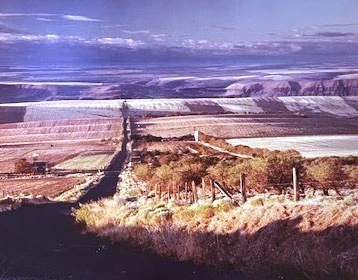
2. Go to Enhance>Adjust Lighting>Levels. Access the white eyedropper in the dialog to reset the white point. With the eyedropper, click on a "light " area below the fence. When I did this the entire picture came to life - the foliage at the bottom became visible!

3. Open a levels adjustment layer at the top and play a little with the 3 sliders. With my equipment this had little additional effect. 

4. As for printing, we have to consider the resolution. The resolution of this file is 72 px/in. That is ok for web work, but for printing the rule of thumb is that the resolution should be in the 240-300 px/in range, although I have printed successfully below this value.

Go Image>Resize>Image size. Change 72 to 240, check Resample and Constrain proportions. ok it.

5. Make a test print
2 replies

hatstead
Inspiring
August 14, 2021

I was thinking about this image, and opened it in "camera raw."

Go to File>open as. Point to your image, and in the drop-down select Camera Raw

This brings up several sliders which are intuitive and can enhance the scan. Then, if you wish to open in conventional Editor, cick the Open Image button, lower right.


diane1349Author
Participating Frequently
August 14, 2021

I did all of the above except camera raw which I will try next.  Then I found a few sheets of HP paper.  My issues is now solved.  Thank you so much for all the good advice.  The enhancement was amazing.  My scan was from a photo that had faded over the years and I didn't recall how good it really looked.  

hatstead
Inspiring
August 14, 2021

You're welcome. Glad to help.

hatstead
Inspiring
August 14, 2021

Several questions:

1. Does the picture look ok on screen?

2. Have you calibrated your monitor?

3. Are you using branded ink & paper, e.g. Epson for Epson printer?

4. If you are so inclined, post a representative picture for us to look at.

diane1349Author
Participating Frequently
August 14, 2021

Thank you for the response.  The only time the darks are shiny is after printing.  Image looks fine head on but if you look from the side the darker areas shine.  Looks fine onscreen, no issues there.  Monitor is calibrated as best I can do without buying fancy software.  No...I will go buy some HP paper and try that.  I didn't consider it might be a printer/paper/ink incompatibility issue.  Like I said...I'm far from an expert.   The photo is prior to restoration.  All the darker areas shine, even some of the darks in the sky.  

hatstead
Inspiring
August 14, 2021

I will most definitely try that....that I understand!  Thanks so much.  That picture I sent was prior to me scanning it at 400 dpi but since I don'r really understand all that it may have made no difference.  But the pixels....I never knew that.  


dpi=dots per inch. This is a metric realated to your printer/scanner. 

ppi=pixels per inch - - - resolution.
