Buddycat
Inspiring
December 11, 2016
Answered

Drawing a Polygon outline - stop sign? PhE14

  • December 11, 2016
  • 9 replies
  • 5728 views

I'm guessing this should be basic, but maybe I'm missing something.   Every online instruction I've looked at seems to make my eyes glaze over because there's something that should be obvious about the Tools Options, but it's not to me.    I'm seeing some of the options they refer to.

I'm trying to drew a polygon shape layer - an octagon.   The polygon tool only draws a filled shape.   I want a bold, octagonal line with a white center so I can use it as a layer to put another graphic within it.   Can someone please make this as simple as possible, step by step?

Also, is there a way to turn on a grid to I make sure I have the same size polygon when I combine graphics?   I'm trying to create graphics for playing cards.

Thanks.
    This topic has been closed for replies.
    Correct answer Mark_Sand

    I keep reiterating that you must select the octagon before the stroke option is available. Again, in your latest screenshots I don't see the marching ants around the octagon.  Perhaps the selection has became deselected somewhere along the line.

    Also your last screenshot does not show the blank layer above the octagon layer. Since that screenshot shows the bottom layer active did you successfully do the inside stroke on this layer? If so, the stroke it will be hidden by the octagon layer above it so you should delete the octagon layer.

    Really, this should not be difficult.

    Once again, repeating the instructions in posts 16 and 19 which say the same thing:

    1. Draw the octagon, creating a new layer. The color you choose doesn't matter.

    2. Ctrl-click the octagon layer thumbnail in the layers palette to select the octagon (marching ants).

    3. Add a blank layer above the octagon layer. The selection should still be active. If not, activate the octagon layer, select it per step 2, and activate the blank layer again.

    4. Stroke the selection on the blank layer.

    5. Delete the octagon layer which is no longer needed.

    9 replies

    Inspiring
    December 19, 2016

    I am stumped. My instructions are as clear as I can make them. I don't know why you are losing the octagon selection when you switch to the blank layer.  Just out of curiosity try this: Simplify the octagon layer. Ctrl-click to select it, then see if the stroke works on the octagon layer. Be sure to stroke with a different color than the octagon. At least we will know if your select/stroke works at all.

    Also, how are you trying to change the octagon color, and why change the color anyway since you won't be needing it?

    What PSE version do you have?

    Buddycat
    BuddycatAuthor
    Inspiring
    December 19, 2016

    Still no luck so far.   Also, for some reason, I can't change the color of the octagon that I do draw.   It keeps going back to the grey, no matter what I do.   WTH?

    Buddycat
    BuddycatAuthor
    Inspiring
    December 19, 2016

    Okay, went back and looked at your example.   My first misunderstanding was the "marching ants" are supposed to be around the Octagon itself, not the square box.   But for some reason, I can't get it to stay selected after I control-click the new layer, which I've created above the Shape layer.

    Buddycat
    BuddycatAuthor
    Inspiring
    December 19, 2016

    Aha!   I think I see the problem.  I kept overlooking you said to click the Thumbnail  - I kept interpreting that as just the layer box.   Now, I just have to figure out why it's not displaying any other color except grey.   Thank I think I can make some progress!

    Mark_SandCorrect answer
    Inspiring
    December 18, 2016

    I keep reiterating that you must select the octagon before the stroke option is available. Again, in your latest screenshots I don't see the marching ants around the octagon.  Perhaps the selection has became deselected somewhere along the line.

    Also your last screenshot does not show the blank layer above the octagon layer. Since that screenshot shows the bottom layer active did you successfully do the inside stroke on this layer? If so, the stroke it will be hidden by the octagon layer above it so you should delete the octagon layer.

    Really, this should not be difficult.

    Once again, repeating the instructions in posts 16 and 19 which say the same thing:

    1. Draw the octagon, creating a new layer. The color you choose doesn't matter.

    2. Ctrl-click the octagon layer thumbnail in the layers palette to select the octagon (marching ants).

    3. Add a blank layer above the octagon layer. The selection should still be active. If not, activate the octagon layer, select it per step 2, and activate the blank layer again.

    4. Stroke the selection on the blank layer.

    5. Delete the octagon layer which is no longer needed.

    Buddycat
    BuddycatAuthor
    Inspiring
    December 19, 2016

    I swear that when I'm picking it, I see the outline box.  I just now noticed that the screen cap is not showing it.   Let me work on it a bit.

    Buddycat
    BuddycatAuthor
    Inspiring
    December 19, 2016

    Okay, the first problem seems to be it gets deselected every time I try to select the blank layer to add the stroke, because when I choose the stroke it's telling me there's nothing to stroke.   So clearly, I'm misunderstanding your instructinos, but I can't figure out what I'm doing wrong.   Very frustrating!     I'm sure it's simple but I'm just not getting it!   I assume you don't mean for both the octagon and the new layer to be highlighted because I get no Stroke option.

    Inspiring
    December 16, 2016

    Selecting the octagon prior to the stoke is the key to the whole thing. Based on your screenshots I don't think you ever selected it.

    Here I created an octagon layer:

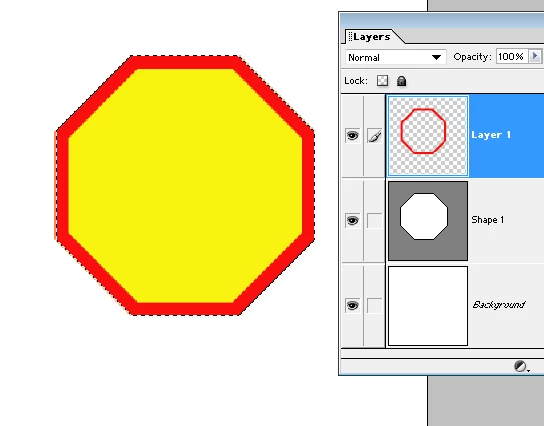
    Here I Ctrl-clicked the layer to select the octagon. Note the "marching ants" around the edge, indicating the selection.

    I don't see the marching ants in your screenshots.

    Once you have selected the octagon (Ctrl-click the layer) you should then be able to do the stroke.

    Add a blank layer, do the stroke on his layer, and delete the octagon layer which you no longer need.

    As to the stroke command itself, I don't know where it is in PSE14, but in my version it is via the menu bar: Edit > Stroke.

    Buddycat
    BuddycatAuthor
    Inspiring
    December 18, 2016

    Okay, I think I got it to select correctly, but Stroke command under edit is not available (won't open).   I created a new blank layer, but it still won't allow me to use Stroke.

    Buddycat
    BuddycatAuthor
    Inspiring
    December 18, 2016

    Okay, so this is what I have so far.   I created the new layer - Stroke was available.  

    Got the options

    Once I click it, nothing happens.

    Buddycat
    BuddycatAuthor
    Inspiring
    December 16, 2016

    As you can see in the image above, the octagon (I thought) was selected.   Let me try this again.

    There's my octagon.   It's got the selection box.   I have two layers up in the right corner.   One says Layer 1, the other says Background. 

    I'm about to delete Layer 1, on which shape is drawn.

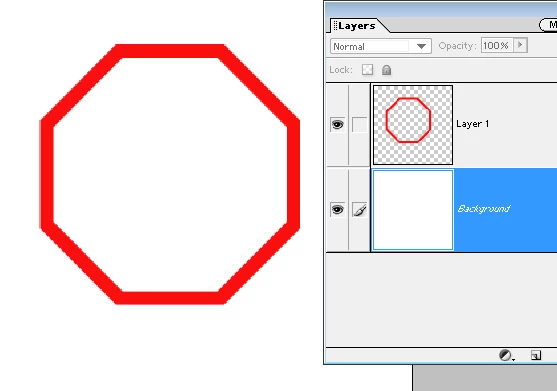
    Aaaand it's gone.   Leaving only the Background layer.

    Now, when I delete the Background layer,, I get this.

    But I don't get to do the option to change the stroke.   So what am I doing wrong?

    Buddycat
    BuddycatAuthor
    Inspiring
    December 16, 2016

    You have to click on the image, apparently, to see the part of the image with the side menu of the layers.  

    Buddycat
    BuddycatAuthor
    Inspiring
    December 13, 2016

    Okay, this is gonna seem dumb, but I can't seem to draw the basic shape.   Maybe it's because it's the way I started?     

    1.   I created a new blank file.

    2.   I drew the polygon.

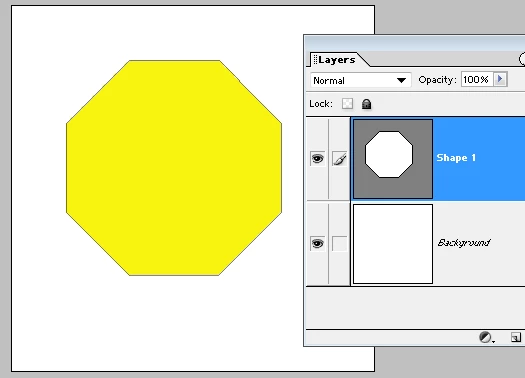
    I got this:

    I can't seem to get past this.   What am I forgetting?   I've seen the business about the Stroke, but can't remember wher I saw it.

    Do I need to create a Layer first?   While I'm at it, I'm wondering where the alignment tools below come in - they don't seem to work.    Sorry that I'm such a noob at this - I'm sort of learning it piecemeal.

    Thank you all for your responses so far!

    Inspiring
    December 13, 2016

    I don't know how you drew your octagon but here is how I did it using the Custom Shape tool. Note that I have an old version of PSE so my toolbar looks different than yours, but your Custom Shape tool should be somewhere on the toolbar.

    1. Activate the Custom Shape tool. Click the pull-down list on the options bar and select the octagon.

    2. Holding down Shift, draw out the octagon (Shift preserves the octagon's proportions). This creates the octagon on a new layer:

    3. Ctrl-click the octagon layer in the Layers Palette to select it.

    4. Delete the octagon layer. The outline of the octagon is still selected.

    5. On the menu bar,  Edit > Stroke.  Choose the stroke width, color, and Location Inside.

    Here is the result.

    Buddycat
    BuddycatAuthor
    Inspiring
    December 14, 2016

    Clearly I'm missing something here (although the command to keep proportions was very helpful).   When I crated my octagon:

    And then I picked the later

    and deleted it, this happened

    Haven't tried mytaxsite's method yet.

    Inspiring
    December 12, 2016

    Ctrl-click the shape layer to select the outline.

    Add a blank layer and do the stroke.

    Delete the shape layer.

    In my PSE version an Outside or Center stroke tends to chop off corners.

    Here I did Outside, Center, and Inside.

    If you have this problem, use the Inside stroke but you might have to make the shape large enough to allow for it.

    Buddycat
    BuddycatAuthor
    Inspiring
    December 12, 2016

    Exactly what I'm trying do!   It's too late to try it tonight, but I'll definitely get onto this this week and report back!  Thanks!

    mytaxsite
    Inspiring
    December 12, 2016

    Buddycat wrote:

    Exactly what I'm trying do! It's too late to try it tonight, but I'll definitely get onto this this week and report back! Thanks!

    If you need further help then don't hesitate to ask here so that either Mark, Peru or somebody else can post full instructions with pictures so that you can follow the steps exactly.  I followed Mark's instructions and this is what I came out with.  The black color is just the background and it can be transparent if needed.

    CwwT3Mn.png

    Peru Bob
    Community Expert
    Community Expert
    December 11, 2016

    Buddycat wrote:

    I want a bold, octagonal line with a white center so I can use it as a layer to put another graphic within it. Can someone please make this as simple as possible, step by step?

    Add a stroke to it.  Jut put your other graphic on a layer above it.

    Stroke

    Peru Bob
    Community Expert
    Community Expert
    December 11, 2016

    Buddycat wrote:


    Also, is there a way to turn on a grid to I make sure I have the same size polygon when I combine graphics? I'm trying to create graphics for playing cards.

    Thanks.
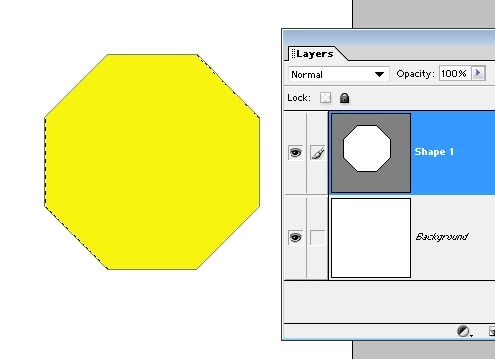
    View > Show > Grid

    You can adjust the grid settings: Edit > Preferences

    Buddycat
    BuddycatAuthor
    Inspiring
    December 11, 2016

    Thanks.   Now, to the main questions.....