
EthanK_RLB
Participant
July 20, 2018
Question

Drop all single pixels?

  • July 20, 2018
  • 2 replies
  • 347 views

Hello,

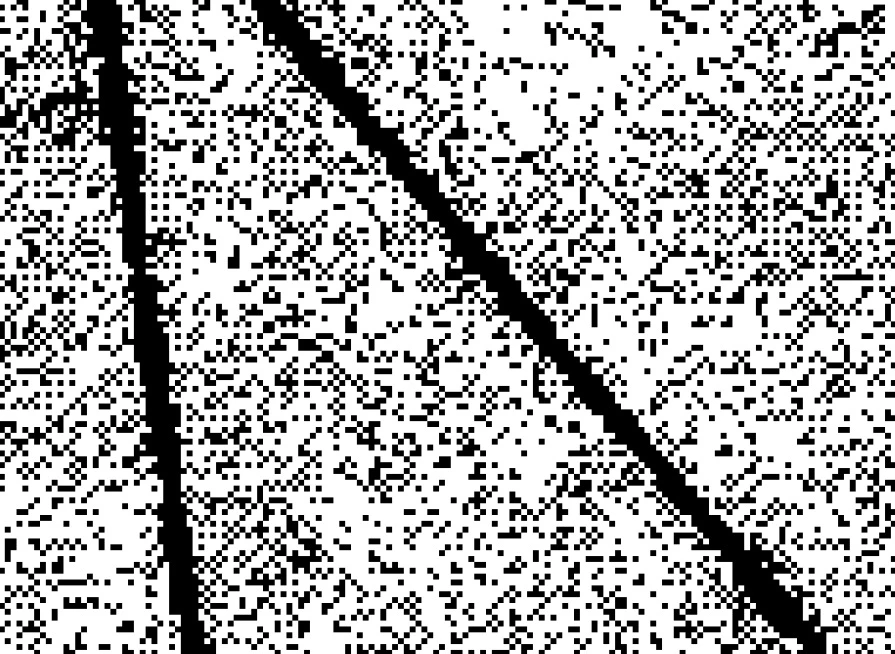
I am using Photoshop Elements again after a 10 year hiatus.  I'm an engineer and working with scanned drawings trying to determine a method to clean them up.  Most of the drawings we get a black and white scans which is fine but I can't clean up the background by simply eliminating a color.  So rather than just dropping yellow from the image I have to drop what looks grey but is actually a black and white matrix as shown in the image.

What I'm looking for is if there is a tool which I can select and basically drop all the black pixels which are not adjacent to at least 2 other black pixels.  My main goal is to just get this cleaned up enough that I can print it  and then look at the print while modeling the parts in CAD.  The secondary objective would be to actually clean the drawings up enough that they look close to original.

Thanks
    This topic has been closed for replies.

    2 replies

    MichelBParis
    Legend
    July 20, 2018

    Try the following filters:

    1 - Filter >> Other >> maximum (about 5)

    2 - Filter >> Blur >> smart blur (radius 5 - threshold 15)

    EthanK_RLB
    Participant
    July 20, 2018

    Hi Michel,

    I think the Maximum filter is what I was looking for.  Just running it at a threshold of 1 did a huge amount of clean up which is what I was expecting.  Some of the text did get blurred so I might try to crop those regions from the layer but overall it worked very well for very little messing about.

    Thank you.

    hatstead
    Inspiring
    July 20, 2018

    Duplicate the background layer, and shut off the visibility of the background layer by clicking on its eye icon in the layers' palette. Work on background copy layer.

    Activate the eraser tool, and select the square brush set on its option bar. Left click on the side of one of the bold lines, hold down the shift key, and click at the end of the line to erase in a straight line. Repeat for the other bold line. The goal is to erase close to the sides of the lines initially. Then, with a larger brush, erase the rest of the artifacts.

    EthanK_RLB
    Participant
    July 20, 2018

    Perhaps I should have been more clear that is about a 1/2" x 1/2" sample of a 36"x 24" part drawing at 1600% magnification.  I had zoomed in to show the issue with it being black and white rather than grey-scale or color where I could sample colors filter.