Known Participant
December 26, 2022
Answered

editing photos so cumbersome?

  • December 26, 2022
  • 6 replies
  • 1152 views

Hello people, Tried my first attempt at editing (about 100 photos). FIrst it wouldnt except HEIC format so I had to convert to JPG--ok got it. Then first photo pops up and I just  do a quick auto smart trim.  Looks fine. I want to do that to 99 more photos. Now im stuck, How do I click to get to the next photo without losing the enhancment of the first photo?  I start a chat and im given the following:

Do one of the following:

  1. Click File > Save As. Press Ctrl+Shift+S (Windows) or Command+Shift+S (Mac OS).
  2. Choose PNG from the format list.
  3. Specify a file name and location, select file-saving options, and click Save.
  4. In the PNG Options dialog box, select an Interlace option and click OK........   

WHAT!! is this what has to be done?? That sounds crazy. Am I being ignorant about this??

This topic has been closed for replies.
Correct answer Greg_S.

There is something you can do that makes saving files a little easier in the Organizer.   This will work for editing single files or even multiple files for which you want to make the same edit e.g. improve the exposure or color or clarity. 

  • Select one or more files for editing in the Organizer
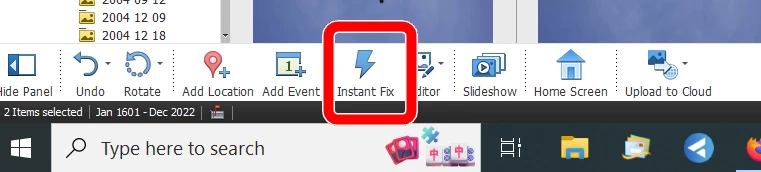
  • Click on the Instant Fix button.


This will bring up the Instant Fix editor:
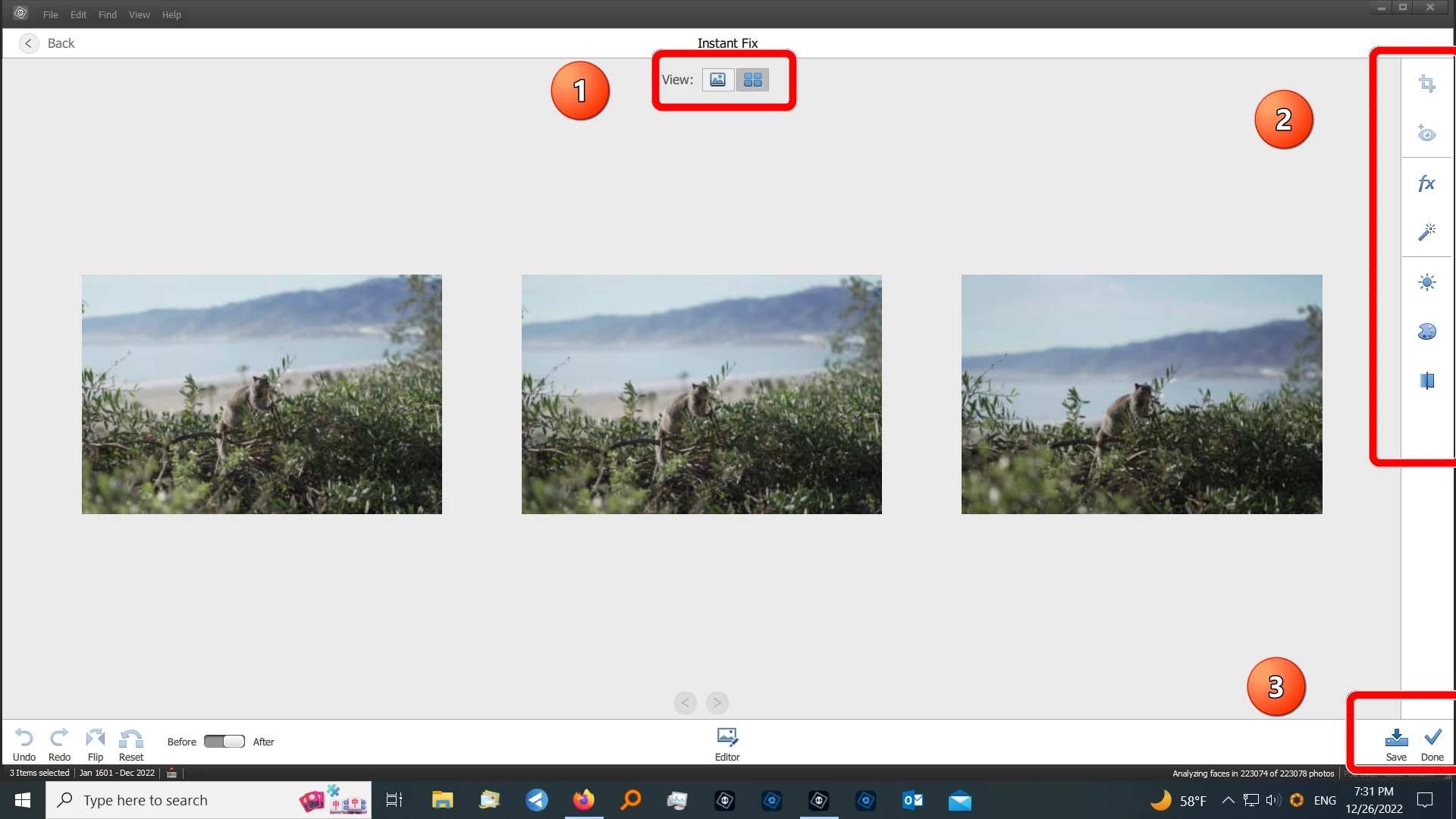
 

  1.  Using the view button, you can work on a single photo or multiple photos.
  2. There are several editing tools.  But you can only use the crop tool for one photo at a time.
  3. When you are done, click the Save/Done button.  The Save button will save the edited file as an automatically renamed jpeg in a Version Set with the Original photo.  With or without clicking the Save button, you have to click the Done button.  You will be prompted to save your edits (if they have not been previously saved).  Click Yes and the file is saved in a Version Set - with the edited file appearing on top of the stack. 


No fuss, no muss!


The Instant Fix is a great tool and I use it frequently for quick edits.


Now as for HEIC files, Elements can handle them (if you install a free Microsoft Extension).  But IMO if you have found a solution to transfer them to your computer as jpegs, there is no reason to change your workflow.  The Instant Fix tool can handle HEIC files and also raw files.  It will save edits to both as jpegs.


One final note, in order to unstack the version set so that you can see both the original image and the edited one, you need to be in the Organizer's Details view.  Press Ctrl+D to toggle between the default view and the Details view.  With that, I will try not to overwhelm you further with new information.

6 replies

Participant
June 11, 2023

 Make another person next to me and improve the quality of the image

Greg_S.
Community Expert
Community Expert
January 12, 2023

@seniornewbie said:  I think I'm correct when saying the photos in the catalog are just links to the real ones on my hard drive--correct?

Yes, that is correct.


@seniornewbie said:   I did a smart fix on a 130 phtos. Is there a quick way to delete the original ones. So I can figure out what to do with the edited ones? 

If you are using the Organizer's Instant Fix to edit the files, there is no easy way to delete the original files, although there are a few techniques or strategies that may speed up the process of deleting them. (I would recommend just keeping the originals.  But I'm not really sure what you plan to do with your edited files.)


I'm glad my comments have been helpful to you. 🙂

Greg_S.
Community Expert
Community Expert
January 10, 2023

@seniornewbie said: I did have one minor question. If I have a bunch of pictures on the screen in Organizer how come I cant see a number telling me how many pictures are present.

I'm not exactly sure what your question is.  The number of (viewable) files in your catalog is displayed in the lower left of the Media grid.  If you select some files, the selected number will replace the total number.  If you use the Instant Fix editor to edit several files, the number selected will be shown too.  However, I have just noticed that if you toggle between Show All Photos and Show Single Photo view in the Instant Fix editor, the number displayed will be the total number that are viewable in the catalog. 


And by "viewable" photos, I mean the number of files that have not been hidden from view in the catalog using the Edit>Visibility>Mark as Hidden command or files that are in Stacks or Version Sets that have not been expanded to view all of the photos in the Stack or Version Set.

Known Participant
January 12, 2023

Thanks again, I guess I was so fixated on absorbing the entire catalog screen I didnt gaze any lower than the bottom tools where the instant fix icon is. I then lowered my eyes to the black section that you pointd out with your green arrow (love that) and DUH, there it was --the NUMBER of items. This learning curve is so tedious and reading the guides sometimes is worse as it brings me down rabbit holes. if it wasnt for the fact that you told me to go into details view to see the both original and edited photos it would have taken me an hour to figure it out. I think I'm correct when saying the photos in the catalog are just links to the real ones on my hard drive--correct? I did a smart fix on a 130 phtos. Is there a quick way to delete the original ones. So I can figure out what to do with the edited ones?  I cant wait until I know how to use the tools (and where they are) so I can start having some fun. Im not in this for any kind of business-just to have fun in my senior years. Thanks for you kind help. 

Greg_S.
Community Expert
Greg_S.Community ExpertCorrect answer
Community Expert
December 27, 2022

There is something you can do that makes saving files a little easier in the Organizer.   This will work for editing single files or even multiple files for which you want to make the same edit e.g. improve the exposure or color or clarity. 

  • Select one or more files for editing in the Organizer
  • Click on the Instant Fix button.


This will bring up the Instant Fix editor:


  1.  Using the view button, you can work on a single photo or multiple photos.
  2. There are several editing tools.  But you can only use the crop tool for one photo at a time.
  3. When you are done, click the Save/Done button.  The Save button will save the edited file as an automatically renamed jpeg in a Version Set with the Original photo.  With or without clicking the Save button, you have to click the Done button.  You will be prompted to save your edits (if they have not been previously saved).  Click Yes and the file is saved in a Version Set - with the edited file appearing on top of the stack. 


No fuss, no muss!


The Instant Fix is a great tool and I use it frequently for quick edits.


Now as for HEIC files, Elements can handle them (if you install a free Microsoft Extension).  But IMO if you have found a solution to transfer them to your computer as jpegs, there is no reason to change your workflow.  The Instant Fix tool can handle HEIC files and also raw files.  It will save edits to both as jpegs.


One final note, in order to unstack the version set so that you can see both the original image and the edited one, you need to be in the Organizer's Details view.  Press Ctrl+D to toggle between the default view and the Details view.  With that, I will try not to overwhelm you further with new information.

Known Participant
January 10, 2023

Hello, sorry for the late reply. Thank you much for devising a custom made answer to my issue of enhancing multiple photos at one time. I printed your answer out and use it as a reference sheet until I get to know it. It works on many photos at one time. I think I can guess why the Adobe tech people told me I couldnt do this in Phtoshop Elements. Because its done in Organizer which I would have never known until you told me. So I saved a PDF manual for Elements, Photoshop and now Organizer to my computer. I didnt realize there was a whole manual for Organizer alone. Hard to understand at this early stage of my new hobby. I didnt realize you could edit in Organizer. I thought it was just for organizing. Confusing as hell right now. I did have one minor question. If I have a bunch of pictures on the screen in Organizer how come I cant see a number telling me how many pictures are present. Thanks

Glenn 8675309
Legend
December 27, 2022

WHAT!! is this what has to be done?? Yes

That sounds crazy. Am I being ignorant about this??  Pretty much you're spot on.  You gotta do that 4 step thing you listed for each image.  

Batch processing involving cropping / triming is not an option.  You can bulk resize a bunch of images (changing 1200 x 1200 down to 400 x 400 for example).

What badwolf said about Using Orgnizer is not correct.  You are still prompted to save a file after editing when you go to close the file.   

That interlacing stuff you can pretty much ignore- it's a left over prompt from the days of dial up modems. 


Known Participant
December 27, 2022

thanks, my fears may have been confirmed. I also bought Premier elements with phtoshop as a package deal. Is it out of the question to think that using PE to do what i want is possible? 

BadWolf515017100022
Known Participant
December 27, 2022

Did you import your photos into Organizer ? Once you get them in organizer your can edit, etc without having to re-save 

Known Participant
January 10, 2023

thx you were right