Participating Frequently
December 23, 2019
Answered

Elements 2020 "No faces found in the selected photo"

  • December 23, 2019
  • 2 replies
  • 3460 views

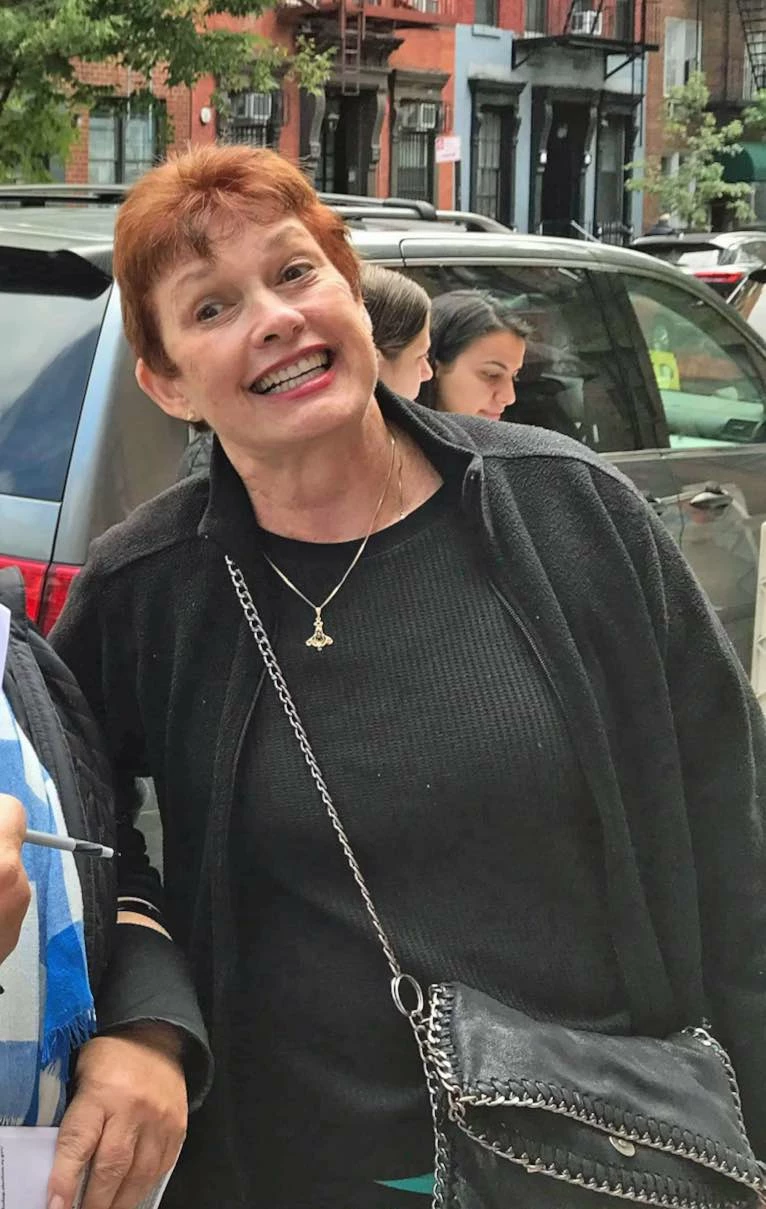
I have the same error message except I'm trying to 'open closed eyes'. IS2020 does not detect a face in the source photo in the bin. the photo attached. Obviously there's an unobstructed face with eyes open. 

Correct answer Greg_S.

GottaRun, I have moved this post from another thread in order for you to get better visibility of your post.

As I understand your post, you want to use the lady in the photo as the source for opening closed eyes in another photo.  You are finding that the face is not recognized.  It's a fairly easy fix.  The find faces tools generallly work best on photos with level heads.  The lady in your photo is on a slant.  To fix this issue, here is what you can do.


  1. Copy the photo so you don't mess it up.
  2. Open it in the editor.
  3. Press Ctrl+J to add a new layer.
  4. Use the Straighten tool.  Don't worry about the options if all you want to do is use the eyes from the photo.
  5. Draw a straight line across the lady's shoulders.  This should straighten the layer.
  6. Save the file with the straightened head.
  7. Open the photo with the closed eyes.
  8. Use the Open Closed Eyes tool.
  9. Browse on your computer to your new "eyes" photo to make it the source. 
  10. Select the open eyes and click OK.

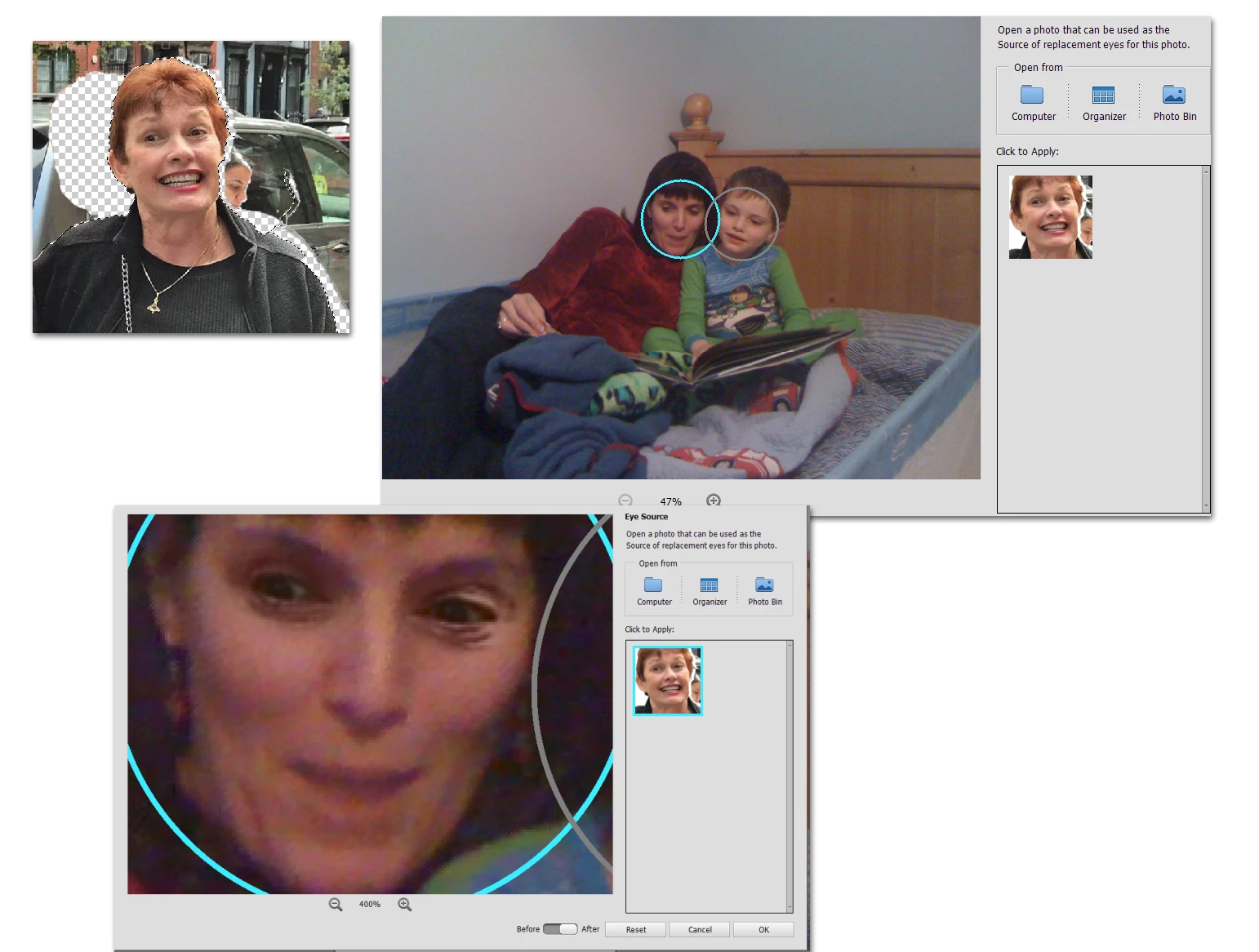
Here are some screenshots of what I did using your photo.  I replaced my daughter's closed eyes with the open eyes from your photo.


2 replies

Participant
April 21, 2020

That solution didn't work for me.  My "face" is not askew, direct view.  Still get that message.

Greg_S.
Community Expert
Community Expert
April 21, 2020

You need to post the image if you want us to be able to help you. 

Greg_S.
Community Expert
Greg_S.Community ExpertCorrect answer
Community Expert
December 23, 2019

GottaRun, I have moved this post from another thread in order for you to get better visibility of your post.

As I understand your post, you want to use the lady in the photo as the source for opening closed eyes in another photo.  You are finding that the face is not recognized.  It's a fairly easy fix.  The find faces tools generallly work best on photos with level heads.  The lady in your photo is on a slant.  To fix this issue, here is what you can do.


  1. Copy the photo so you don't mess it up.
  2. Open it in the editor.
  3. Press Ctrl+J to add a new layer.
  4. Use the Straighten tool.  Don't worry about the options if all you want to do is use the eyes from the photo.
  5. Draw a straight line across the lady's shoulders.  This should straighten the layer.
  6. Save the file with the straightened head.
  7. Open the photo with the closed eyes.
  8. Use the Open Closed Eyes tool.
  9. Browse on your computer to your new "eyes" photo to make it the source. 
  10. Select the open eyes and click OK.

Here are some screenshots of what I did using your photo.  I replaced my daughter's closed eyes with the open eyes from your photo.



GottaRunAuthor
Participating Frequently
December 23, 2019

Thank you.