Known Participant
November 10, 2017
Question

folder names random characters in My Folders list PSE 2018 organizer Mac

  • November 10, 2017
  • 2 replies
  • 1277 views

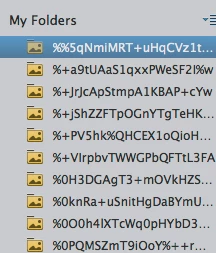
The file names are nonsense.

How can I fix this?

    This topic has been closed for replies.

    2 replies

    Known Participant
    November 15, 2017

    I figured it out. The file "Photos Library.photoslibrary" was sitting in my import file. Took it out and the organizer seem to be working correctly.

    Adobe Employee
    November 15, 2017

    We're glad that your problem has been solved.

    Have a happy experience using Photoshop Elements!

    Regards

    Arshla Jindal

    Adobe Employee
    November 10, 2017

    Hi Neal,

    Request you to please check if restarting the Organizer helps resolve the issue.

    -Arshla

    Known Participant
    November 10, 2017

    Arshia. Restarting the organizer or the computer does not solve the problem. Here is what Organizer 14 does with the same folders:

    Neal Tobochnik

    nealt@rochester.rr.com

    Adobe Employee
    November 14, 2017

    Here are the screen shots:

    Finder view:

    Tree view

    All the images are stored in a finder folder. Yes at one time I imported them into iPhoto. When I imported them into the organizer I selected import from a folder Images. Note earlier versions of the organizer did not have this problem. Also note that the tree gets the folder names correct.


    Hi Neal,

    Thanks for this elaborate explanation to my questions.

    Also note that the tree gets the folder names correct.

    Tree view and Flat view show the same folder names with exact the same name as they exist on hard drive. The discrepancy in names can be accorded to the fact that we are looking at the different folders in two view but mistaking them for same folders. To resolve this, please follow along with me through these steps and provide the relevant information.

    1. Open the folders panel in Flat view.

    2. Right click on one of the folders having these unusual names, as pointed by you in your first post.

    3. Select Reveal in explorer. Provide the screenshot of this explorer window (This would enable us to get the exact path on hard drive of these unusual folders)

    Now to check the tree view of these folders, do the following.

    1. Open the folders panel in Flat view.

    2. Select any one folder with unusual names.Grid would show its media. Select any one media and mark it as 5 star rating.

    3. Now open the folders panel in Tree view.

    4. Apply filter star rating=5.

    5. You will the image in grid that you marked in step 2.

    6. Right click  this image and select Go to folder. (This would highlight the folder in foldrs panel. Provide the screenshot of th efolders tree view at this point)

    Thanks

    Arshla Jindal