gh65014508
Participant
December 16, 2018
Answered

How did I do this text effect?

  • December 16, 2018
  • 2 replies
  • 552 views

Hi--

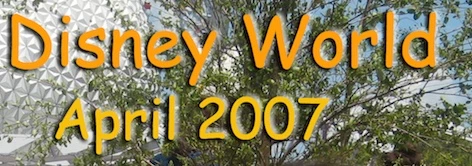
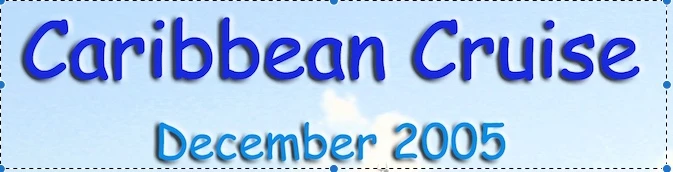
I edited some photos for a friend's slideshows quite a while away ago, adding some text titles. I am fairly sure I used Photoshop Elements, perhaps version 6. I am trying to recreate the text style, now using Photoshop Elements 9, but I cannot remember how I did it. I have attached two examples below-- can anyone offer a suggestion on how I did this? Specifically, it looks almost like a drop shadow, but not quite I don't think-- the dark "shadow" offset to the left of each characters is not uniform around the characters (see the "D" in December and the "2005"). In addition, there is a sort of a white "shadow" to the right of each character.  It must have been something relatively straightforward-- I am not a sophisticated Photoshop user. 

Thanks for any suggestions.
    This topic has been closed for replies.
    Correct answer Jeff Arola

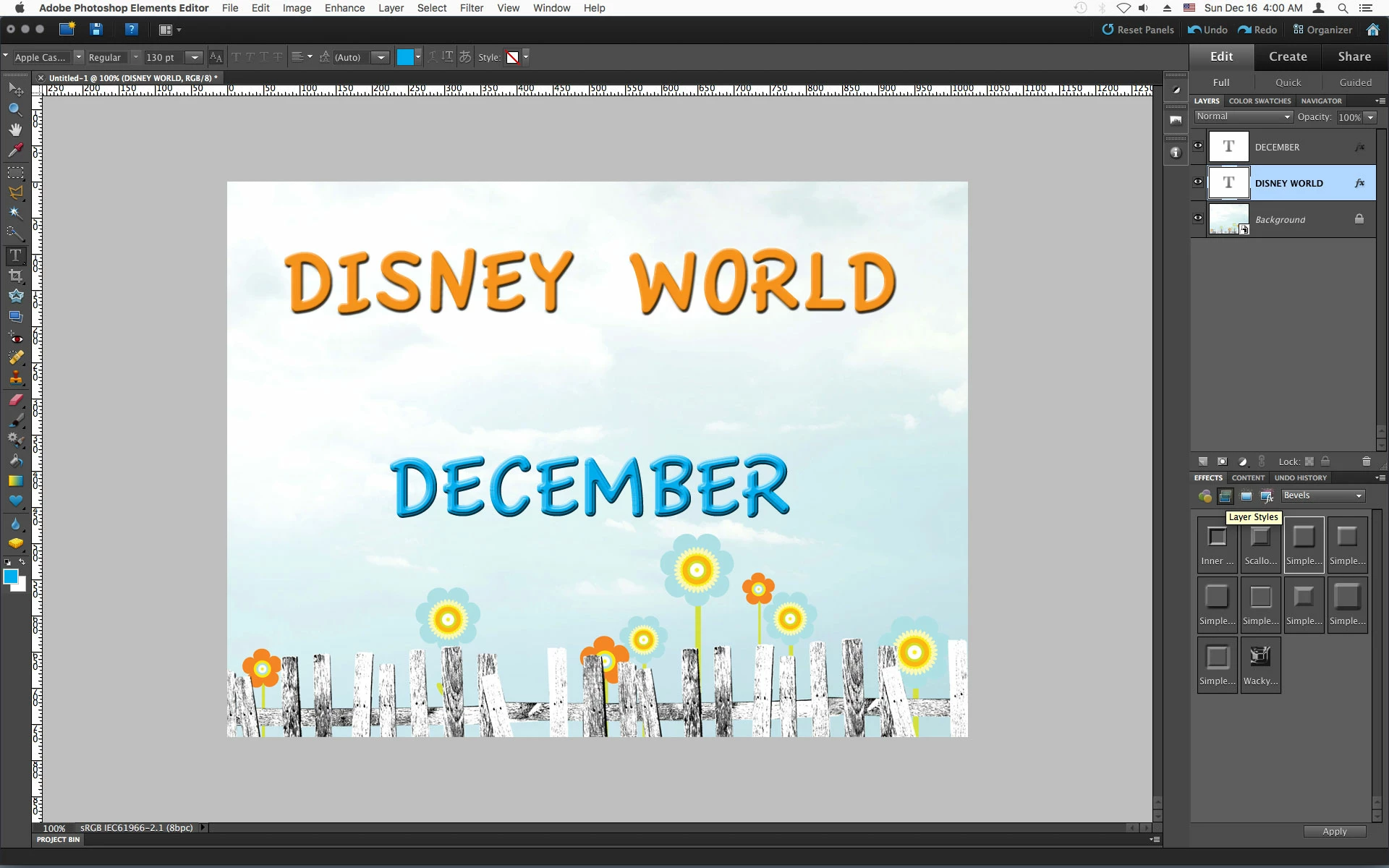
    Looks like Window>Effects>Layer Styles>Bevels was used.

    You can double click the small fx to the right of the text in the layers panel to adjust some of the settings.

    2 replies

    Inspiring
    December 16, 2018

    I used the Bevels Simple Out layer style with these settings.

    Comic Sans MS font.

    Looks pretty much like your example.

    gh65014508
    Participant
    December 16, 2018

    Yes, that's it. Thanks, both of you.

    Jeff Arola
    Community Expert
    Jeff ArolaCommunity ExpertCorrect answer
    Community Expert
    December 16, 2018

    Looks like Window>Effects>Layer Styles>Bevels was used.

    You can double click the small fx to the right of the text in the layers panel to adjust some of the settings.