Hi Cozzie
The templates are now fixed and transitions can’t be changed. If you export as a 720p or 1080p clip you can bring it into Premiere Elements by clicking Add Media and dragging it to the timeline. It is then possible to do further editing. Right-click on the video clip (usually Video 1) in the timeline and choose:
Clip >>Time Stretch
A dialog will open and if you click on the current timing to the right of the word duration your mouse pointer will become a scrubby slider. You can then drag to the right to increase the duration of the clip e.g. doubling the duration will give you approx. 10 sec stills.
One side effect is that this will slow the audio (if present) but it is possible to mute Audio 1 and import a new MP3 file to Audio 2. Then simply use Export & Share (top right) to save the edited clip.
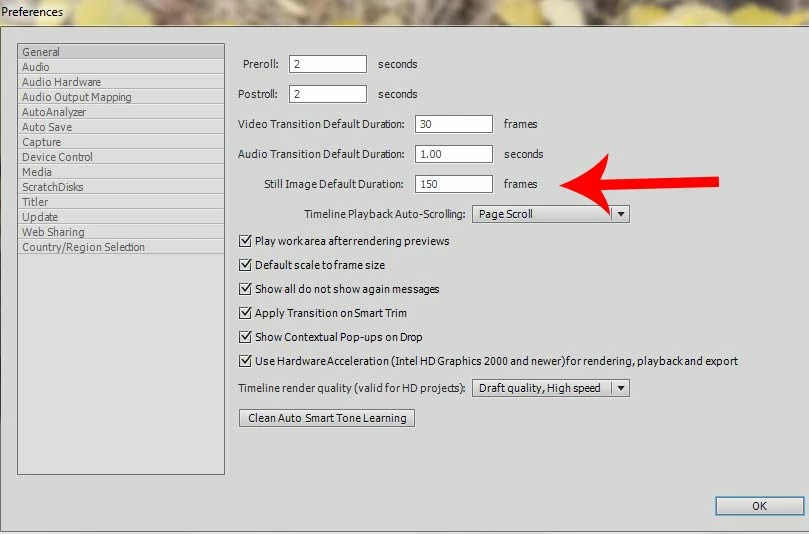
It is possible to create a manual slideshow directly in Premiere Elements by importing still images to the timeline and using the default transitions but you may need to change the default settings by going to:
Edit >> Preference >> General
Adobe PE Editor >> Preference >> General (on Mac OS)
If the default is 30fps with still image set to 150, simply change the latter to 300 and click OK. That will change the default from 5 secs to 10 secs. See image below:
 AdChoices