
Exit
  • Global community
    • Language:
      • Deutsch
      • English
      • Español
      • Français
      • Português
  • 日本語コミュニティ
  • 한국 커뮤니티
0

How Do I Copy Objects in Photoshop?

New Here ,
Jan 31, 2025 Jan 31, 2025

I'm using Adobe Photoshop Elements 2021 and I found it nearly impossible to simply copying objects!

I need to create a subway type of route map with tens of lines and maybe hundred of nodes. I can create one node by drawing a circle. My problem is to reproduce such circles in the amount of hundreds.


However, I cannot just point to the circle and make copy (the copy menu is disabled).

Further, every circle I draw, it creates a separate layer. This will end up hundreds of layers being created.


My question is: how can I simply copy and paste circles? And, is it even possible to keep them in one layer?
TOPICS
Actions , How to
1.2K
Translate
Report
Community guidelines
Be kind and respectful, give credit to the original source of content, and search for duplicates before posting. Learn more
community guidelines

correct answers 1 Correct answer

Valorous Hero , Jan 31, 2025 Jan 31, 2025

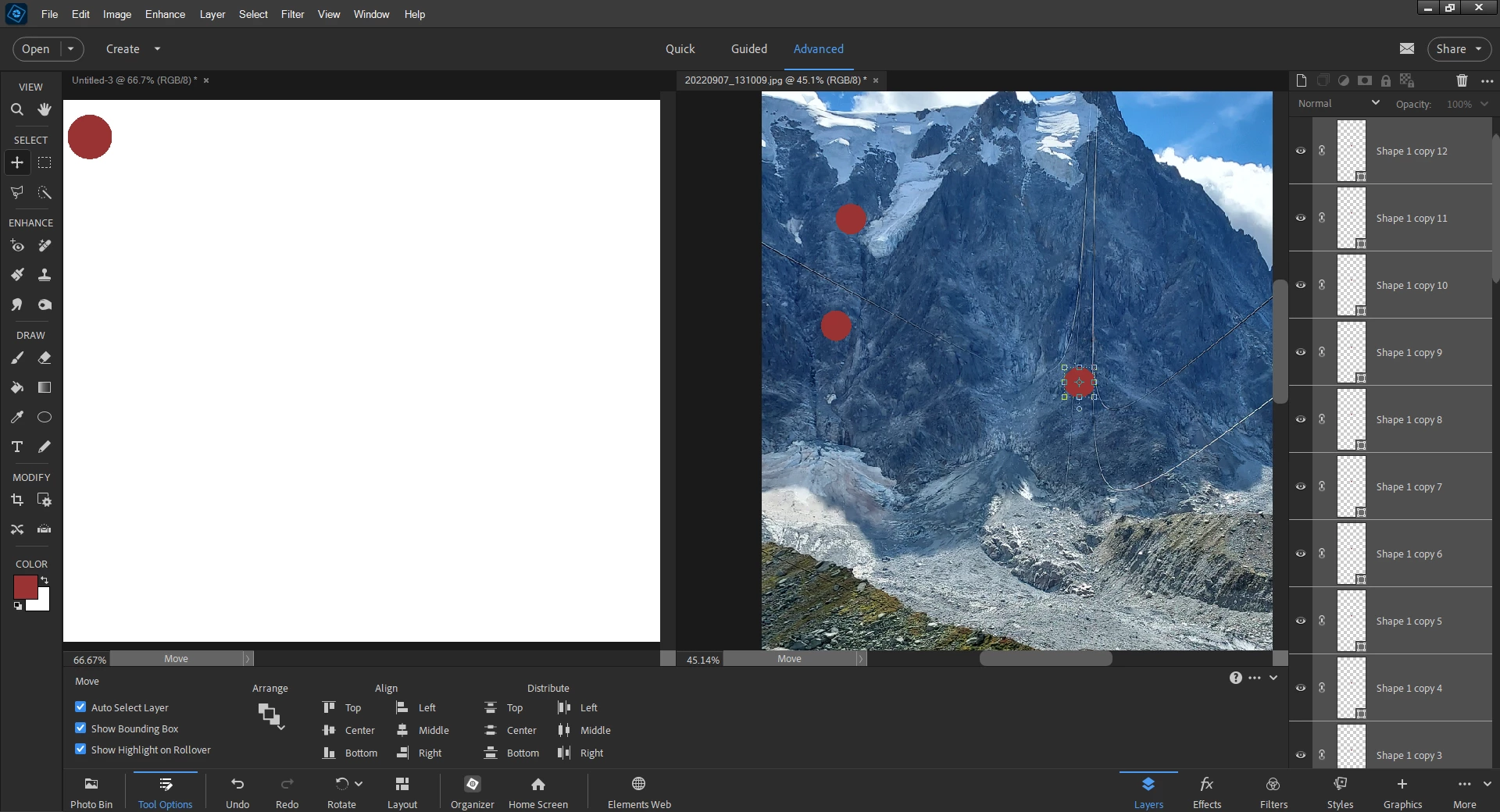
For your project: Open a new canvas, draw your circle the size you need, duplcate the layer containing the circle a bunch (CTRL J).  That way your circles will be the same size.  tile your two canvases:   the one with all the circles, the other the canvas being where you are putting your map together.

Tile the two canvases:  WINDOW>IMAGES>TILE

Drag a circle from your stack of copies onto the map you are making, repeat as needed. 

The canvas on the left you see below has a bunch of the circles stack

...
Translate
Valorous Hero ,
Jan 31, 2025 Jan 31, 2025

For your project: Open a new canvas, draw your circle the size you need, duplcate the layer containing the circle a bunch (CTRL J).  That way your circles will be the same size.  tile your two canvases:   the one with all the circles, the other the canvas being where you are putting your map together.

Tile the two canvases:  WINDOW>IMAGES>TILE

Drag a circle from your stack of copies onto the map you are making, repeat as needed. 

The canvas on the left you see below has a bunch of the circles stacked on top of each other.  Just CLICK HOLD AND DRAG A CIRCLE from the left to the right- repeated as needed.

TO KEEP THINGS SIMPLE:  MATCH THE SIZE AND RESOLUTION OF THE CANVASES. 
2025-01-31_154458.png

Translate
Report
Community guidelines
Be kind and respectful, give credit to the original source of content, and search for duplicates before posting. Learn more
community guidelines
New Here ,
Jan 31, 2025 Jan 31, 2025
LATEST

I think I can duplicate circles as you suggested by using Ctrl-Click on one canvas and move to the other. I don't think I need to produce more layers (Ctrl-J) , though.


The annoying thing is that each duplicated circle is a new layer, but looks like I have to live with it if I want to move/size them later.

Translate
Report
Community guidelines
Be kind and respectful, give credit to the original source of content, and search for duplicates before posting. Learn more
community guidelines
Community Expert ,
Jan 31, 2025 Jan 31, 2025

Any copy operation is going to create another layer.  The only way you can create circles on a single layer is to paint the pixels each time.


But, yes, you can copy the circles by duplicating the layer (Ctrl+J) and using the Move tool to arrange the circles on the page.  (The copy will directly overlay the copied circle until you move it.)


You can group layers together for easier management in the Layers panel.


And you can merge multiple circle layers to a single layer.  But once they are merged, you cannot rearrange them on that layer.

Translate
Report
Community guidelines
Be kind and respectful, give credit to the original source of content, and search for duplicates before posting. Learn more
community guidelines
Valorous Hero ,
Jan 31, 2025 Jan 31, 2025

I took a slightly different approach think how  I would do it If I were creating it. 

Translate
Report
Community guidelines
Be kind and respectful, give credit to the original source of content, and search for duplicates before posting. Learn more
community guidelines
Community Expert ,
Jan 31, 2025 Jan 31, 2025

Glenn, that is a good approach - but you will still end up with multiple layers.

Translate
Report
Community guidelines
Be kind and respectful, give credit to the original source of content, and search for duplicates before posting. Learn more
community guidelines
Valorous Hero ,
Jan 31, 2025 Jan 31, 2025

Layers?  I don't care bout no stinkin layers....  I'll have to check the monoply game board I've been working on for 3 years-- pretty low key project--- 316 layers, and 45 groups.i had to load in photoshop to quickly count the layers.

Translate
Report
Community guidelines
Be kind and respectful, give credit to the original source of content, and search for duplicates before posting. Learn more
community guidelines
Valorous Hero ,
Jan 31, 2025 Jan 31, 2025

this program is free, nothing to install, so much eaiser that doing it in photoshop elements. 

https://beno.uk/metromapcreator/

Translate
Report
Community guidelines
Be kind and respectful, give credit to the original source of content, and search for duplicates before posting. Learn more
community guidelines