This topic has been closed for replies.
Correct answer hatstead

I opened a picture of a flower and did the following:

  1. Open the picture file
  2. Used the magnetic lasso tool to select the the foreground
  3. Place the selection on its own layer (Layer>New>Layer via copy or CTRL+J) - this will be Layer 1
  4. Delete the background layer
  5. Went to File>save for web. File format PNG-24, checked constrain proportion & transparency boxes
  6. Saved file in a folder on desktop.

Opened file with flower in PSE.

Opened b/w picture in PSE

Dragged flower from Photo bin up to work area

If these steps do not work for you, try to copy/paste the flower to the new destination
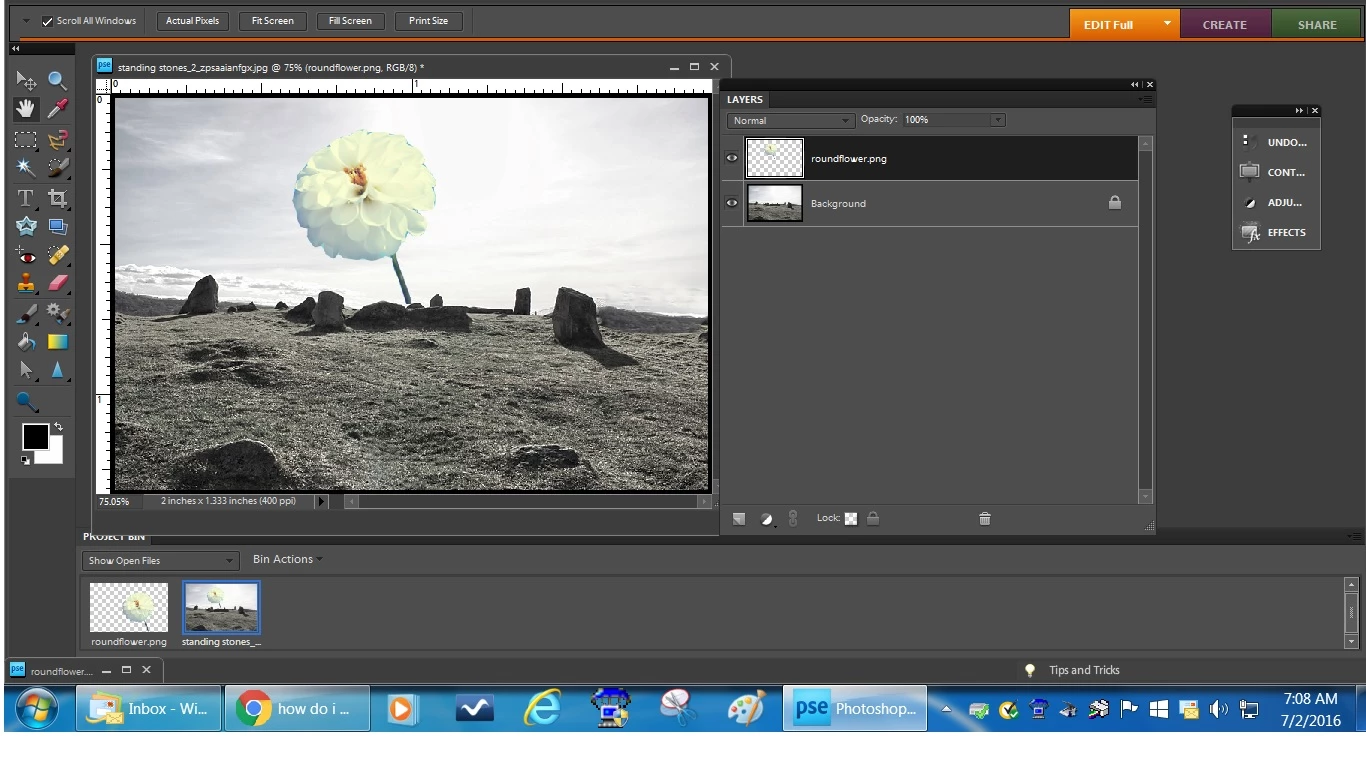
2 replies

fynearts
Participant
July 2, 2016

YES the background IS transparent ... but when i open it up or drag/drop into a document it shows a white background.

my workflow was as follows:

first time i went with the suggestion by hastead (above)

  1. Open the picture file
  2. Use one of the selection tools to select the foreground
  3. Place the selection on its own layer (Layer>New>Layer via copy or CTRL+J) - this will be Layer 1
  4. Delete the background layer
  5. If you want to save it, use a file format which supports transparency, e.g.PNG

it showed transparent layer as i said, but white background is there when i try to copy/paste or drag/drop the image onto something else.

second time i did this:

*  open up the file with background - flower on white background.

*  unlock the layer

*  created a new layer and dragged it below

*  with magic wand tool selected all around the image.

*  deleted the background layer

*  checkered background shows on file.

saved for web/devices and chose .png with transparency checked

however ... the image shows the saved file (which has no transparent background) and when i copy/paste or drag/drop the image onto something it has a white background, not transparent.

thanks for your attention to my problem.

hatstead
hatsteadCorrect answer
Inspiring
July 2, 2016

I opened a picture of a flower and did the following:

  1. Open the picture file
  2. Used the magnetic lasso tool to select the the foreground
  3. Place the selection on its own layer (Layer>New>Layer via copy or CTRL+J) - this will be Layer 1
  4. Delete the background layer
  5. Went to File>save for web. File format PNG-24, checked constrain proportion & transparency boxes
  6. Saved file in a folder on desktop.

Opened file with flower in PSE.

Opened b/w picture in PSE

Dragged flower from Photo bin up to work area

If these steps do not work for you, try to copy/paste the flower to the new destination

fynearts
Participant
July 4, 2016

perfect thank you ! ... it worked a treat ... i have followed the steps you suggested and picked out half a dozen separate images all of which worked.  To create a copy in a smaller size for example i have to go through the same steps again - i cannot copy the image to another folder or external drive as that creates a white background (no transparency) ....

THANK YOU very much!

hatstead
Inspiring
February 11, 2015
  1. Open the picture file
  2. Use one of the selection tools to select the foreground
  3. Place the selection on its own layer (Layer>New>Layer via copy or CTRL+J) - this will be Layer 1
  4. Delete the background layer
  5. If you want to save it, use a file format which supports transparency, e.g.PNG
fynearts
Participant
July 1, 2016

i have tried this in elements 13 and a couple of other ways found on utube - but my images are not carrying the transparency over.  when i open it in editor it shows as transparent background.  i have saved as png and also tried saving for web ensuring transparency is checked but to no avail.

any ideas?  thanks

hatstead
Inspiring
July 1, 2016

but my images are not carrying the transparency over.

Not sure what this means

i open it in editor it shows as transparent background.

Here you state that the background is transparent.

Please provide  step-by-step details of your work-flow so that we may trouble-shoot this. Also, please provide a print screen of the layers palette.
