Participant
December 1, 2016
Answered

How to design an icon?

  • December 1, 2016
  • 1 reply
  • 857 views

Hi All, I have scanned a JPEG drawing (public domain) and want to turn it into an icon for my website. Can I use PS5?

This topic has been closed for replies.
Correct answer hatstead

Black lines on a white background, Hatstead. It is the epitaph of Stevinus, a Flemish scholar (1548 – 1620). Tx, Tim
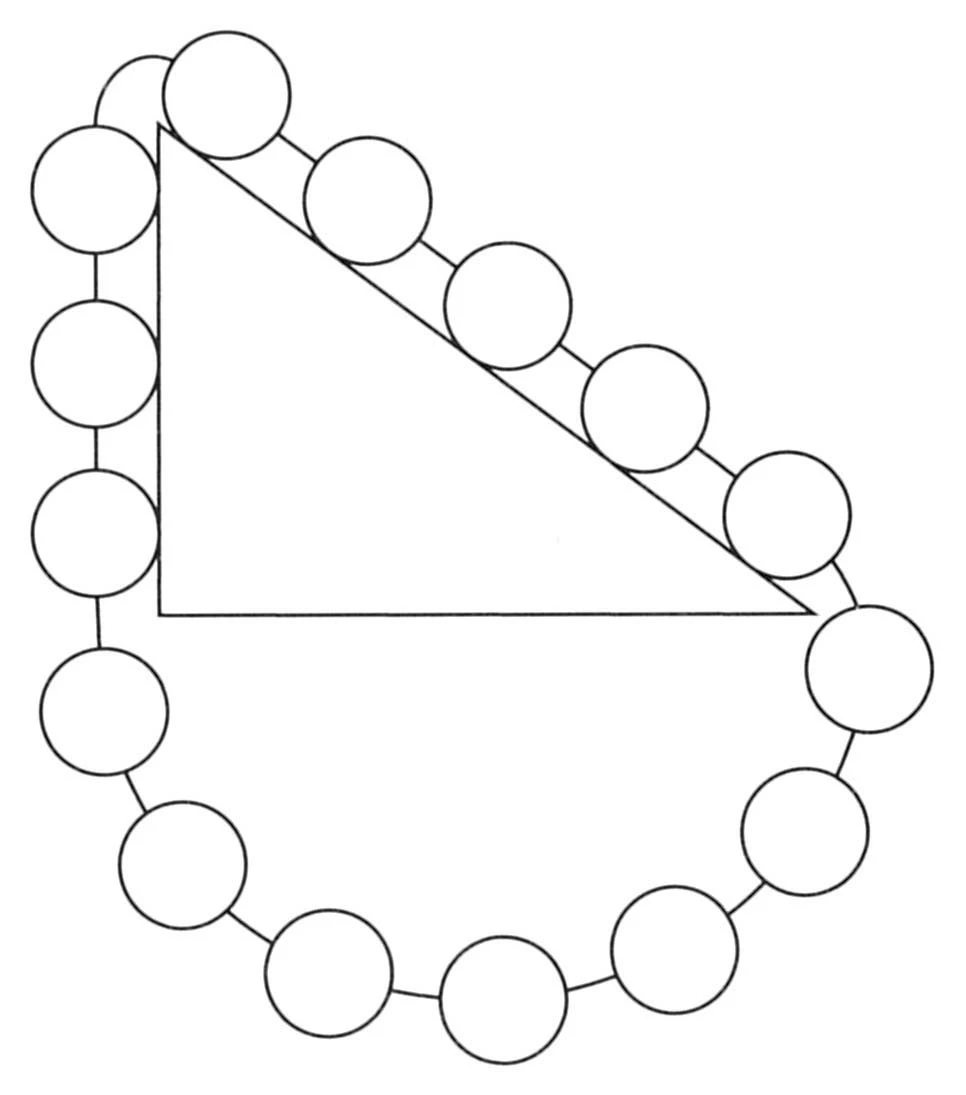

ok.

  1. Double click the Background layer to convert it from a locked layer to a regular layer. It will be Layer0
  2. Activate the Magic wand tool. On the tool's option bar, set tolerance to 16, and untick "Contiguous"
  3. Left click on a white area, then hit delete on the keyboard
  4. Press CTRL+D to get rid of the marching ants.
  5. You should see the drawing surrounded by transparency.
  6. Go to Edit>save for web. In the dialog select PNG24 for the file type, check "Transparency" and check "Constrain Proportions". For height type in 800 px, leave width field blank.
  7. Note: PNG supports transparency. If you save it as JPEG, you will have a white background again.

1 reply

hatstead
Inspiring
December 1, 2016

timd78870136 wrote:

Hi All, I have scanned a JPEG drawing (public domain) and want to turn it into an icon for my website. Can I use PS5?

The short answer is "yes."

You will probably want to remove the background from the drawing, then go to File>Save for web. In that dialog be sure that "Transparency" and "Constrain Proportions" are ticked. I usually make the long side 800 px or so.

Participant
December 1, 2016

Tx, Hatstead. Mine is a thin-lined drawing (not unlike the Olympc rings) and I just need the lines, not the background. The magic selection brush ctrl-W is fooled by the lines. My plan is to isolate line from background (i.e. your approach) and then thicken and smooth these lines. Does this make sense? Rgds. Tim@Amsterdam

Participant
December 1, 2016

ok.

  1. Double click the Background layer to convert it from a locked layer to a regular layer. It will be Layer0
  2. Activate the Magic wand tool. On the tool's option bar, set tolerance to 16, and untick "Contiguous"
  3. Left click on a white area, then hit delete on the keyboard
  4. Press CTRL+D to get rid of the marching ants.
  5. You should see the drawing surrounded by transparency.
  6. Go to Edit>save for web. In the dialog select PNG24 for the file type, check "Transparency" and check "Constrain Proportions". For height type in 800 px, leave width field blank.
  7. Note: PNG supports transparency. If you save it as JPEG, you will have a white background again.

Great help! I did find that edit>save for web, but hidden as "export file>save for web (reference to it being outdated)". It did do the job. Using Photoshop 2015.5 and learned that it required updating too.