Participant
February 3, 2019
Answered

How To Fill A State Outline?

  • February 3, 2019
  • 2 replies
  • 5455 views

I have an outline of Idaho. I would like to fill it with a scene of an Idaho mountain and river.

I can get it to "fill with pattern", but I would like to be able to move the mountain/river picture around within the state outline before I commit?

Possible somehow? (go easy - I'm a rank amateur...)

Regards,

Michelle
    This topic has been closed for replies.
    Correct answer Greg_S.

    OK.  Here is one way to do it:

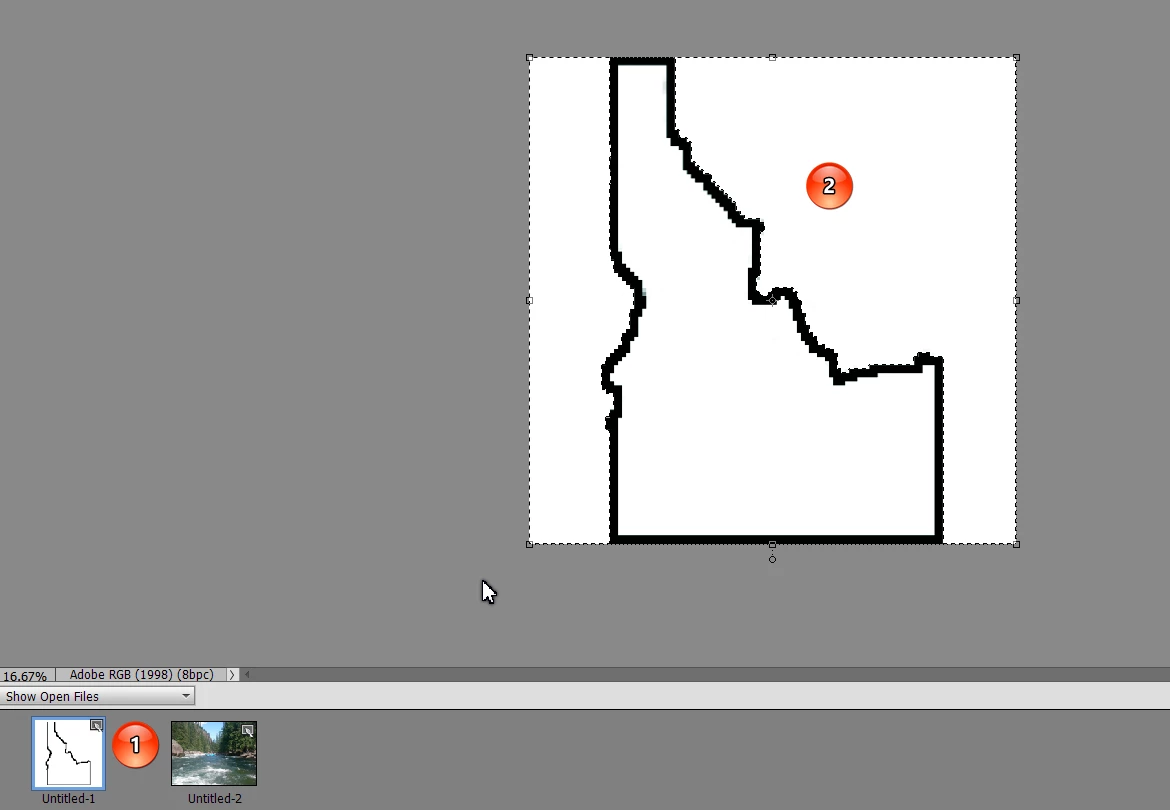
    1. Open the map outline and the photo you want to fill it with in the Editor.
    2. Choose the map outline and make a selection of the outside of the outline, using a selection tool, such as the quick selection tool (Press A).

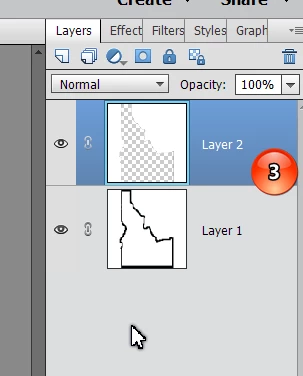
         3.  Press Ctrl+J and you should see a new layer with the map of Idaho cut out.

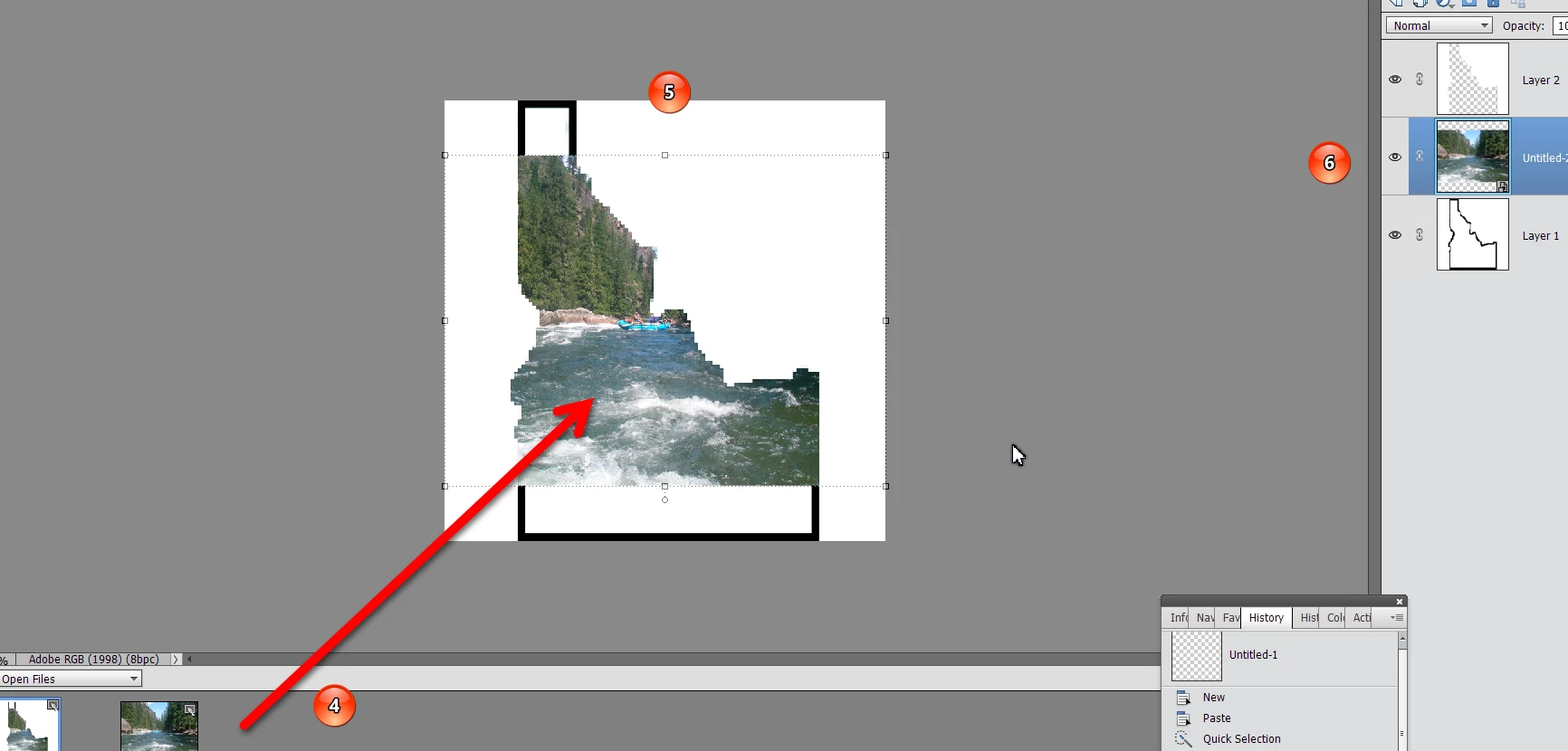
    4.  Click and drag the river photo to the inside of the map image.

    5.   You can adjust the size and position of the river image using the handles at the edge of the layer.

    6.  Your image panel should look something like this:

    Let us know if you need more help.

    2 replies

    Inspiring
    February 4, 2019

    Another method...

    I did a Google Images search on "Idaho shape" and downloaded this.

    Using the Magic Wand, click the shape to select it, and copy to the clipboard (Edit > Copy, or Ctrl-C).

    Open the Idaho picture and paste the shape from the clipboard (Edit > Paste, or Ctrl-V).

    This places the shape on a new layer with transparent background.

    Resize the shape layer to fit inside the picture.

    Move the shape layer beneath the picture layer and group the two. This crops the picture into the shape:

    Use the Move tool to position or resize the picture as needed.

    Note that here I actually resized the picture beyond the boundary of the shape layer.

    To add the outline:

    Ctrl-click the shape layer to select it, add a new blank layer at the top of the stack, and apply a stroke as previously described.

    Participant
    February 5, 2019

    It's not working for me...(picture is just a test...)

    Inspiring
    February 5, 2019

    You are almost there.

    Now group the 2 layers. You can click the picture layer to activate it, and then Ctrl-G.

    Greg_S.
    Community Expert
    Greg_S.Community ExpertCorrect answer
    Community Expert
    February 3, 2019

    OK.  Here is one way to do it:

    1. Open the map outline and the photo you want to fill it with in the Editor.
    2. Choose the map outline and make a selection of the outside of the outline, using a selection tool, such as the quick selection tool (Press A).

         3.  Press Ctrl+J and you should see a new layer with the map of Idaho cut out.

    4.  Click and drag the river photo to the inside of the map image.

    5.   You can adjust the size and position of the river image using the handles at the edge of the layer.

    6.  Your image panel should look something like this:

    Let us know if you need more help.

    Participant
    February 3, 2019

    THANK YOU!
    (what is the CTRL>J for?)

    (Montana would have made a nicer pic, but camp destination is northern ID this year...)

    Greg_S.
    Community Expert
    Community Expert
    February 3, 2019

    Glad you were able to follow my directions.   

    Ctrl+J creates a new layer of just the selected pixels.