Participant
July 18, 2017
Answered

How to reduce the PSE15 icon?

  • July 18, 2017
  • 1 reply
  • 388 views

O just want to reduce the PSE15 icons...

    This topic has been closed for replies.
    Correct answer arshla jindal

    Hi,

    Thanks for this information.

    You can control the display from application preferences as follows:
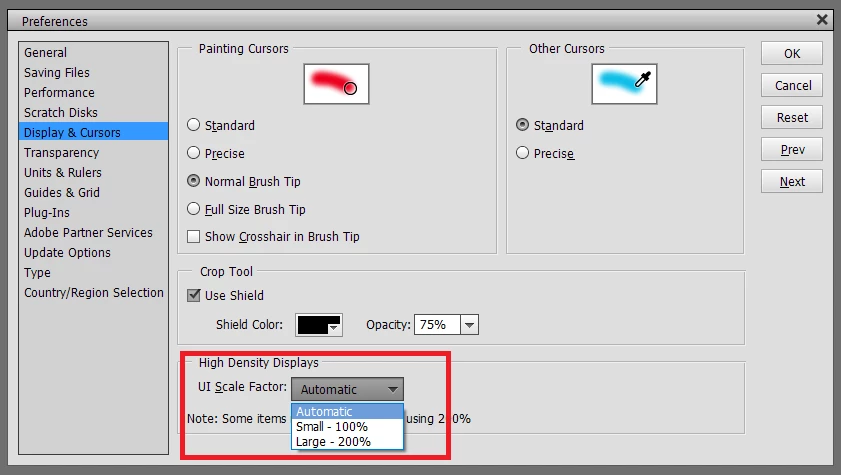
    1. Go to preferences by pressing Ctrl/Cmd + K
    2. Go to Display & Cursors tab from left.
    3. Change the UI Scale factor to automatic / Small - 100 % depending upon your feasibility.

    You might need to restart the application for this preference to come into effect.

    Thanks,

    Arshla

    1 reply

    Adobe Employee
    July 18, 2017

    Hi,

    Request you to please elaborate more on your query.

    • Where are you trying to reduce the PSE 15 icon?
    • Is it only PSE icon or all the application icons you wish to reduce in size?
    • Is it application icon or file icon?

    Thanks,

    Arshla

    Participant
    July 18, 2017

    Hi Arshla,

    In fact my question was not so clear... so, let me try to explain better: I'd like to reduce the size of icons from the tool bar and the size of the menu options (where appear "elive"; "quick"; "guided" and "expert"). My goal is to get more space to see the image, so I think it would be great if the (application) icons were smaller...

    • Where are you trying to reduce the PSE 15 icon? on the main page of the application
    • Is it only PSE icon or all the application icons you wish to reduce in size? all of them
    • Is it application icon or file icon? application icons

    Thanks for your help!!!

    arshla jindalCorrect answer
    Adobe Employee
    July 19, 2017

    Hi,

    Thanks for this information.

    You can control the display from application preferences as follows:

    1. Go to preferences by pressing Ctrl/Cmd + K
    2. Go to Display & Cursors tab from left.
    3. Change the UI Scale factor to automatic / Small - 100 % depending upon your feasibility.

    You might need to restart the application for this preference to come into effect.

    Thanks,

    Arshla