Hi,
We apologize for the inconvenience you've faced.
Please find the details of how Elements Auto Creations 2019 exe works:
1. It performs the analysis for smart tagging, auto curate and auto creations. So if you are switching off this preference, you would not be able to leverage these features also. Along with Auto creations, Face recognition process is also running in parallel, which might be using your system resources initially, if the media count is large. This system resource usage would decrease gradually as the processing approaches completion, until you import more media.
2. Elements Auto creations 2019 exe works only when your system is in idle state, i.e. when it is not in use by you. When you are using your system, this exe would continue to remain in activity monitor but not use your system resources and your system should work smoothly. Let us know if this is not the case with you.
3. In case you still want to turn off these preferences, you can do so from Organizer.
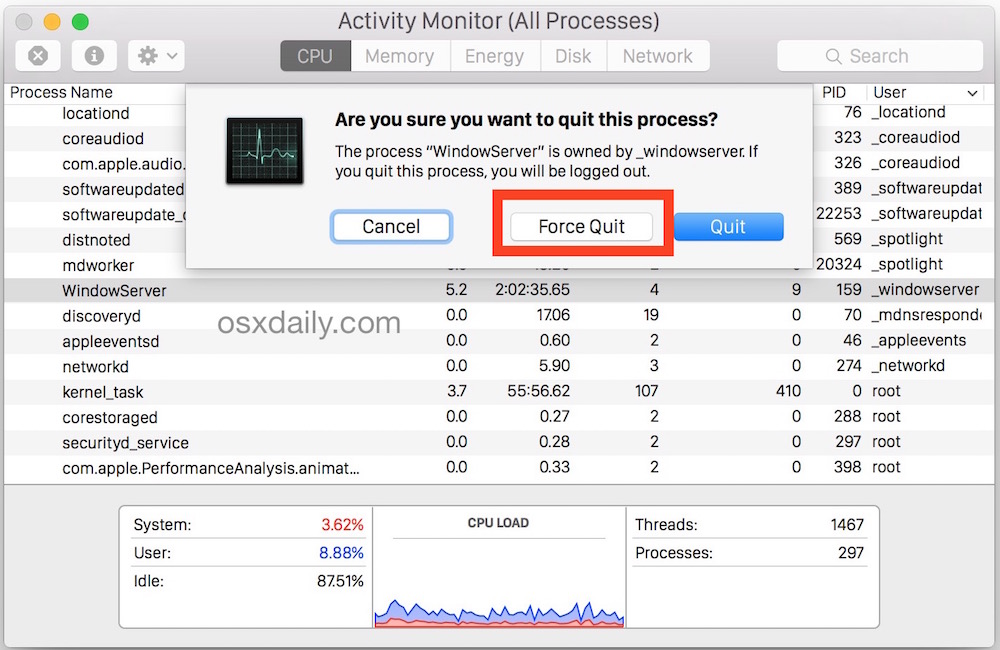
When you turn of these preferences, they come in effect when Elements Auto Creations 2019 exe launches again, and not in the same session. For this, you can Force Quit the exe from activity monitor. Post this, when you would reboot your system or would start Elements, this exe would still launch and exit after a while without doing any analysis.
Use Activity Monitor to Force Quit Apps
Activity Monitor is a powerful way to forcibly quit any app, task, daemon, or process running on Mac OS X. You can find it in /Applications/Utilities/ or open it from Spotlight with Command+Space and then type ‘Activity Monitor’ and the return key. Using Activity Monitor is very easy: Select the process name or ID you wish to kill (unresponsive apps will usually appear as red), and hit the red “Quit Process” button.
Thanks
Arshla Jindal



 AdChoices