
KSLamb
Participant
August 27, 2018
Question

Imported 28,000 photos in Bulk & Made a Folder for Each - What Happened Here?!?

  • August 27, 2018
  • 2 replies
  • 488 views

I bought Elements 2018 (previously had Version 14). I followed the directions to import photos "in bulk" into the Organizer. Something went very wrong.

First of all, it said it imported 28,000 photos. There is no way I have 28,000 photos. As far as I can tell, it may have split photos into pieces--for example, there is a photo of a kindergarten classroom, and now I seem to have separate photos of each child who is in the group photo.

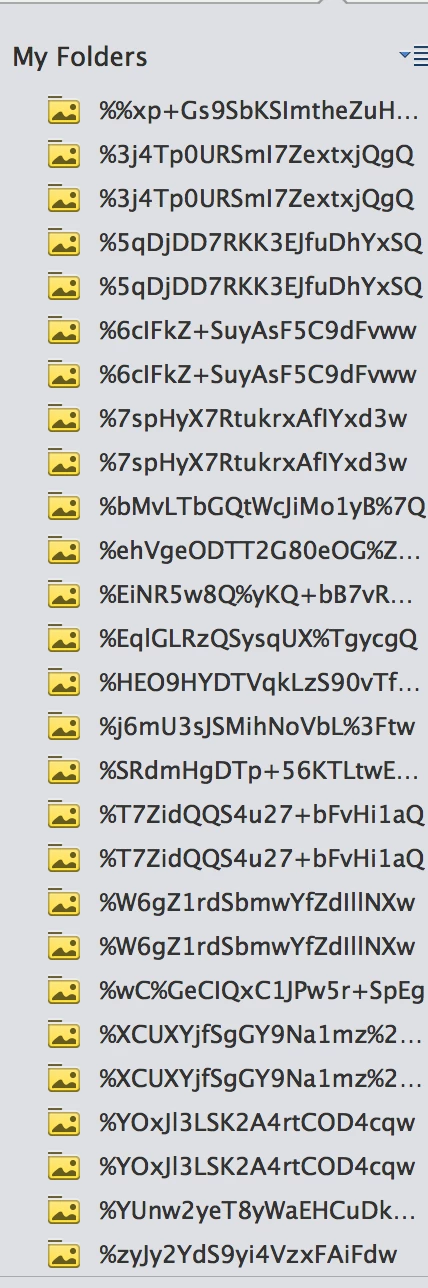
Also, I now have innumerable folders, each with maybe one or perhaps two (usually duplicates) photos inside, and each with a "strange" name-->I am attaching a screenshot of a very tiny partial list of these "folders." The list goes on and on and on! (Please see screenshot)

I am very sorry I tried to update my catalog by importing in bulk (as the directions on the Adobe website say to do). My photos are a complete mess now. I don't even know what to do to try to begin fix this.

Is there any way to fix this terrible mess? I would appreciate any input. Thank you.
This topic has been closed for replies.

2 replies

KSLamb
KSLambAuthor
Participant
August 28, 2018

OK, I am trying to get rid of the current catalog and I haven't been able to do so. My understanding is that I need to select a folder and the use the Delete from Catalog command under EDIT. However, this option is grayed out so I can't use it. I can't proceed with other instructions without getting rid of the old catalog/folders.

I was able to find the catalog(s) on my computer.

However, I don't think I am supposed to delete them from there, right (?) or they will still appear in the Organizer program with a "missing" icon. So I need to do the deleting within the Organizer. However, I can't.

I don't think I can start a new catalog until I get rid of the old one, but I can't figure out how to get rid of it.

99jon
Legend
August 28, 2018

No need to delete. You are simply importing into a new catalog the files that are already in your folders. There is no duplication. The same files are referenced by every catalog.

P.S. are these images in the Photos App?  That could be a complication.

MichelBParis
Legend
August 28, 2018

Deleting a catalog:

You can't delete the currently used catalog. So, either you open another existing catalog or you create a new one. Then, from the menu 'manage catalogs', you browse in the catalogs list, highlight the catalog to delete and click on the 'delete' button. That deletes the catalog folder, but not the photo files.

Alternatively, you locate the catalog folder to delete (menu Help >> System Information) and delete it from your Finder.

It's clear from your screenshot that the 'bulk' import feature has imported everything in your computer, including duplicates already created by your Apple or Google apps. I don't know much about Apple libraries, but it is my understanding that you have to create duplicate files in your computer in order to avoid messing the Apple libraries. I'll leave Mac users to comment about that and to tell you which folder trees are to be imported selectively in the 'Import' command, avoiding the already duplicated files on your computer for other apps.

Importing selectively as advised by 99jon is the right thing to do now.

KSLamb
KSLambAuthor
Participant
August 28, 2018

Now it says 35,000 photos! At that point the Organizer crashed. I'd just like to delete everything but I am afraid that I will lose my photos if I start deleting from the Organizer.

99jon
Legend
August 28, 2018

I suggest you start a new empty catlog. Then perhaps start importing smaller blocks of folders. I guess thumbnails may have been created for lots of children’s faces.

Before you begin I suggest you temporarily switch off face recognition analysis. From the organizer menu go to:

Edit >> Preferences >> Media Analysis

Uncheck the box to run face recognition automatically and click OK. You can easily re-activate this once you have assembled all of your folders & files.

To create the new catalog go to:

File >> Manage Catalogs and click the button New

Choose a name e.g MyCatalog2 and check the box for music if you want the free mp3 files for slideshows.

Then Click OK

Then choose:

File >> Get Photos & Videos >> From Files & Folders

Navigate to Pictures or another folder and press Ctrl+A (select all)

Ensure the box is checked to get photos from sub-folders and click Open

Optionally – accept all keyword suggestions to import.

KSLamb
KSLambAuthor
Participant
August 28, 2018

99jon,

Thank you for your reply. I do think face recognition may be a factor, as I am seeing what appear to be individual photos of faces when there were no individual photos of those faces (the faces are from group shots, such as a photo of a group of kids in a classroom).

I will try the procedures you suggested. Your directions are very clear and I appreciate that.

Thank you again,

Marci