
Participant
October 17, 2021
Answered

Kataloge konvertieren

  • October 17, 2021
  • 2 replies
  • 676 views

Ich habe heute Photoshop Elements 2022 installiert. In diesem Zusammenhang wurde ein Katalog aus PSE 2020 in die neue Version konvertiert. Jedoch nicht die 4 weiteren! Was kann ich tun, um auch diese Kataloge in PSE 2022 zu konvertieren?
This topic has been closed for replies.
Correct answer Greg_S.

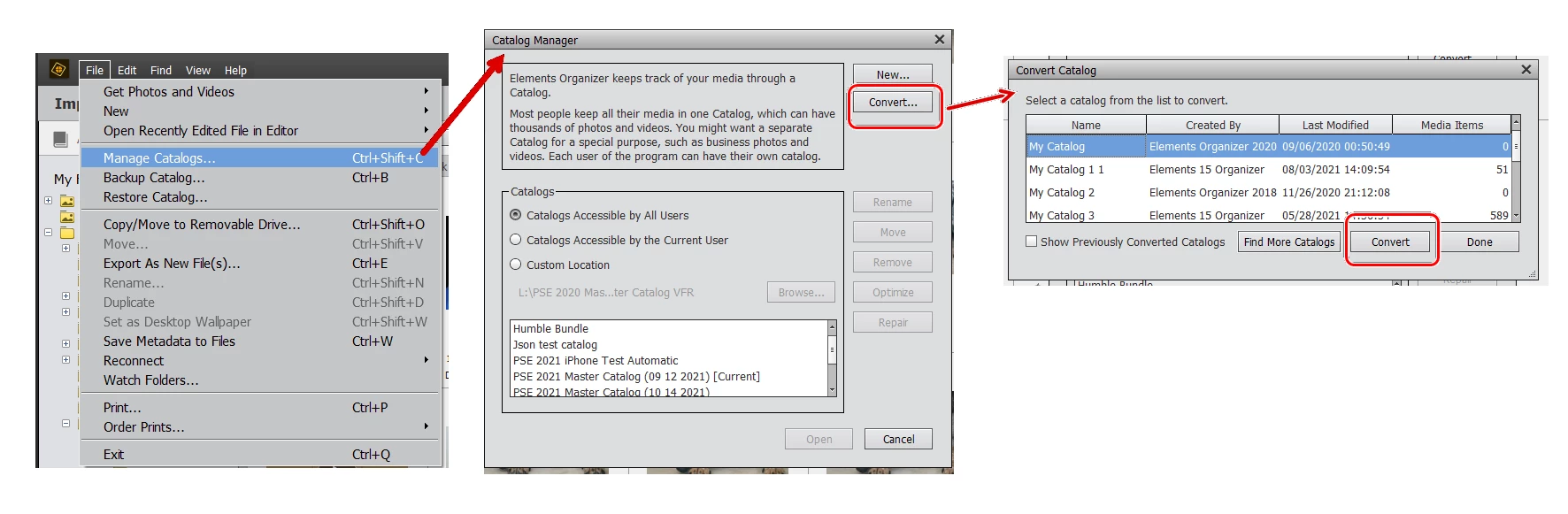
. . . and to convert your other catalogs, go to the File>Manage Catalogs dialog and click the Convert button.  Find and select another catalog in the dialog that opens. Then click the second Convert button.

If you have stored your catalogs in a custom location, it can be a little tricky to find the other catalogs.  You have to select the main catalog folder in the navigation dialog.


2 replies

Greg_S.
Community Expert
Greg_S.Community ExpertCorrect answer
Community Expert
October 17, 2021

. . . and to convert your other catalogs, go to the File>Manage Catalogs dialog and click the Convert button.  Find and select another catalog in the dialog that opens. Then click the second Convert button.

If you have stored your catalogs in a custom location, it can be a little tricky to find the other catalogs.  You have to select the main catalog folder in the navigation dialog.


MichelBParis
Legend
October 17, 2021
quote

Ich habe heute Photoshop Elements 2022 installiert. In diesem Zusammenhang wurde ein Katalog aus PSE 2020 in die neue Version konvertiert. Jedoch nicht die 4 weiteren! Was kann ich tun, um auch diese Kataloge in PSE 2022 zu konvertieren?


By @Erwin5C93

The catalog conversion applies to a single catalog. You have to convert each catalog separately. When you upgrade, you are prompted to convert the current (last used) catalog. It's up to you to convert the other ones. One more reason to have only one catalog.

Erwin5C93Author
Participant
October 18, 2021
Vielen Dank!

Gesendet von Mail für Windows