Participant
April 24, 2019
Question

Labels on icons and tools are missing

  • April 24, 2019
  • 3 replies
  • 2469 views

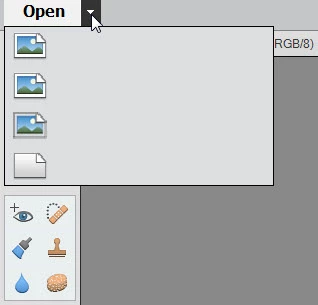
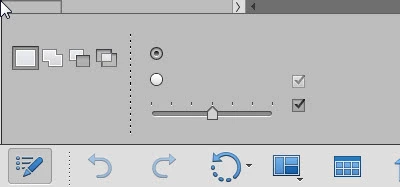
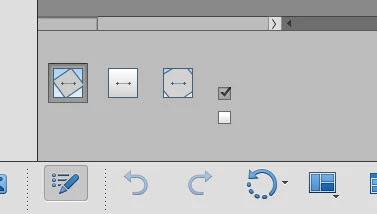
In Photoshop Elements 14 and 19 the text labels that normally appear when you hover over an icon, or when you choose a tool are missing.  Fonts in menus are present. I'm on Windows 7, up to date on patches.  I tried setting a registry value to 1 that disables the font cache but this did not help.  Premiere Elements 14 works fine.  (I installed Photoshop Elements 19 in the hope that this would fix the problem but it did not.)  Here are some screen shots showing the problem.  I've never seen anything like this before.  What is wrong?
    This topic has been closed for replies.

    3 replies

    Participant
    July 28, 2020

    I checked today and the problem is gone.  Not sure if there was a windows update, or an update to the application but the menus seem normal again.

    Medha_Sharma
    Adobe Employee
    Adobe Employee
    April 24, 2019

    Hello,

    Please try deleting the font cache. To do so, follow these steps:

    Windows

    1. Exit Photoshop Elements
    2. Do the following:
      • Delete the folder C:\Users\[username]\AppData\Local\Adobe\TypeSupport\PSE
      • Delete the CT Font Cache folder from the following locations:
        • Windows XP: \Documents and Settings\Local Settings\Application Data\Adobe\Photoshop Elements\<version>
        • Windows 7: \Users\[user name]\AppData\Local\Adobe\Photoshop Elements\<version>
        • Windows 7, 8, and 10: \Users\[user name]\AppData\Roaming\Adobe\Photoshop Elements\<version>
    3. Empty the Recycle Bin.
    4. Restart Photoshop Elements.

    Let me know if this resolves your issue.

    Thanks,

    Medha

    Participant
    July 15, 2020

    Was this issue ever resolved? I have erased and cleaned amy registers several times and still have this problem can if a solution exist can you tell me how to fix this?  

    Participant
    July 17, 2020

    After working on this for about two hours I've discovered that if you change the scaling to 200% the application will work normally except for the whole user interface being way to large to use effectively.

    To test on your system go to settings from Edit > Preferences > Display & Cursors.

    1) Change UI Scale to 200% in settings
    2) Click the top right blank button to save the settings

    3) Close the application

    4) Re-open the application

    The application will function normally again except everything is way too large to be usable.

    Before Change at 100% Scaling:

    After change with 200% scaling:


    Akash Sharma
    Legend
    April 24, 2019

    Hi namefunnel,

    Sorry that the text labels in Photoshop Elements 14 and 19 are missing.

    It seems that some required registry entries are missing and therefore causing this issue,

    I'd recommend that you remove Photoshop Elements 14 and 19 from your computer using the Adobe Creative Cloud cleaner tool and then reinstall them. Check out the step 3 linked in this article Use the CC Cleaner Tool for installation issues

    Let us know how it goes.

    Thanks,

    Akash

    Participant
    April 24, 2019

    I will have to try your suggestion. I am having the same issues.

    Thanks