OK. Your photos are contained in Albums. The Albums can be placed in a hieararchy under Categories and Sub-Categories. Categories do not contain photos.
First let me walk you through the steps from scratch, using the following screenshots:
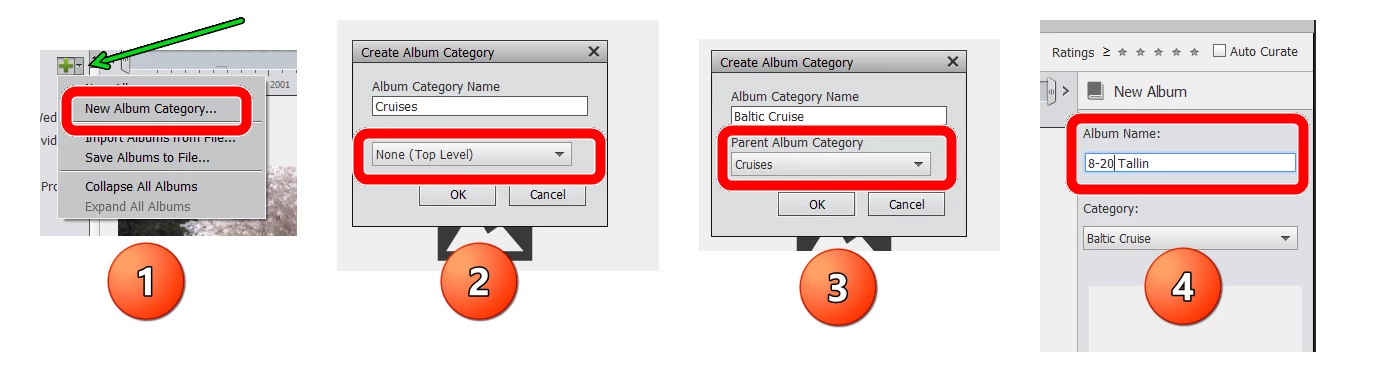
- At the top of the Albums Panel is a green cross with a down-arrow next to it. I recommend clicking on the down arrow and select New Album Category. This will bring up box no. 2.
- Type in your main category name (e.g. Cruises) and in the Parent Album Category dropdown box below it, choose None (Top Level). Click OK.
- Next, to create a sub-category of Baltic Cruise, create a New Album Category (as in step 1.), but this time select Cruises as the Parent Album Category, and Click OK.
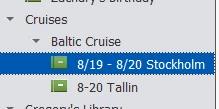
- Now to create your Albums, go back to step 1 and choose New Album from the dropdown list. This will open the New Album panel on the right side of the window. Type in your Album name and select the appropriate Category or Sub-Category from the dropdown list. (You can either add photos to the album now or do that later.) Click OK and you should end up with something like this:
Now, in your situation where the Albums are under the wrong category/sub-category, you can right-click on the Album and select Edit from the context menu. This will open up an Edit Album panel on the right (similar to 4. above). You can then change the Category to the proper sub-category in the dropdown list and click OK. You can also select the Album with your mouse and drag it to the correct sub-category.
Hope this helps.




 AdChoices