Known Participant
February 22, 2020
Answered

Organising and displaying very old photos

  • February 22, 2020
  • 2 replies
  • 1376 views

I have a very large collection of old family photos, some of them over 100 years old.  Many have been scanned and are held on my iMac's external drives in an imperfect collection of folders.


I would like to reorganise the photos so that images can be found more easily, shown in slideshows using different themes and retained in a more manageable collection of folders.  I would also like to add captions identifying people and, where possible, locations shown in each photo although, of course, with older photos this would have to involve guesswork instead of metadata.


Do you think I might achieve these aims using Photoshop Elements?  I have PE13 which I have not used a great deal (I'm more into video editing using Premier Elements) but would probably upgrade if community members think it might help my project.


Thanks for reading.

This topic has been closed for replies.
Correct answer Greg_S.

Having been a user of the Organizer since version 3, I am a big fanboy for using it to organize my media.  So, I would definitely encourage you to use it.  And I believe it would achieve your goals.  Frankly, if you use it as intended, it is not really necessary to rearrange where the files are located on your computer.  The Organizer is, at heart, a relational database and has all the tools necessary to find and display your photos wherever they are located.


You have not given us much information about how you want to organize your files, so here are a few random comments that you may find relevant.

  • Face Recognition:  Although Elements 13 has some face recognition capabilities, this feature has improved with each version, and Elements 2020 can now recognize faces in video files which I assume may be important to you.  This feature will help you find the people in your images and add a name to the faces.  Once you have named the people, you can find and display all images of Uncle Bob in your catalog.  With video files, the playback feature takes you to a frame in the video where the face appears.
  • Places:  If you have geo-tagging metadata in your files, the Organizer can use it to tag the location semi-automatically and display the files on a map.  However, I don't use this feature.  I prefer to use keyword tagging to tag the locations of my images.  In hindsight, I am glad I have done this because Adobe has been dependent on the map suppliers for this service, and there have been changes over the years which have caused all kinds of problems that I have managed to avoid.  It is fairly easy to use keyword tagging for this process.  For example, if I go on a vacation, once I import all of my photos and videos, I can select them and assign a place tag to them in one click.  This feature would allow me to find all photos of Uncle Bob taken in Florida.
  • Events:  The Organizer also has some AI that helps you create an event tag for your photos.  Again this is not a feature that I use very often but it can provide some assistance in grouping photos and adding a tag with one click.
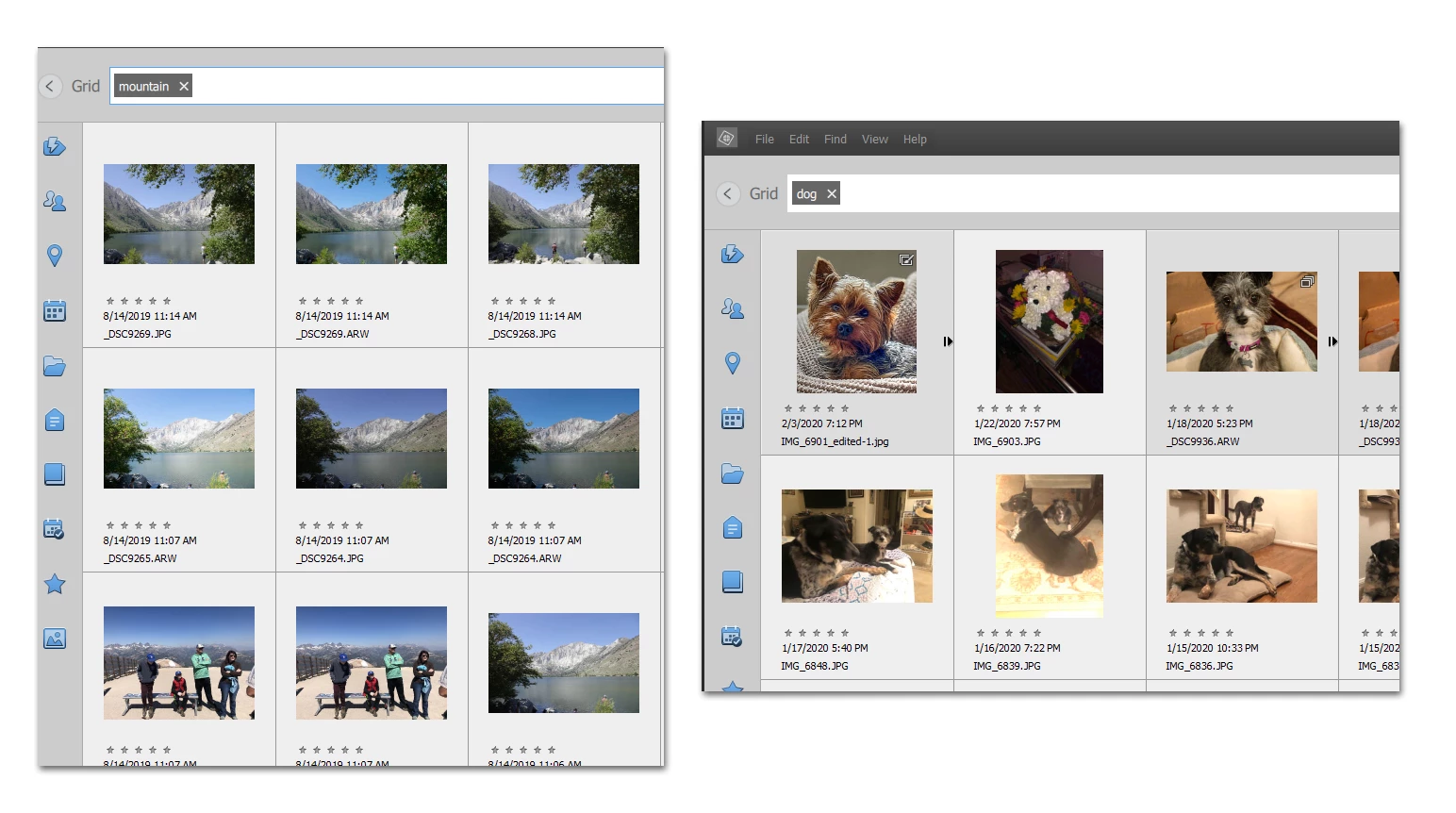
  • Smart Tags: Perhaps one of the best features for finding images is the Smart Tag feature that has been present for the past couple of versions.  The AI examines all of your images for their content.  This allows you to search for many different objects with some remarkable accuracy.  For example, here are a couple of partial search results for "mountain" and "dog" in my catalog:
 

  • Albums:  Albums allow you to collect random images and videos.  I find this a particularly useful feature for creating slideshows or videos.  The files can be placed into a desired order before creating the slideshow.  BTW, the latest 2 versions of Elements have created a new slideshow feature which I find creates very usable slideshows with several available templates.  If you prefer the slideshow capability of Elements 13, you may want to keep it on your computer.  Multiple versions of the program can coexist on the same computer.
  • Colorization:  Since you presumably have a lot of black and white/sepia images, you may be interested in the colorization feature of Elements 2020.  It can produce some remarkable results.


Hopefully, I have answered most of your questions.  If not, let us know.


@Phinny -  there's no rest for the weary, even on a Saturday.  😁

2 replies

Greg_S.
Community Expert
Greg_S.Community ExpertCorrect answer
Community Expert
February 22, 2020

Having been a user of the Organizer since version 3, I am a big fanboy for using it to organize my media.  So, I would definitely encourage you to use it.  And I believe it would achieve your goals.  Frankly, if you use it as intended, it is not really necessary to rearrange where the files are located on your computer.  The Organizer is, at heart, a relational database and has all the tools necessary to find and display your photos wherever they are located.


You have not given us much information about how you want to organize your files, so here are a few random comments that you may find relevant.

  • Face Recognition:  Although Elements 13 has some face recognition capabilities, this feature has improved with each version, and Elements 2020 can now recognize faces in video files which I assume may be important to you.  This feature will help you find the people in your images and add a name to the faces.  Once you have named the people, you can find and display all images of Uncle Bob in your catalog.  With video files, the playback feature takes you to a frame in the video where the face appears.
  • Places:  If you have geo-tagging metadata in your files, the Organizer can use it to tag the location semi-automatically and display the files on a map.  However, I don't use this feature.  I prefer to use keyword tagging to tag the locations of my images.  In hindsight, I am glad I have done this because Adobe has been dependent on the map suppliers for this service, and there have been changes over the years which have caused all kinds of problems that I have managed to avoid.  It is fairly easy to use keyword tagging for this process.  For example, if I go on a vacation, once I import all of my photos and videos, I can select them and assign a place tag to them in one click.  This feature would allow me to find all photos of Uncle Bob taken in Florida.
  • Events:  The Organizer also has some AI that helps you create an event tag for your photos.  Again this is not a feature that I use very often but it can provide some assistance in grouping photos and adding a tag with one click.
  • Smart Tags: Perhaps one of the best features for finding images is the Smart Tag feature that has been present for the past couple of versions.  The AI examines all of your images for their content.  This allows you to search for many different objects with some remarkable accuracy.  For example, here are a couple of partial search results for "mountain" and "dog" in my catalog:


  • Albums:  Albums allow you to collect random images and videos.  I find this a particularly useful feature for creating slideshows or videos.  The files can be placed into a desired order before creating the slideshow.  BTW, the latest 2 versions of Elements have created a new slideshow feature which I find creates very usable slideshows with several available templates.  If you prefer the slideshow capability of Elements 13, you may want to keep it on your computer.  Multiple versions of the program can coexist on the same computer.
  • Colorization:  Since you presumably have a lot of black and white/sepia images, you may be interested in the colorization feature of Elements 2020.  It can produce some remarkable results.


Hopefully, I have answered most of your questions.  If not, let us know.


@Phinny -  there's no rest for the weary, even on a Saturday.  😁

ChrisdadAuthor
Known Participant
February 24, 2020

Many thanks for your very helpful reply.  It seems to answer just about all my questions and I need to start experimenting.  Your comments about Albums are especially interesting. Does the Slideshow feature allow you to add a music track of your own choice?


Meanwhile, thanks again.  I'll let you know how I get on.


Walter_H
Legend
March 7, 2020

Hello Chrisdad, YES, the Slideshow feature will let you add a music track of your own choice. I have done that several times.

--Walter in Davie, FL
Phinny
Legend
February 22, 2020

Chrisdad, you aren't being ignored.  The two regulars best suited to answer this question aren't around the moment so hang in there.  Remember it's Saturday.