
Known Participant
January 10, 2022
Answered

Paint Bucket tool fills whole image instead of part of it

  • January 10, 2022
  • 5 replies
  • 5530 views

Paint bucket tool used to work great but not any more.  I opened an image of a mandala from online and then chose green and then the paint nucket tool icon, and then clicked a leaf, and the whole image turned green How do I paint just part of it within lines such as a stalk, a leaf, and so on.  Not the whole image?
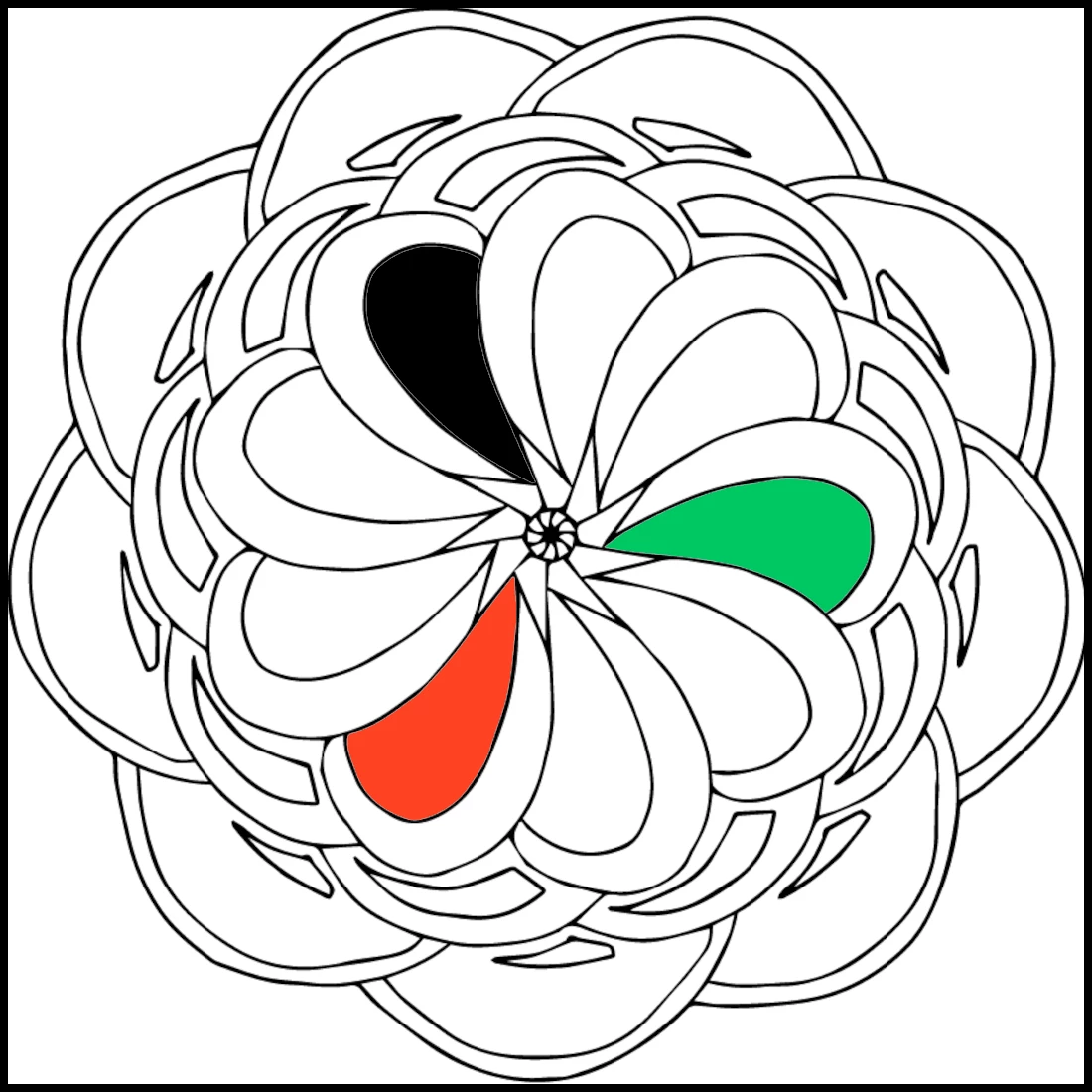
Correct answer hatstead

Try this:

1.Open the Mandala file

2. Activate the Magic wand tool and click on the area that you wish to color. You should see an outline ("matching ants") delineating this area

3. Set your foreground color chip to the desired color

4. Activate the Paintbucket tool and left click on the designated selection area


5 replies

Greg_S.
Community Expert
Community Expert
January 10, 2022

OK.  I see why you may be having problems.  Your mandala image is a very low resolution and the lines are not sharply delineated.  As a result, there are some very light gaps in some of the segments which means that the contiguous areas are not in fact contiguous areas of the same or very similar color or luminosity.  In other words, the lines are made up of pixels of varying shades of gray.  Hopefully, you will see what I mean in the following screenshot:


With this particular image, I suggest you set the Tolerance to something around 32 (the default) and Opacity to 100%.  This will allow you to use the Paint Bucket tool as intended for most of the mandala's panels.


One other thing you could try is to copy the image layer (ctrl+J) and change the Blend Mode to Multiply.  This will darken some of the black lines.

Greg_S.
Community Expert
Community Expert
January 10, 2022

Karen, the Elements 2022 Paint Bucket tool has not changed from previous versions.  There should be no need to select the area you wish to fill with the Paint Bucket tool.  If you had the Contiguous box checked, what tolerance do you have the Tolerance slider set to?  Or do you have more than one layer in your image?  If so, is the All Layers box checked or unchecked?


If the Paint Bucket tool is not working as you expect it to do, you can reset the tool at the right side of the tool options panel:


If you are still having problems with the Paint Bucket, please post a screenshot of your mandala so we can figure out why it is not working for you.

Known Participant
January 10, 2022

I have been using PSE ever since it first came out decades ago.  It is still not working.  I tried both opacity and tolerance at both ends of their slider bards, to no avail.  Also everytime I open an image, the mode is back to gray scale which did not happen with previous versions. I wonder if the app I downloaded is corrupt? Perhaps I need to uninstall and then re-install?

Greg_S.
Community Expert
Community Expert
January 10, 2022

@kahill1919 said:

I do find it a bit tedious to have to switch back and forth between tools


Karen, perhaps you did not see my earlier post.  I suspect that you accidentally unchecked the Contiguous box in the Paint Bucket tool options panel.  Checking the box will return the Paint Bucket to the behavior that you are probably used to.

Known Participant
January 10, 2022
The contiguous box was already checked.  What I was not aware of was clicking the magic wand tool as I did not have to in other photo editing programs. So I am disappointed that PSE2022 requires this additional step.
Greg_S.
Community Expert
Community Expert
January 10, 2022

If the mandala has completely closed outlines of the leaves such as hatstead's example, simply make sure that the paint bucket tool's tolerance is set to 0 and the contiguous box is checked in the Tool Options panel. 


Clicking the paint bucket tool inside the leaf will be restricted to the contiguous space inside the outline, whether it is a white space or an already filled in color.


Known Participant
January 10, 2022
Holy moley, holy cow, holy smokes, you did a great job explaining this!  Thanks although I do find it a bit tedious to have to switch back and forth between tools.  But still it works.
 
Karen
hatstead
Inspiring
January 10, 2022

You're welcome. Glad to help.

hatstead
hatsteadCorrect answer
Inspiring
January 10, 2022

Try this:

1.Open the Mandala file

2. Activate the Magic wand tool and click on the area that you wish to color. You should see an outline ("matching ants") delineating this area

3. Set your foreground color chip to the desired color

4. Activate the Paintbucket tool and left click on the designated selection area