randyl87109939
Participant
April 9, 2024
Answered

PE 2024 EDITOR Wont open

  • April 9, 2024
  • 36 replies
  • 39483 views

Have been using PE 2024 for months. Today Editor won't open. ERROR : APP linked to Ipp Libraries.  Ver 2021.6  No DLL from list found.  ippcve9.dll (most suitable) Its been fine. What happened overnight and how to fix it?

Correct answer Greg_S.

@AnnieBleu15 thanks for confirming that the Elements 2024.3 update is now working for you.  I have also confirmed that my Windows machine has been updated.  To determine what version you have, go to Help>About Photoshop Elements.  The new update will show the following splash screen:
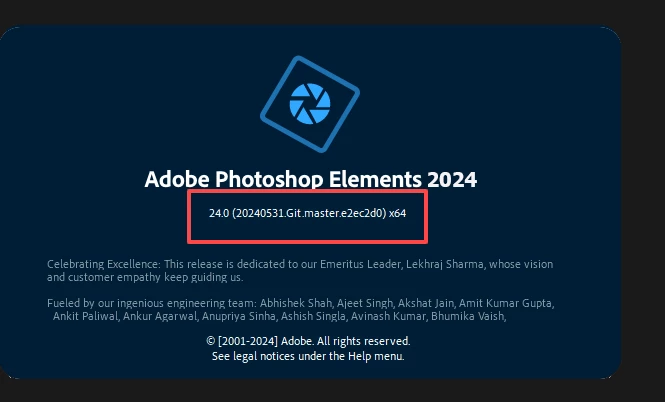


If you have turned Automatic Updates off in Preferences, you should receive a notification that an update is available.  Otherwise, turn automatic updates back on again.  It may take a little while for the update to show up on your machine.


@Philippe37799642pntu, yes this update is designed to fix the problem you describe.



36 replies

Greg_S.
Community Expert
Community Expert
April 17, 2024

@Neil34051770002k, what number did you use to call Adobe Support?  It sounds like you either called the wrong Adobe number or you were calling a scammer.  (Or Adobe has changed its support policy and I am not aware of it.)

Participating Frequently
April 24, 2024

Any news yet on when Adobe will publish an update for PE 2024 that includes a fix for these issues? 

Greg_S.
Community Expert
Community Expert
April 13, 2024

For those continuing to have installation problems, you should contact Adobe Support (and let us know if they come up with a solution).


If you have not followed the instruction to use comaptibility mode, here is what I suggest you do:

  • Navigate to the following folder:  C:\Program Files\Adobe\Photoshop Elements 2024
  • Right-click on the PhotoshopElementsEditor.exe file
  • Select Properties from the context menu
  • Click on the Compatibility tab
  • Check the box to Run this Program in Compatibility Mode
  • Select Windows 7 from the dropdown menu.


Try running the Help>Install Camera Raw option again. 

If that doesn't work, I will give you another suggestion for manually installing the Camera Raw plug-in. 


Please post screenshots of any error messages that you are receiving.  I will again try to escalate these issues to Adobe.

christopheg42051693
Participant
April 17, 2024

I tried everything but I got this error when opening Camera Raw: the raw function of the camera requires GPU acceleration

Participant
April 13, 2024

I have tried this over & over and it still won't work for me. I still keep getting the same error messages. At one point, I noticed on my Control Panel that Adobe Photoshop Elements 13 was still there in addition to Adobe Photoshop Elemenst 24 that I just upgraded to in March. I thought maybe that was the problem, so I uninstalled Adobe Photoshop Elements 13. I hope this wasn't a big mistake. Did it have all the components needed and my upgrade to Adobe Photoshop Elemenst 24 just added anything new? I'm very frustrated - wasted half a day already trying to get my PSE to open! Any other ideas?

Greg_S.
Community Expert
Community Expert
April 12, 2024

@AliciaJenn said:  I am having the same issue, it will not let me install camera raw!


Are you saying that you have installed the program (without the update) but you can't install Camera Raw?  This is probably an unrelated problem.  Make sure that after you start the Camera Raw installation from the Help menu, you close all open Adobe programs.  If this doesn't fix the problem for you, please start a new discussion and give us more details.

Participant
April 13, 2024

Correct, I installed the link above and followed all directions, and tried to install camera raw from the help menu and it dosen't work. Says my system doesn't meet requirements when I have a modern comptuer. I just went back to PSE21 until Adobe can resolve this issue with PSE24 because I have a buisness to run and can't keep trying to fix something adobe messed up. 

Greg_S.
Community Expert
Community Expert
April 12, 2024

@Julio41 said: 

A couple of things I don't understand: Where do I find "Open>Properties for PE2024"? I can only open Organizer and I didn't find that in there.

You can find the setting in the Edit>Preferences dialog for both the Organizer and the Photo Editor. If you can't open the Editor to change the preferences, you will be able to do so after you follow the directions to reinstall the older version of the program.  You should adjust the settings in both the Organizer and the Editor.


Here are screenshots for both:


@Julio41 said:

"Then de-install...." Do you mean to uninstall the existing faulty version? and then download the zip file?

Yes.  You need to uninstall the current non-working version of the program and download the zip file.  Unzip the file and use the Setup.exe file found in the installation folder to reinstall the program.  This file will download and install the program before the update was issued.

Participating Frequently
April 13, 2024

Thanks very much. I installed the program. There's still one program:   I could not install the Camera Raw add-on.  It says:

Exit Code: 190
-------------------------------------- Summary --------------------------------------
 - 2 fatal error(s), 0 error(s), 2 warnings(s) 

FATAL: Sanity check for installation failed. Current OS version 6.1.7600 doesn't satisfy OS requirements.
FATAL: Error occurred in install product workflow with error code 190 error message 
WARN: GetIEProxyInfo - Failed to get proxy for the url, error:12180
-------------------------------------------------------------------------------------
Participant
April 11, 2024

The project manager should be fire!!

randyl87109939
Participant
April 11, 2024

Thanks to all for the options! Got it back!  Great support community!

Greg_S.
Community Expert
Community Expert
April 10, 2024

@Harry36641672it5z, thanks for posting this response from Adobe.  As I understand it, you have been given an opportunity to install the original program without the 2024.2 update (and advised not to accept the automatic updates).  That is good news.

Participant
April 10, 2024

Yes, pretty much 🙂

Participating Frequently
April 10, 2024

Harry36641672it5z and Andreas366032054j69 Did you have to enter your original serial number again after you installed the file you downloaded from Adobe and unzipped? If so, did you have to unregister your initial installation on your Adobe account first? Thanks much for all your efforts on behalf of the community of users!

Participant
April 10, 2024

I chatted with their support and they advised to follow the below steps, which worked for me.


Open >Properties for PE 2024 and change Compatibility mode to Windows 7

Then de-install and download this file:

https://download.adobe.com/pub/adobe/pse/24_0/PhotoshopElements_2024_LS30_win64_ESD.zip

Extract and install

Once installed, open Photoshop Elements and go to Photo Editor > Edit > Preferences > General > Application Updates. Then disable the automatic updates and enable the Remind me later option.


I also got his: Our team is working on a fix and it will be released by the end of this month. In the meantime, please refrain from updating the Elements application. You can ignore the update popup if it appears by pressing the Esc key. You can check the below link for any new updates released for Elements: https://helpx.adobe.com/photoshop-elements/release-note/update.html

Participant
April 10, 2024

For me it's also working. Many thanks for sharing this info!

Participant
April 10, 2024

It feels nice to finally share something and even better when useful

Participant
April 10, 2024

Me too.