
Participant
September 7, 2021
Question

Pen pressure brush?

  • September 7, 2021
  • 2 replies
  • 2551 views

I'm honestly getting quite upset about this. I'd imagine this would be an easy to find setting considering it's used for most digital art. But I could just be an idiot too. 


I need a pen pressure brush. Where the brush preview is a line with sharp edges and a thick middle. Something like this.
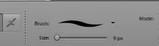
 

Can someone tell me how I go about getting this specific brush? Can't find it, and no tutorials on how to do it. I'm so confused. Thanks in advance.

This topic has been closed for replies.

2 replies

AJIIJA
Known Participant
November 22, 2022

It's Nov 2022...I just bought Elements 2023 and had to do two things to correct things and enable pressure brushes...it now works fine...if you are still having trouble, I can help. Let me know.

Jim

Jeff Arola
Community Expert
Community Expert
November 22, 2022

Please tell us your solution so others may benefit.

AJIIJA
Known Participant
November 22, 2022

Appreciate the edits "moderator"...I'm working on the post right now. My entire intent is to help some folks here...I should have written it beforehand and had it ready. Give me an hour or so to write...I obviously did this backwards...because I was only successful with the solution in the last few hours and I thought the lady needed help right away. Perhaps next time it would be better for me to deal with individual DM's to these affected folks? I am completing my recommendations as we write...theywill be in a post here...my pressure brushes appeared immediately.


Nov 22, 2022...
I'm a long time subscriber to Adobe's subscription plans...I have most Adobe applications...but recently, I thought I might try the Elements program which requires no monthly cost, in order to assuage the monthly program price slightly, if I might choose to cease paying it...
So, I bought Elements 2023 yesterday on a Black Friday special directly from Adobe (60 dollars)...I rarely use some of the more esoteric functions of Photoshop vers. 23 & 24 and was curious as to what I might be able to accomplish in Elements alone...just perhaps, maybe enough to stop paying the monthly fee..?

I was surprised to see that Elements pressure with my Wacom Intuos Pro did not work and there appeared to be no solution inside (Elements) or outside the program (Windows 10 or 11). I searched forums and websites with the usual frustrating and dispiriting lack of results...Elements 2023 appeared to have no pressure brushes...

I worked for all of last night and, after much trial and error, I have now corrected it...I have pressure brushes now with this Elements 2023 program...I must assume that this might also correct earlier Elements versions as well...but cannot guarantee that...

I believe that if the following procedure is followed, the same problems in Adobe Photoshop (the full program) will also be corrected...

You may have heard of several of these solutions (in various forms) previously if you have searched as hard as I have...and actually tried them..? But apply them AS I TELL YOU and the brushes miraculously appear in the application afterwards...at least, I hope they do for you...they did for me...no harm will come to your machine or the Adobe apps if you attempt this... you can always delete the files that I will specify be placed inside certain application locations...this will reverse the procedure...you'll be as you were before.

The first thing I noticed was that there are actually TWO programs wihin Elements...the Elements 2023 "opening" screen (where you can select what you'd like to do)...and the actual Elements "Editor" program. Both of these can be found in your C:\Program Files\Adobe\Photoshop Elements 2023 directory...Dig and look for them.

1. The first thing to do is open Elements...and then, the actual Elements "Editor" program inside it.
Then (separately) open and go to your Wacom Tablet Properties interface...Go to Mapping and "add" apps...since your two Elements apps (both Opening screen and Editor) are now open they will appear below in the "Add Apps" list, select them and add them one at a time...then disable Windows Ink for All Other Apps and then ENABLE Windows Ink for both of the two Elements apps mentioned above...

2.Take the attached txt file with this letter and paste it AS IS into C:\Users\(your user name*)\AppData\Roaming\Adobe\Photoshop Elements\21.0\Editor
(*Use your own username above in this parameter...if you do not see the "appdata" directory, DM me...and I'll correct that for you.)

After doing all this reboot and open Elements...with any luck, you'll notice some new pressure brushes...I should add that there seems to be some slowness to the brush panel now...they may need to load, but it appears to be more than that...perhaps, it's my computer...don't know...
This worked for me...DM me if there are still problems.
I have attached the txt file needed for the Elements directory...also a screenshot of the Wacom Tablet Properties...
Good luck.
Jim

Jeff Arola
Community Expert
Community Expert
September 7, 2021

You need to have a drawing tablet, like for example, a Wacom Intuos, in order to see the

pen pressure brush previews and then the brush draws thinner or thicker depending on

how much pressure you apply to the pen while drawing.


On macOS you'll see the Pen Pressure previews even if you don't have a pressure tablet.


Participant
September 8, 2021

Hi! I own a Gaomon! My problem is that I see this; 


It doesn't do pressure It's strange. 😞

Jeff Arola
Community Expert
Community Expert
September 8, 2021

Did you click on Tablet Setting to verify Size is checked?


What operating system and version of photoshop elements are you using?


Which model of Gaomon?