

Walter_H
Legend
January 11, 2020
Answered

Photo Collage Border & Gutter Removal

  • January 11, 2020
  • 3 replies
  • 5957 views

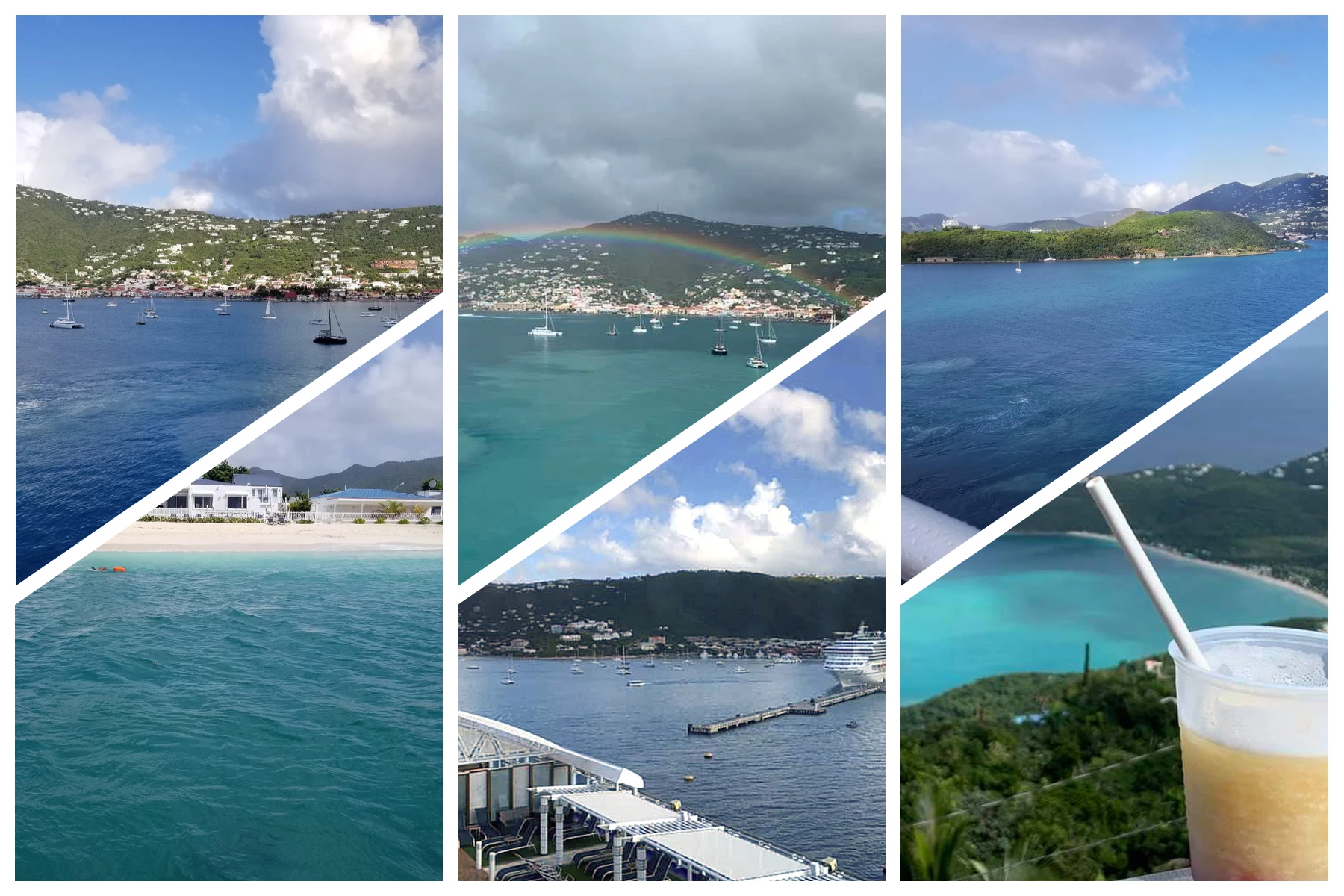
I am using PSE 2020 in Windows 10 Pro. I just created a collage of 6 photos. Is it possible to remove the white border and gutter between photos? Or, maybe change it to a thin colored line.


This is the collage I just made. I'd like to remove the white border and white space between the photos.
 

This topic has been closed for replies.
Correct answer 99jon

Select the entire group and after selecting the move tool use the left/right or up/down arrow keys. To change the background use the menu:

Layer >> New Fill Layer >> Solid Color 

Click ok and choose your preferred color. Ensure you drag the new fill layer just above the white background layer.

3 replies

99jon
Legend
January 17, 2020

I think the only way to do it is to manipulate the layout by dragging out to fill the canvas.


To change photo positions, do it in basic mode. Right-click and choose replace photo. You have to navigate to the folder to select the actual image. Then click place.

Walter_H
Walter_HAuthor
Legend
January 18, 2020

Hi 99jon,


I did a right-click on a collage in Basic mode. It turns out that there's an option on the pop-up menu that does just what I needed. Thanks for that suggestion!

--Walter in Davie, FL
finnh70094559
Known Participant
July 27, 2020

I find it far easier not to use the collage-template and instead of using the template buld the collage up manually (create new file and paste each photo in its own layer).

Best regards

Finn

99jon
Legend
January 11, 2020

From the collage editor click Advanced Mode (top left) then click the layers button to see the layers pallet. Each photo is represented by a layer group including the picture and mask. If you select the entire group (DZ layer) you can move or nudge the positions using the arrow keys. It’s also possible to change the background layer from white to black, or any color of your choosing.


Walter_H
Walter_HAuthor
Legend
January 11, 2020

Hello 99jon,


You must have posted your reply while I was composing my 2nd reply to Michel.


The collage that you posted is exactly what I was trying to do. HOW do you get those consistent thin lines between the photos? I can't seem to do that with my mouse.

--Walter in Davie, FL
99jon
99jonCorrect answer
Legend
January 11, 2020

Select the entire group and after selecting the move tool use the left/right or up/down arrow keys. To change the background use the menu:

Layer >> New Fill Layer >> Solid Color 

Click ok and choose your preferred color. Ensure you drag the new fill layer just above the white background layer.

MichelBParis
Legend
January 11, 2020

Did you keep the 6 components in 6 layers?

That would mean moving the layers so that they join together.

You can always crop the white margins.

Walter_H
Walter_HAuthor
Legend
January 11, 2020

Hi Michel,


Thanks for your reply. I created the collage by starting in the Organizer, selecting the 6 photos and then using the Create>Photo Collage tool. I didn't look for layers, I just used what the Editor presented to me.


I'll try again looking at layers to see if that helps.


Thanks!

--Walter in Davie, FL
Walter_H
Walter_HAuthor
Legend
January 11, 2020

Hi, again Michel,


I had some success using the layers. At first, I had trouble accessing the layers. I had to change the editing mode from Advanced to Basic before I could see the layers panel. After some experimenting, I found that stretching the layer mask reduced the borders and space between the photos.


I tried to leave a thin white line between the photos. That is a VERY tedious process - I'm not sure if it's worth the effort. The layer mask seems to almost snap to close the gap between photos with little effort. It would have been MUCH easier to just eliminate the white space completely!


I also tried to change the color of the background layer but couldn't figure it out. How do I change the background layer color?


Also, what is the best format to save as so it can be edited again - PSE or PSD?


This is what I wound up with after editing the layers. I did not try rearranging the photos into the original order.

--Walter in Davie, FL