
Participant
June 20, 2024
解決済み

Photoshop Elements 13 - unable to do anything once it opens - possibly a Windows update problem?

  • June 20, 2024
  • 返信数 2.
  • 796 ビュー

Hi there.
A couple of days a go, Elements 13 was working just fine. Then I had a Windows update , and now it's all [cursing removed]. I can open the program no problem, but am unable to do anything. When I first tried I got the following message  ...'Could not export the clipboard an unexpected end-of-file was encountered'....


Now it just sits and looks at me like it's punishing me for not upgrading! I don't need an upgrade. 13 is all I need (been using it since it came out with no problems), so would love to get it working again. I can click on any of the file, edit, etc. tabs, but nothing happens. I am unable to import any pictures or start a new file. 


I've done all the obvious things - rebooted, ininstalled and re-installed, and uttered a few cusses.

None of the above helped.

I would appreciate any and all help. Please consider I'm not a techy person, so simple lingo would also be appreciated.


Thank  you
このトピックへの返信は締め切られました。
解決に役立った回答 Greg_S.

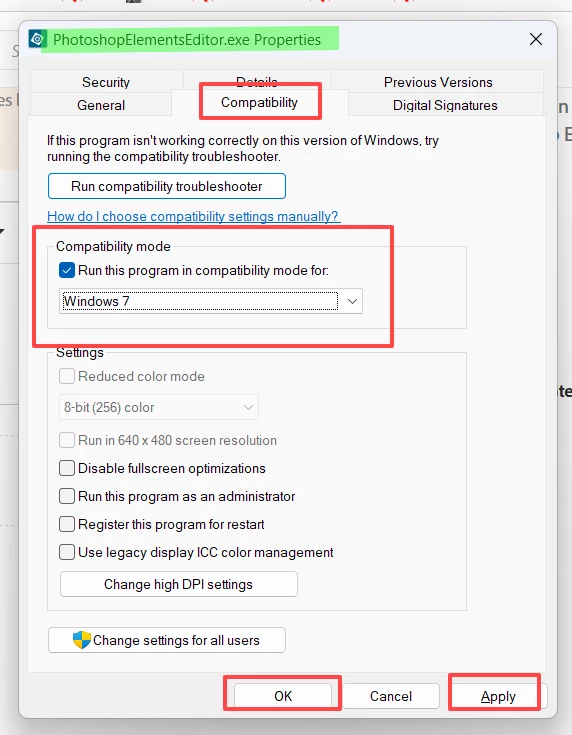
Try using the program in compatibility mode.

  • Navigate to C:\Program Files\Adobe\Photoshop Elements 13
  • Right-click on the PhotoshopElementsEditor.exe file
  • Select Properties from the context menu
  • Click on the Compatibility tab
  • Check the box to Run this program in compatibility mode for
  • Select Windows 7 from the dropdown menu.
  • Click Apply and OK


I don't know if this will solve your problem, but it's worth a try.

返信数 2

Greg_S.
Community Expert
Community Expert
June 20, 2024

@grannymagoo, thanks for reporting back that it worked for you.

Greg_S.
Community Expert
Greg_S.Community Expert解決!
Community Expert
June 20, 2024

Try using the program in compatibility mode.

  • Navigate to C:\Program Files\Adobe\Photoshop Elements 13
  • Right-click on the PhotoshopElementsEditor.exe file
  • Select Properties from the context menu
  • Click on the Compatibility tab
  • Check the box to Run this program in compatibility mode for
  • Select Windows 7 from the dropdown menu.
  • Click Apply and OK


I don't know if this will solve your problem, but it's worth a try.

grannymagoo作成者
Participant
June 20, 2024

You sir, are my hero this day!

That did the trick.
I never knew there was a compatibility thingie anywhere. So your knowledge is very much appreciated.

Thank you so much!