
Participating Frequently
July 29, 2023
Question

Problem mit Photoshop Elements 2019
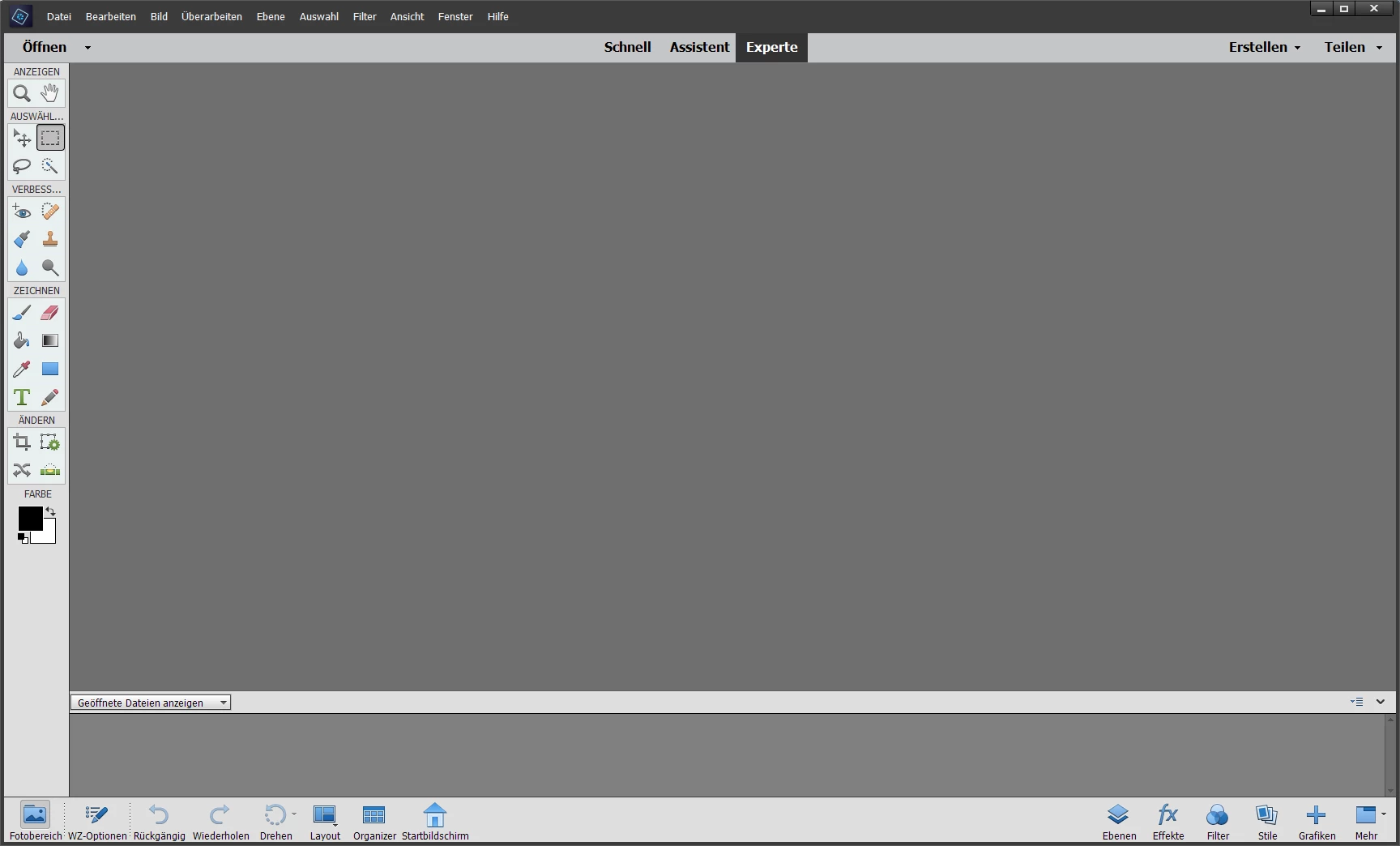
  • July 29, 2023
  • 2 replies
  • 572 views

wie man das sieht

unten links sind bei der Stapelverwaltung die Bilder als Vorschau

also STapelverwaltung bei PE 2019

so, früher im PE 10 oder so, da hatte ich die Bilder in der Mitte

beim 2019 er habe ich bei der Stapelverwaltung die Bilder leider unten links als kleine Vorschaubilder beim ändern

wieso nicht in der MItte

wie ändert man das?

This topic has been closed for replies.

2 replies

Greg_S.
Community Expert
Community Expert
August 3, 2023

Your original photo shows that you have no open files in either the bottom panel (or in the main editing space). So I still don't understand what your problem is.  When you open a photo in the Editor, it will appear in the lower Photo Bin.  If you have multiple photos open, they will all appear in the Photo Bin. 


By default, if you have more than one photo in the Photo Bin, only the selected one (with a blue border) will appear in the Editor workspace.


However, as shown in my earlier post, it is possible to have all the photos appear together in the Editor workspace.


So please explain in more detail what you are doing to open the photo(s) and what happens when you open them.

Participating Frequently
August 4, 2023

see the picture

1 - i open

2 - i work

3 - only the Picture left side down under not in the Middle

Participating Frequently
August 27, 2023

Try this:

Restore default preferences
Preference settings control how Photoshop Elements Editor displays images, cursors, and transparencies, saves files, uses plug‑ins and scratch disks, and so on. If the application exhibits unexpected behavior, the preferences file could be damaged. You can restore all preferences to their defaults.

Note: Deleting the preferences file is an action that cannot be undone.

Do one of the following:

Press and hold Alt+Control+Shift (Mac: Option+Command+Shift) immediately after Photoshop Elements begins launching. Click Yes to delete the Adobe Photoshop Elements settings file.
Go to Edit > Preferences (Mac: Photoshop Elements > Preferences > General), click the Reset Preferences on next launch button, and then click OK. When you restart Adobe Photoshop Elements, all preferences are reset to default settings.
A new preferences file is created the next time you start Photoshop Elements Editor. For information on a specific preference option, search for the preference name in Help.

from here:

https://helpx.adobe.com/photoshop-elements/kb/preference-file-locations-photoshop-elements.html


i tried

it is the same

Greg_S.
Community Expert
Community Expert
July 29, 2023

@raffaels76594857, I'm sorry but I don't understand your question.  (Perhaps I have been given a poor translation.)  Your screenshot does not show any photos open.  The display has not changed very much between Elements 10 and Elements 2019. 


Are you asking about how more than one photo can be displayed in the editing space?


If not, please explain in more detail what your question is.

Participating Frequently
August 3, 2023

hello

thx

you see on your Picture, there is a big Picture? ok?

good

I have only left down the llittle Picture

not the big Picture in the Middle of the Big Window

when I convert

do you understand?