
Participant
October 21, 2019
Answered

Program error - brightness/contrast

  • October 21, 2019
  • 2 replies
  • 1546 views

I am using Elements 2019 with Windows 10.

In expert mode using the smart brush tool I am trying to enhance the brightness of part of an image.

The brush tool is fine but when I select enhance, adjust lighting I get the following error message:

Could not complete the brightness/contract command because of a program error.

I have tried on two different devices and get the same message on both. I am working with RAW CR2 images but have also tried with a jpeg of the same image and get the same message.

What is causing this and how do I resolve it please?
    This topic has been closed for replies.
    Correct answer 99jon

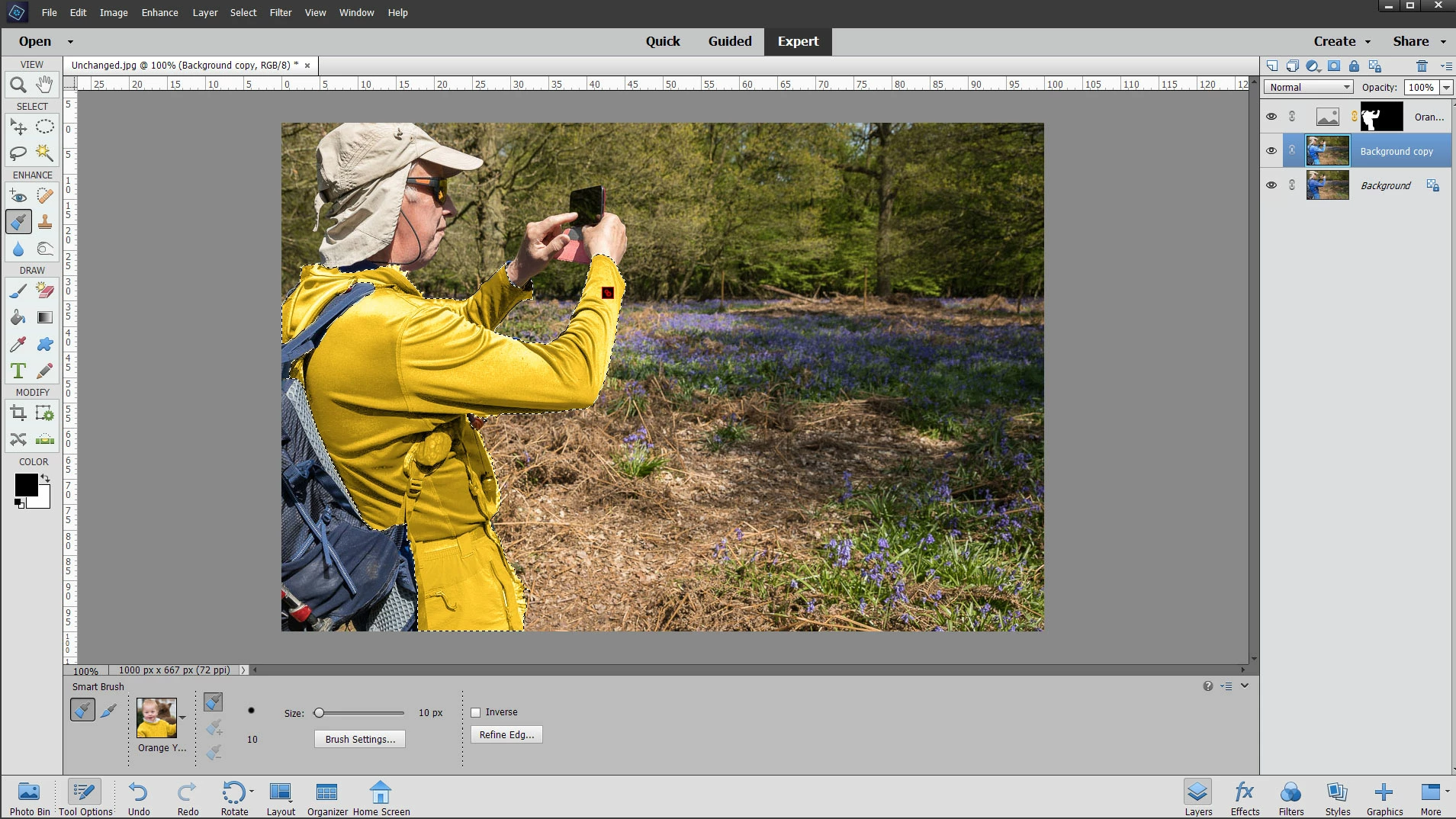
    Which preset are you using with the smart brush? e.g. Blue Sky, Color etc. The smart brush typically applies a gradient or gradient map together with a mask based on your selection. If you try to use the Enhance menu with the mask layer active, then it will likely have no effect.

    What you could do is save your selection from that layer. From the menu:

    Select > Save selection

    Choose a name and save.

    Now switch to your background layer and press Ctrl+J to duplicate


    From the Select menu choose Load Selection and choose your named selection. That will load the exact selection you made with the smart brush and you should be able to use all of the Enhance menu items on that selection, such as lighting; hue saturation, brightness and contrast. You can make further tweaks by adjusting the blend mode and opacity.


    To enlarge, click image once, then right-click and choose open in new tab/window. Go to the new tab.

    2 replies

    99jon
    99jonCorrect answer
    Legend
    October 21, 2019

    Which preset are you using with the smart brush? e.g. Blue Sky, Color etc. The smart brush typically applies a gradient or gradient map together with a mask based on your selection. If you try to use the Enhance menu with the mask layer active, then it will likely have no effect.

    What you could do is save your selection from that layer. From the menu:

    Select > Save selection

    Choose a name and save.

    Now switch to your background layer and press Ctrl+J to duplicate


    From the Select menu choose Load Selection and choose your named selection. That will load the exact selection you made with the smart brush and you should be able to use all of the Enhance menu items on that selection, such as lighting; hue saturation, brightness and contrast. You can make further tweaks by adjusting the blend mode and opacity.


    To enlarge, click image once, then right-click and choose open in new tab/window. Go to the new tab.

    Jeff Arola
    Community Expert
    Community Expert
    October 21, 2019

    You can select a Smart Brush preset from the Lighting section that brings up a Brightness/Contrast Adjustment layer after using the brush on your image.


    In your case it looks like your using the Brightness/Contrast adjustment on the layer mask, which won't do much in terms of adjusting brightness. Not sure why it throws the error with the smart brush, since it doesn't do that on a regular non smart brush layer mask.

    Participant
    October 22, 2019

    That certainly worked, thanks.