mcdon47
Known Participant
January 12, 2018
Answered

Rounded border

  • January 12, 2018
  • 2 replies
  • 5724 views

How do I draw a rounded border? When I searched for solutions, a lot were about how to draw rounded rectangles or rounded corners but I want to insert a rounded border. Thanks. 

    This topic has been closed for replies.
    Correct answer hatstead

    Sorry, but I misunderstood what you are looking for. Try this:
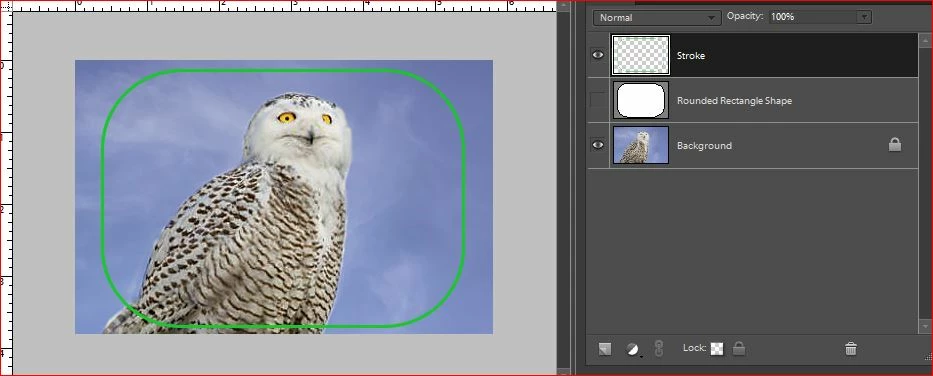
    1. Open picture file. This will be the background layer.
    2. Access the Rounded rectangle tool. It is nested in a slot in the shape selection tool - press U a couple of times to get to it.
    3. Set the radius to 60-80, and drag out the rectangle. This will generate a new layer. Shut off the visibility of this layer by clicking on its eye icon in the layers palette.
    4. Press CTRL+left click on the layer thumbnail (not the name) to make the shape active. You should see "marching ants."
    5. Open a blank layer at the top.
    6. Go to Edit>Stroke(outline) selection. Make stroke 4-5 px, place it inside.
    7. Press CTRL+D to get rid of the marching ants.

    2 replies

    Inspiring
    January 13, 2018

    1.  Select the Rounded Rectangle tool. Set Radius (size of rounded corner) to a large value (in this example I used 80 px).

    2.  Draw out rectangle, creating a new layer. Ctrl-click the layer to select just the shape and delete the layer (for purposes of the example I just turned off its visibility).

    3.  Create a new blank layer and Edit>Stroke. I used a value of 50 px. Location Inside gave the best result; Center and Outside gave corners that were not quite well rounded.

    mcdon47
    mcdon47Author
    Known Participant
    January 13, 2018

    Thank you but I do not think you have finished your sentence? Step no 3.... I selected Edit>Stroke and there there another rounded rectangle but what then??

    Inspiring
    January 13, 2018

    mcdon47  wrote

    Thank you but I do not think you have finished your sentence? Step no 3.... I selected Edit>Stroke and there there another rounded rectangle but what then??

    I should have mentioned to enter the stroke size (width of the border).
    Hatstead did in his instructions (same as my instructions).

    Let us know if you have success.

    hatstead
    Inspiring
    January 13, 2018

    Have a look at the Shape Selection tool (Keyboard short-cut U).

    There are many shapes, e.g. Crescent Moon, etc.

    mcdon47
    mcdon47Author
    Known Participant
    January 13, 2018

    Thank you. There are all sorts of fancy shapes but none that is a rounded border.

    hatstead
    hatsteadCorrect answer
    Inspiring
    January 13, 2018

    Sorry, but I misunderstood what you are looking for. Try this:

    1. Open picture file. This will be the background layer.
    2. Access the Rounded rectangle tool. It is nested in a slot in the shape selection tool - press U a couple of times to get to it.
    3. Set the radius to 60-80, and drag out the rectangle. This will generate a new layer. Shut off the visibility of this layer by clicking on its eye icon in the layers palette.
    4. Press CTRL+left click on the layer thumbnail (not the name) to make the shape active. You should see "marching ants."
    5. Open a blank layer at the top.
    6. Go to Edit>Stroke(outline) selection. Make stroke 4-5 px, place it inside.
    7. Press CTRL+D to get rid of the marching ants.