Inspiring
May 17, 2017
Answered

Title Safe Area Overlay

  • May 17, 2017
  • 2 replies
  • 54934 views

Photoshop Elements has a lot of useful video and web templates but is there an option to display the title safe area?

This topic has been closed for replies.
Correct answer Jeff Arola

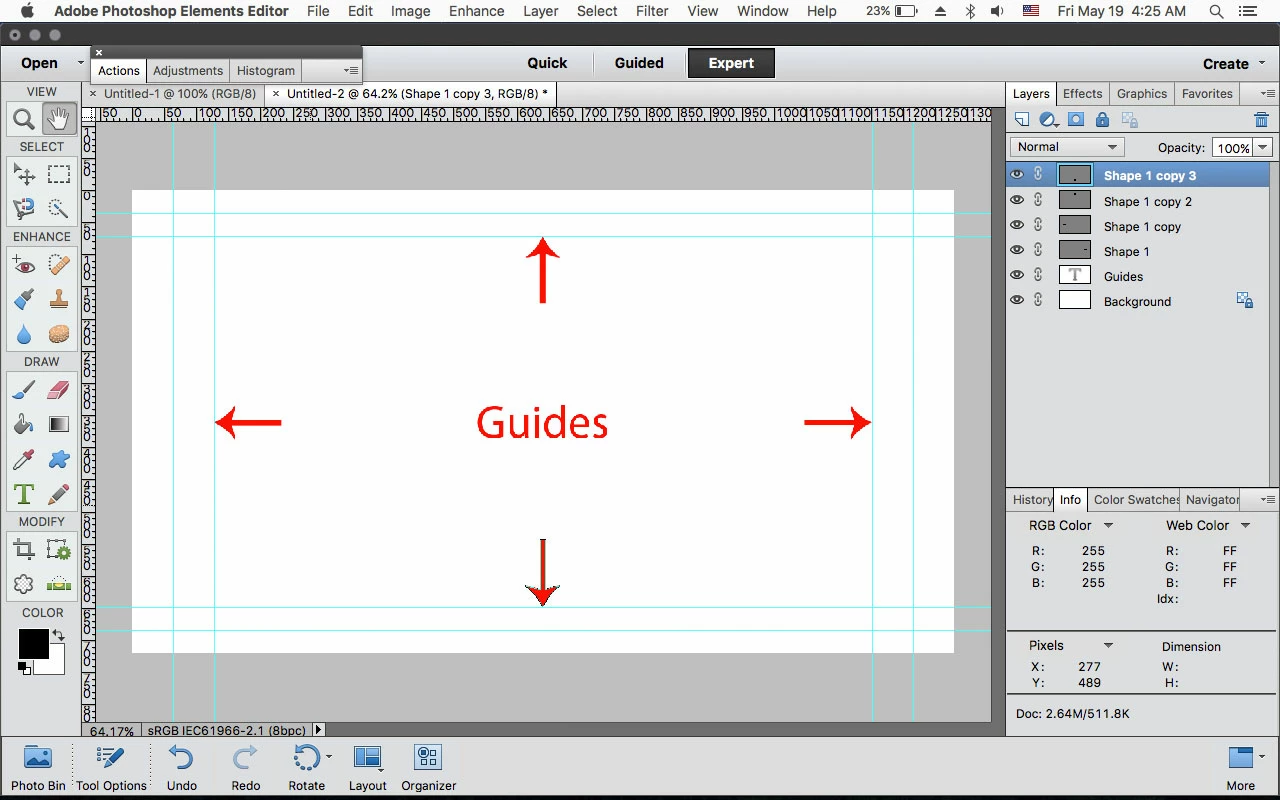
If you go to File>New>Blank File and pick one of the Film & Video presets, you don't see the Guides that denote the title safe areas?
2 replies

Jeff Arola
Community Expert
Jeff ArolaCommunity ExpertCorrect answer
Community Expert
May 19, 2017

If you go to File>New>Blank File and pick one of the Film & Video presets, you don't see the Guides that denote the title safe areas?

Mikey_DAuthor
Inspiring
May 19, 2017

Bingo! There it is thanks. View, Guides needs to be ticked.

Dhananjay Sati
Participating Frequently
May 17, 2017

Hi Mikey_D,

Thanks for posting in Adobe forums.

I understand you are looking for information regarding title safe area in Elements?

- Do you mean Adobe Premiere Elements ?

- Which version of Elements are you using right now?

- Could you please explain your query a little bit more?

Hope to get your reply soon.

Thanks

Regards

Dhananjay

Mikey_DAuthor
Inspiring
May 17, 2017

Hi Dhanajay

I want to make a graphic containing text in Photoshop Elements 15 which I will import into Premiere Elements15 for a video. I want to keep text in the title safe area. There is a title safe guide in Premiere Elements but none that I can see in Photoshop Elements. Is there one? Photoshop Elements contains web and video presets so it seems strange if there is no overlay provided to show the title safe area?

Thanks

MD

hatstead
Inspiring
May 17, 2017

Perhaps this will work for you as a work-around.

  1. Open a blank layer above the layer with the graphic.
  2. Activate the Rectangular marquee tool, and drag out a rectangle of suitable size.
  3. Activate the Paint-bucket tool, and fill the rectangular area with color. The tool utilizes the foreground color as it is set on the color chip. If you wish to reduce the opacity of the layer, you can reduce same in the layers palette.
  4. Activate the Type tool, and type the title. Be sure to utilize a contrasting color. Note that the text will come in on a separate layer.
  5. Activate he Move tool, and position the box and the text on their respective layers.