
Inspiring
September 18, 2017
Beantwortet

Tools Panel Won't Stay On Workspace Window

  • September 18, 2017
  • 1 Antwort
  • 1041 Ansichten

The Tools panel used to always remain on the workspace window, even after stopping and restarting PSE10. After restarting PSE10, I have to manually open the Tools panel from PSE10's Window menu. PSE10 seems to deselect Tools each time I turn PSE10 off, which never used to happen. Is there an option somewhere in PSE10 that I can set to force it to keep the Tools panel permanently visible on the workspace window until I manually deselect it myself?
Dieses Thema wurde für Antworten geschlossen.
Beste Antwort von Jeff Arola

Probably the best thing to do is reset the pse 10 editor preferences.

Press and hold the Shift+Ctrl+Alt (windows) or Shift+Command+Option (mac) keys just after starting the launch of the pse 10 editor

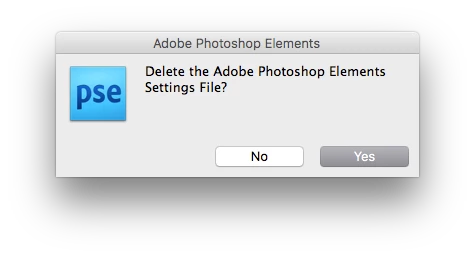
(you have to be quick about pressing the keys or you won't get the below dialog)

Keep holding the keys down until you get a dialog asking if you want to Delete the Adobe Photoshop Elements Settings File

Press Yes

1 Antwort

Jeff Arola
Community Expert
Jeff ArolaCommunity ExpertAntwort
Community Expert
September 19, 2017

Probably the best thing to do is reset the pse 10 editor preferences.

Press and hold the Shift+Ctrl+Alt (windows) or Shift+Command+Option (mac) keys just after starting the launch of the pse 10 editor

(you have to be quick about pressing the keys or you won't get the below dialog)

Keep holding the keys down until you get a dialog asking if you want to Delete the Adobe Photoshop Elements Settings File

Press Yes

PhlurimAutor
Inspiring
September 19, 2017

Thank you Jeff ... Your suggested shortcut key combo worked like a charm on my iMac. It also fixed a different PSE10 problem I had been having with a recurring error message . Much appreciated.